Skip to content
Tek Labs

Maximize revenue with every order

Post Purchase Upsell helps brands create seamless post-purchase experiences, keeping customers engaged and boosting sales effortlessly.
4.9 ★26 reviews
Freeto install
0lines of code
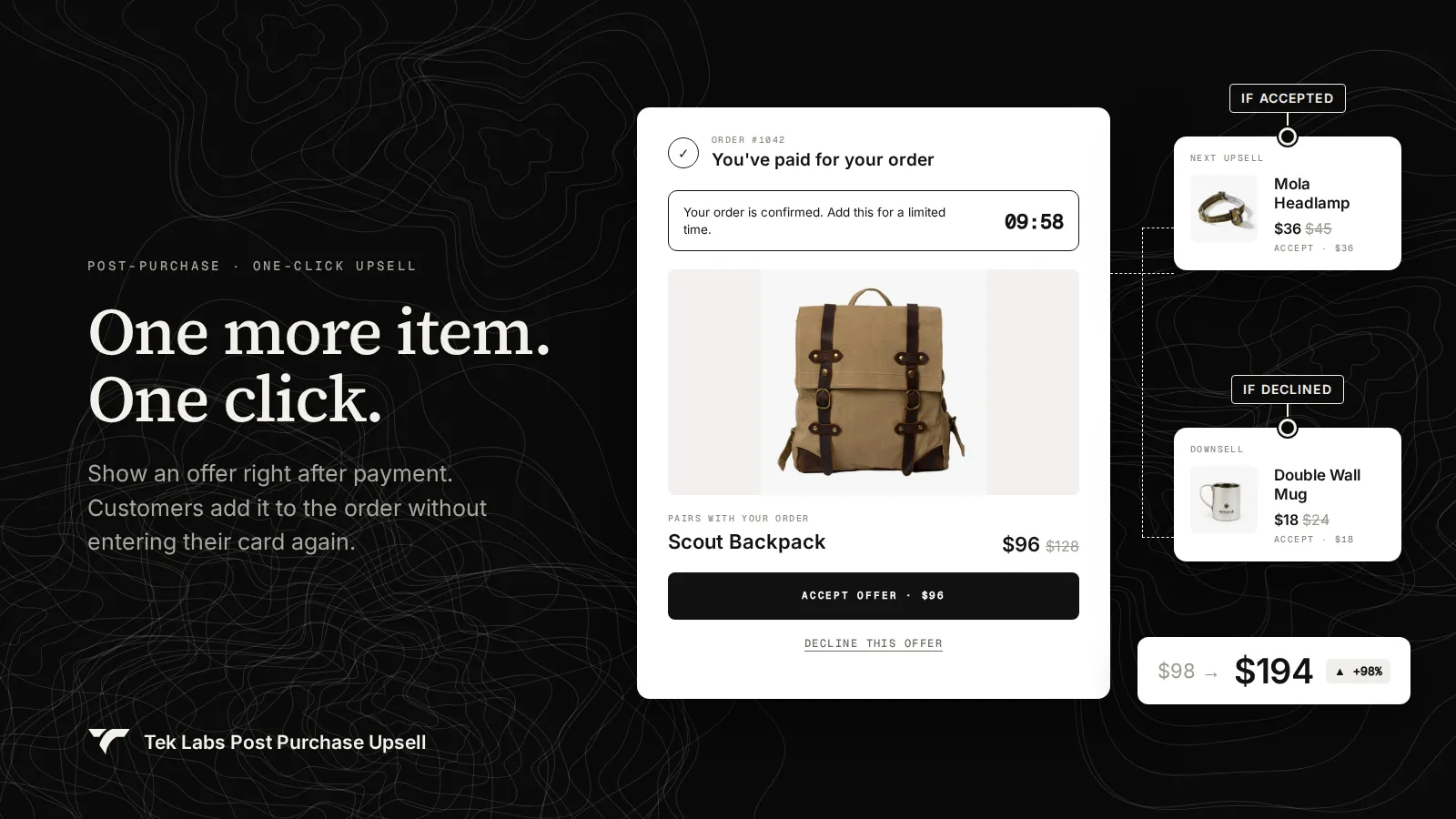
Post-purchase one-click upsell: you've paid for your order, accept the Scout Backpack offer for $96
Post Purchase Upsell listing, Shopify App Store

Special features

Three places to grow the order after checkout

Post-purchase upsells

Maximize revenue with 1-click upsell offers displayed right after the initial purchase.

Target customers at the right moment with product suggestions that complement what they just bought.

How it works →

Thank you page offers

Customize the order confirmation page.

Add product recommendations, limited-time offers or coupon codes that fit the customer's original purchase.

How it works →

Checkout editor (Shopify Plus)

Shopify Plus stores: add notifications, trust badges, custom images, icons and more to checkout.

No code required: blocks go in through Shopify's checkout editor with drag and drop.

How it works →

How a funnel runs

From payment to thank you page, step by step

Show an upsell once checkout payment is complete. Build funnels for different customer segments, with up to two upsells and one downsell each.

  1. Step 01 / 04

    Customer completes payment

    The offer appears after the checkout payment is completed.

  2. Step 02 / 04

    Upsell 1 is shown

    The customer sees your first offer, optionally with a countdown timer.

  3. Step 03 / 04

    The next step depends on the choice

    Upsell 2 shows only if they accept Upsell 1. The downsell shows only if they decline it.

  4. Step 04 / 04

    Thank you page follows

    The funnel's thank you page block is evaluated next and can still appear if its conditions are met.

Inside the app

What customers see, and what you control

Screens from the Post Purchase Upsell listing on the Shopify App Store. Scroll through the four places it works.

  1. 01 / 04 · After payment

    One click to add more, no card re-entry

    The offer appears right after payment. Accept leads to the next upsell, decline leads to a downsell.

    Post-purchase one-click offer with accept and decline paths
  2. 02 / 04 · Targeting

    The right offer for each customer

    Funnels match on products, tags, customer tags, order count, language, order value, quantity, shipping country and dates.
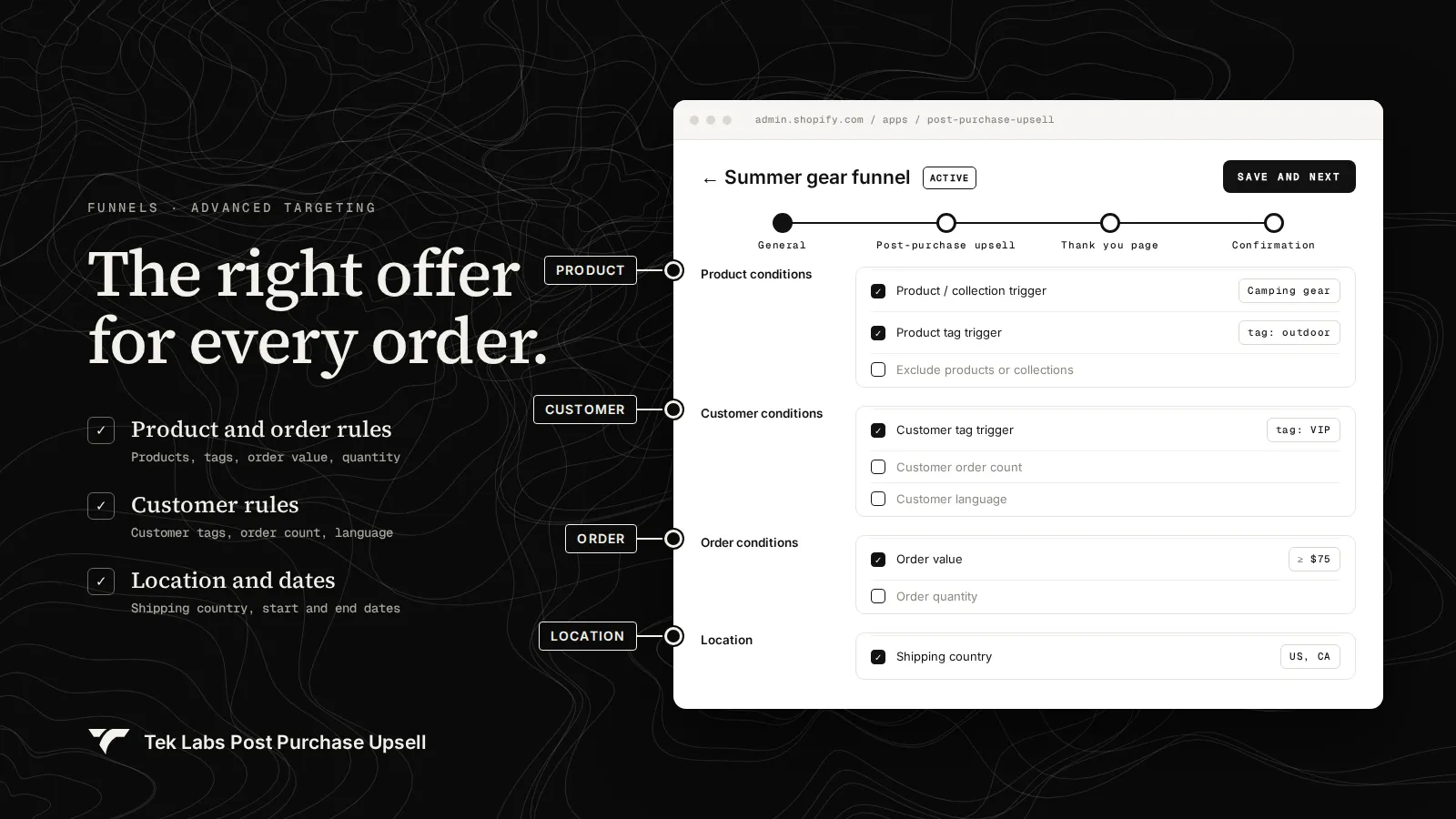
    Funnel editor with product, customer, order and location conditions
  3. 03 / 04 · Thank you page

    Turn the confirmation page into a store

    Recommendations, coupons, banners and buttons in six widget positions, shown only to the customers you choose.
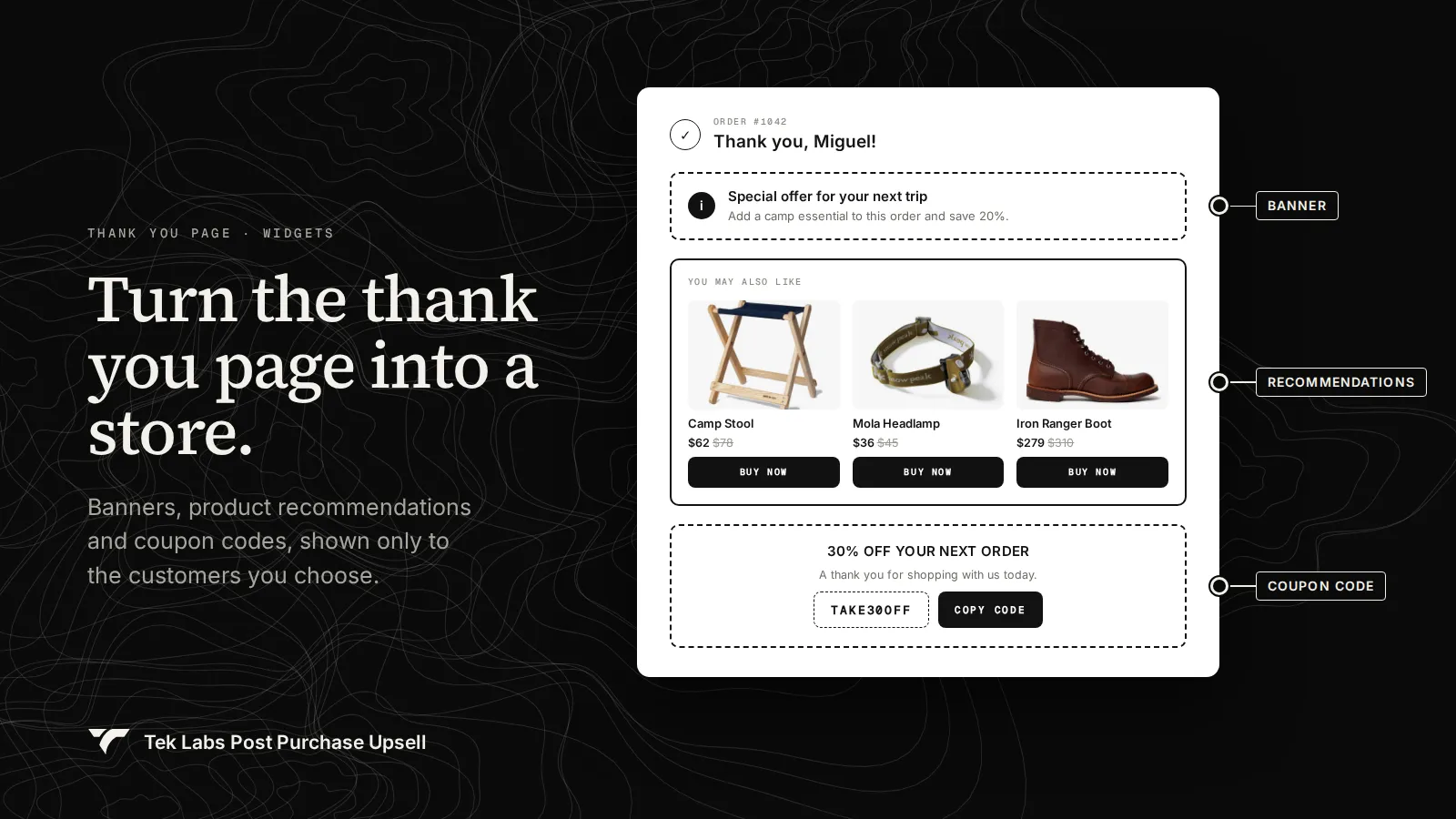
    Thank you page with special offer, product recommendation and coupon widgets
  4. 04 / 04 · Checkout (Plus)

    Blocks inside checkout for Plus stores

    Shopify Plus stores add trust badges, gift notes, free shipping bars and add-on products to checkout itself.
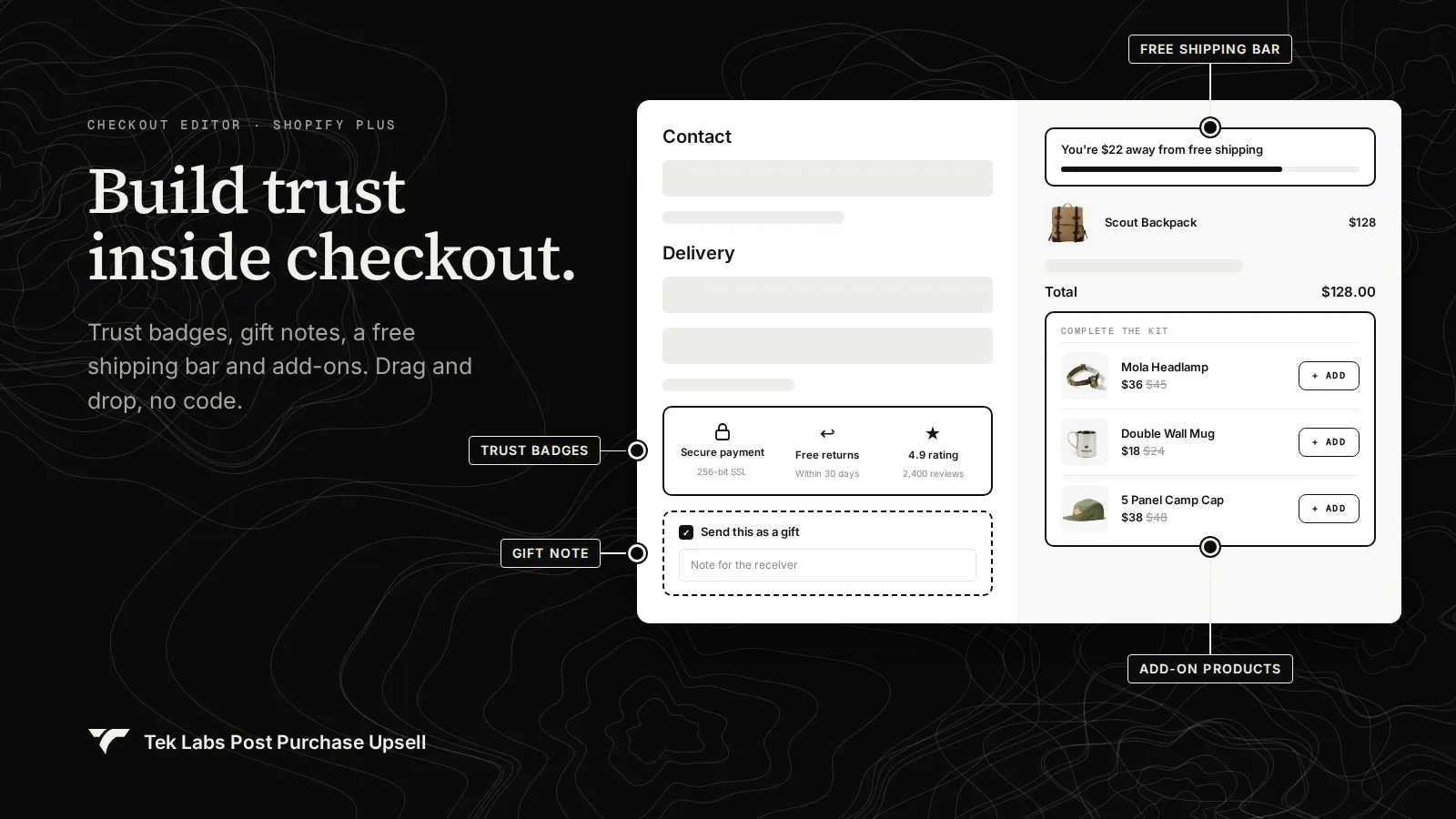
    Checkout editor adding widgets to a Shopify Plus checkout

Post-purchase page

Options you control

  • ✓Two upsells and one downsell per funnel
  • ✓Conditions: product, product tag, exclusions, variant name, customer tag, order count, language, order value, quantity, shipping country, and dates
  • ✓Automatic discount by percentage or fixed amount
  • ✓Free shipping or a shipping fee on the upsell
  • ✓Countdown timer, text, callout banner, divider, and image widgets
  • ✓Layouts: two columns with image left or right, or single column
  • ✓Funnel priority by drag and drop
  • ✓Free to use, per the user guide's pricing page

Thank you page

Widgets and targeting

  • ✓Coupon code widget using an existing Shopify discount code, with a custom button
  • ✓Single or multiple product recommendations (list, slider, or grid)
  • ✓Product choice: a specific product or Shopify recommendations (related or complementary)
  • ✓Automatic discount by percentage or fixed amount, with an option to hide items from the original order
  • ✓Variant picker and quantity selector on recommended products
  • ✓Text, banner (information, success, warning, critical), image, and button widgets
  • ✓Six widget positions, such as above or below the order status block
  • ✓Survey questions: the App Store listing mentions Feedback, Rating, and Text types

Setup

Set up your first funnel

Each step links to the matching page of the user guide.

  1. Step 1 Select the app for the post-purchase page In Shopify, go to Checkout settings, choose Tek Labs Post Purchase under Post-purchase page, and save. Guide →
  2. Step 2 Set the funnel conditions Show the funnel to all customers, or untick that and combine product, customer, order, location, and date conditions. Guide →
  3. Step 3 Build Upsell 1 Add an offer product (one variant), then edit the layout: timer, discount, shipping, price breakdown, text, banner, and images. Guide →
  4. Step 4 Add Upsell 2 and a downsell Both are optional and use the same settings. A funnel does not need all of them. Guide →
  5. Step 5 Order your funnels With more than one funnel, drag to set priority. Priority 1 is processed first. Guide →

FAQ

Frequently asked questions

Where does Post Purchase Upsell show offers?

On the post-purchase page right after payment and on the thank you page, plus checkout blocks. Upsell funnels can run on both the post-purchase and thank you pages.

Do I need Shopify Plus?

Post-purchase and thank you page upsells do not need Plus. The checkout editor (custom checkout blocks) is for Shopify Plus stores only.

Can I target different customers with different offers?

Yes. You can set up multiple post-purchase upsell funnels for different customer segments.

Can I run a post-purchase survey?

Yes. The thank you page supports survey questions with several types, including feedback, rating and text answers.

How much does it cost?

The app is free to install. Check the Shopify App Store listing for current plan details.

Effortless upsells, increased AOV.

Post-purchase upsells, thank you page offers and checkout blocks, set up in minutes with no code.