Segment-specific offers
Show one funnel to first-time customers and another to repeat customers using the order count condition.
Post purchase upsell
Show an upsell once checkout payment is complete. Build funnels for different customer segments, with up to two upsells and one downsell each.
What it is
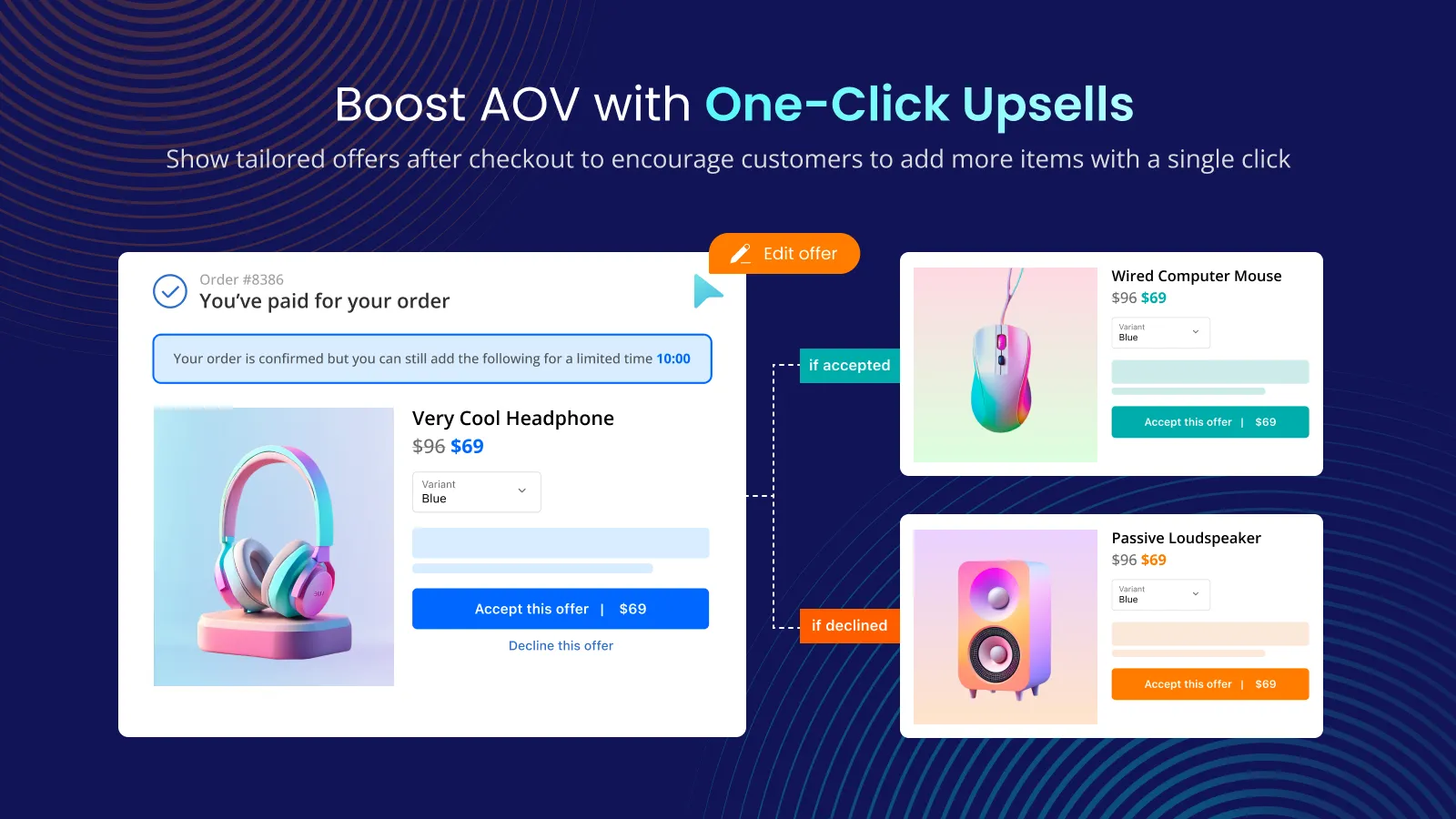
A post purchase upsell appears after the customer has paid. In Post Purchase Upsell each funnel can include Upsell 1, Upsell 2, and a Downsell, each with its own product, discount, and layout.
Use it to add a second item without interrupting checkout. Funnels can be limited by order contents, customer, order value, location, or dates, and several funnels can run in priority order.
For the shopper
The offer appears after the checkout payment is completed.
The customer sees your first offer, optionally with a countdown timer.
Upsell 2 shows only if they accept Upsell 1. The downsell shows only if they decline it.
The funnel's thank you page block is evaluated next and can still appear if its conditions are met.
For you
Options you control
In Shopify, go to Checkout settings, choose Tek Labs Post Purchase under Post-purchase page, and save.
Show the funnel to all customers, or untick that and combine product, customer, order, location, and date conditions.
Add an offer product (one variant), then edit the layout: timer, discount, shipping, price breakdown, text, banner, and images.
Both are optional and use the same settings. A funnel does not need all of them.
With more than one funnel, drag to set priority. Priority 1 is processed first.
Use cases
Show one funnel to first-time customers and another to repeat customers using the order count condition.
Limit an offer to orders shipping to a chosen country.
Trigger an add-on when a specific product is in the order.
Offer a lower-priced alternative when the first upsell is declined.
FAQ
No. The user guide says only the checkout page widgets need Shopify Plus. Post-purchase upsells do not.
Yes. Use funnel conditions such as product, customer tag, order count, language, order value, and shipping country, and order multiple funnels by priority.
Shopify's limits apply, for example orders paid with wallets or installment services, orders below 0.50 dollars, and orders outside the Online Store channel. See the guide's limitations page for the full list.
The guide notes a customer can accept a maximum of three post-purchase offers for each checkout.
The user guide says the app is completely free for all users.
Related features
Free gifts, BOGO, bundles and progress bars. Every offer type, on a free plan to start.