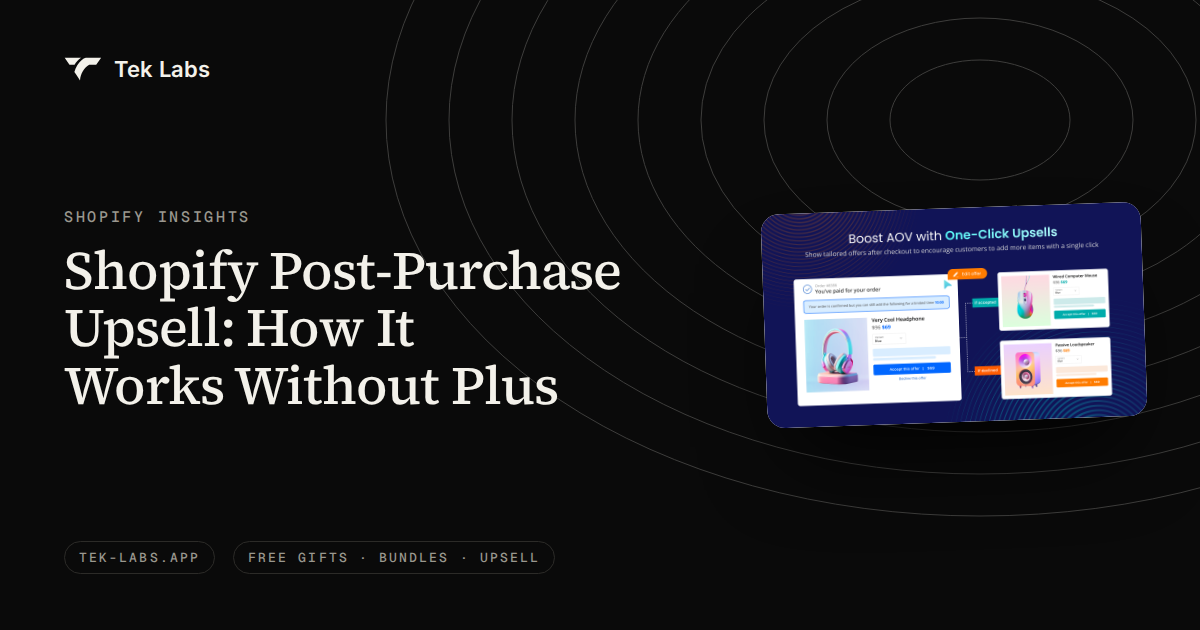
Yes, you can run a post-purchase upsell on Shopify without Plus. A post-purchase offer appears right after the customer pays and before the thank you page, and Shopify’s help center lists apps built with post-purchase extensions as available on the Basic plan and higher. What needs Plus is something different: putting offers inside the checkout steps themselves (information, shipping and payment).
That distinction trips up a lot of store owners, because “checkout upsell” gets used for three different things, and only one of them is Plus-only. This post separates them using Shopify’s own documentation, lays out the documented limits (three offers, a $0.50 minimum, one app at a time, Online Store orders only), explains what “beta” means for a merchant who installs an app, and ends with a hypothetical take-rate example and a rollout checklist. Black Friday 2026 is Friday, November 27, which is 36 days after this post, so there is still time to set it up and test.
I read every Shopify page cited here on October 1, 2026. Where Shopify’s wording is the claim, I quote or closely paraphrase it and link the page.
Key takeaways
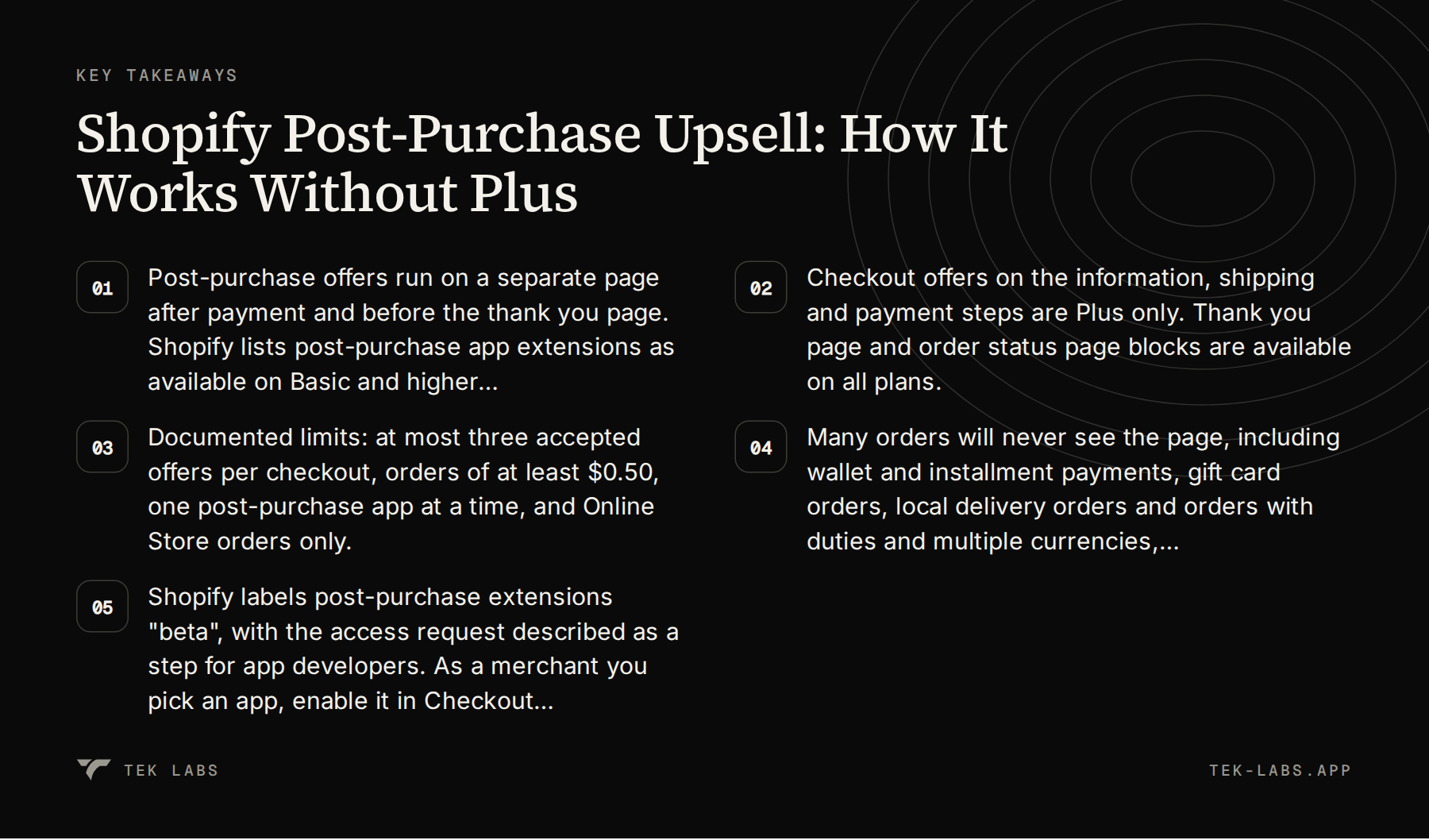
- Post-purchase offers run on a separate page after payment and before the thank you page. Shopify lists post-purchase app extensions as available on Basic and higher plans, so Plus is not required.
- Checkout offers on the information, shipping and payment steps are Plus only. Thank you page and order status page blocks are available on all plans.
- Documented limits: at most three accepted offers per checkout, orders of at least $0.50, one post-purchase app at a time, and Online Store orders only.
- Many orders will never see the page, including wallet and installment payments, gift card orders, local delivery orders and orders with duties and multiple currencies, so measure results against eligible orders only.
- Shopify labels post-purchase extensions “beta”, with the access request described as a step for app developers. As a merchant you pick an app, enable it in Checkout settings and test it on your own store.
Three places an offer can appear (and which need Plus)
When someone says they want a “checkout upsell” they might mean any of the following. Shopify treats them as separate surfaces with different rules.
| Surface | When the customer sees it | Plan needed | What it can do |
|---|---|---|---|
| — | — | — | — |
| Checkout steps (information, shipping, payment) | Before payment | Shopify Plus only | Pre-purchase offers built with checkout UI extensions |
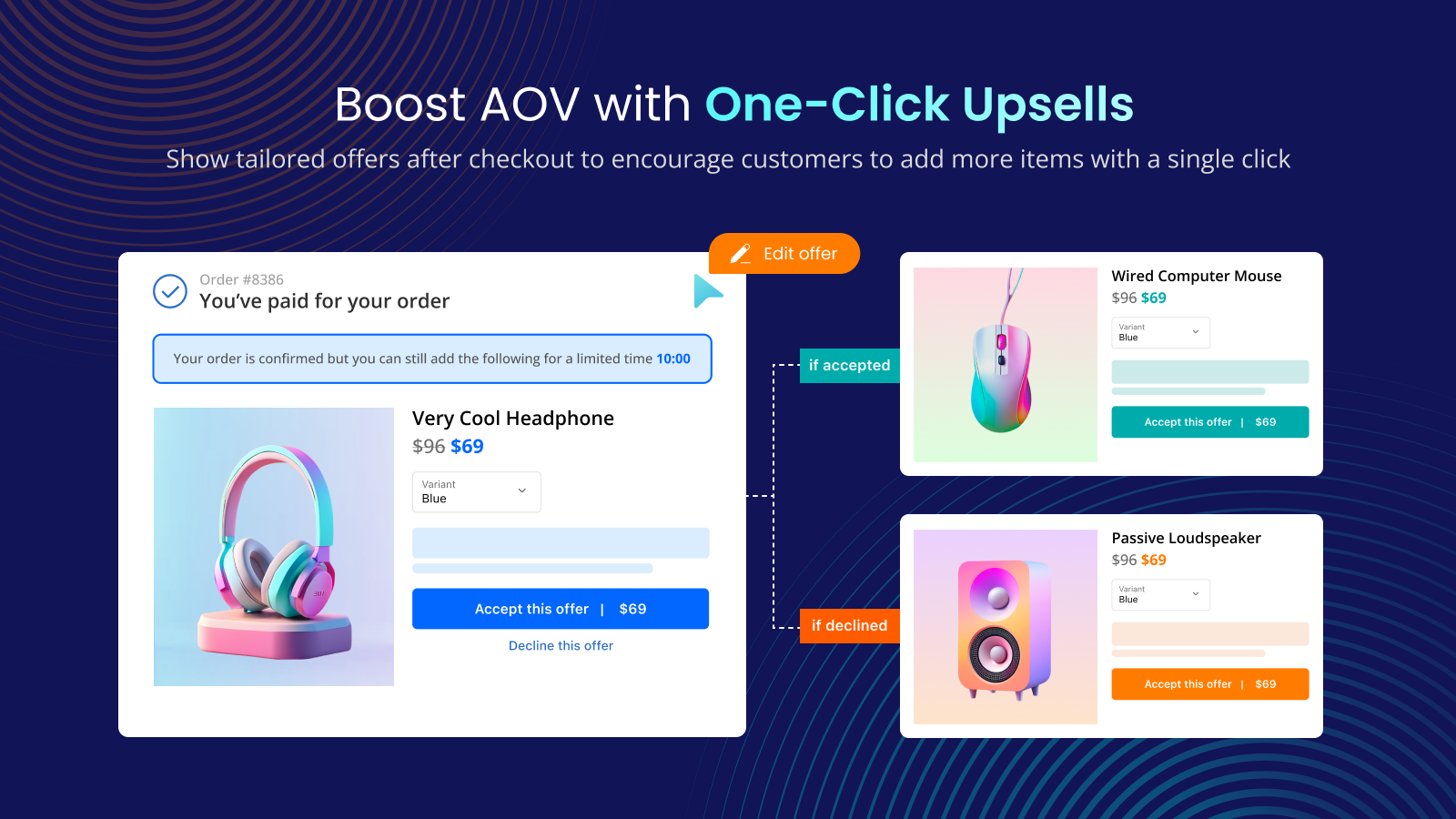
| Post-purchase page | After payment, before the thank you page | Basic or higher | Order-modifying offers such as upsells, donations and discounted products |
| Thank you page | After the post-purchase page, as the order confirmation | Basic or higher | Surveys, content blocks, social sharing, download links; cannot change the order |
| Order status page | When the customer returns to check the order | Basic or higher | Review requests, content, and upsells that use order editing |
The plan column comes from two Shopify pages. The post-purchase developer page says checkout UI extensions that render on the information and shipping and payment steps are available only to stores on a Shopify Plus plan. The checkout apps help page gives a table of app types by plan, which I reproduce here in shortened form.
| App type | Basic or higher | Shopify Plus |
|---|---|---|
| — | — | — |
| Apps built with web pixel app extensions | Yes | Yes |
| Apps built with post-purchase app extensions | Yes | Yes |
| Public apps built with Shopify Functions | Yes | Yes |
| Custom apps built with Shopify Functions | No | Yes |
| Apps built with UI extensions for the thank you and order status pages | Yes | Yes |
| Apps built with UI extensions for the information, shipping and payment pages | No | Yes |
Shopify’s checkout customization overview says the same thing in one sentence: standard customizations are available on the Basic plan or higher, and advanced checkout customization features are available only on the Shopify Plus plan.
How a post-purchase offer works, step by step
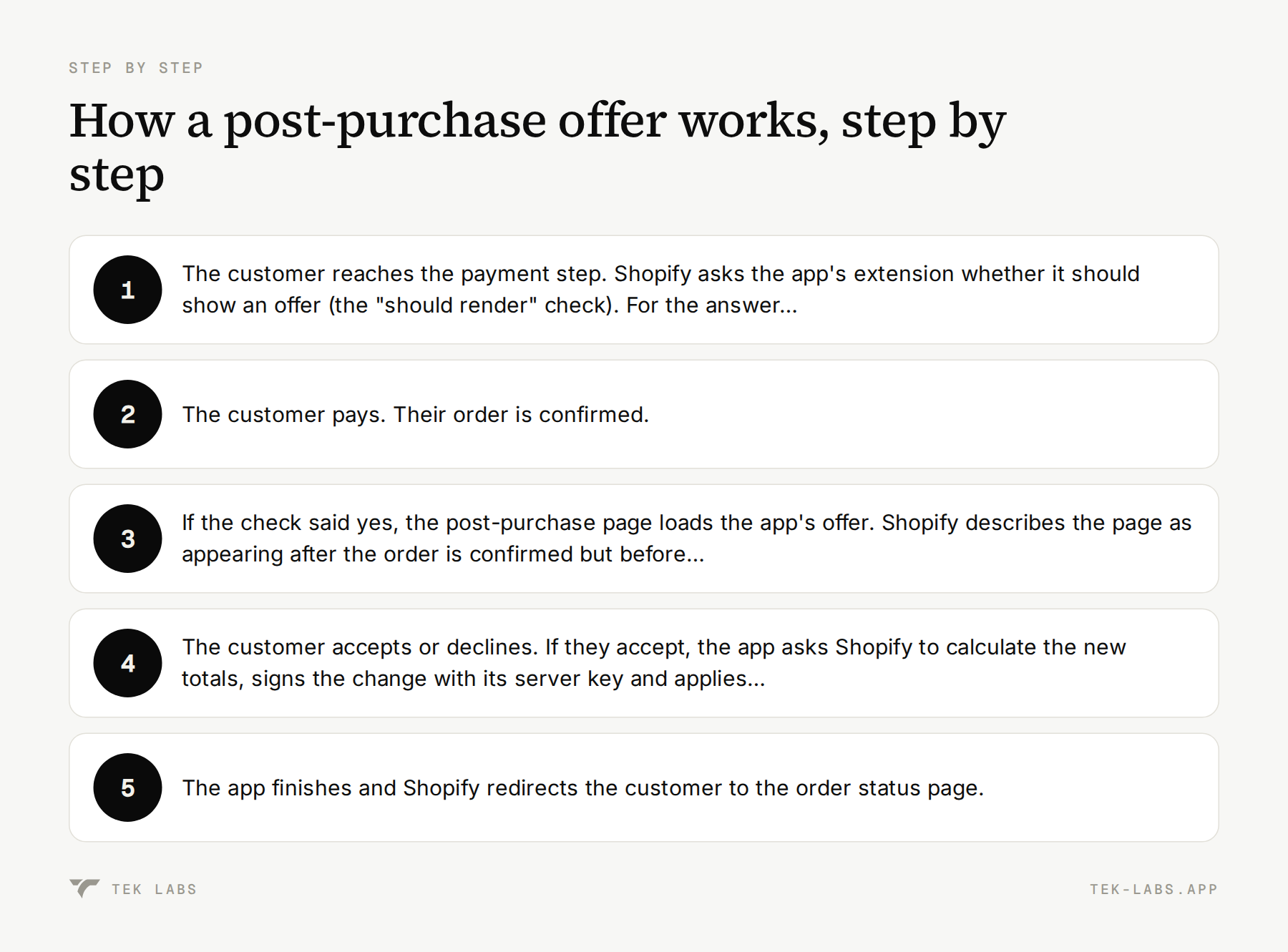
The shopify.dev customer flow is useful even if you never write code, because it explains why some orders never see an offer. In order:
- The customer reaches the payment step. Shopify asks the app’s extension whether it should show an offer (the “should render” check). For the answer to be yes, the required conditions must hold. Shopify’s example is that the customer’s credit card must be vaulted before the offer is displayed.
- The customer pays. Their order is confirmed.
- If the check said yes, the post-purchase page loads the app’s offer. Shopify describes the page as appearing after the order is confirmed but before the thank you page.
- The customer accepts or declines. If they accept, the app asks Shopify to calculate the new totals, signs the change with its server key and applies it to the same order. The customer is charged for the add-on without re-entering payment details.
- The app finishes and Shopify redirects the customer to the order status page.
Two details matter for store owners. First, the offer changes the original order rather than creating a second one, which is why Shopify places a hold on fulfillment during a post-purchase flow. The hold is released when the customer visits the order status page, or one hour after the initial checkout if they never finish the flow. If you promise same-day shipping, remember that this hold exists. Second, Shopify says the post-purchase page should not be used as a replacement for the order status page, and the standard header on the page confirms the original payment and offers a View order confirmation button so customers can skip the offer.
What “beta” and “request access” mean for you
Shopify’s developer documentation puts a Beta flag on post-purchase checkout extensions: they can be used without restrictions in a development store, and to use them on a live store the developer needs to request access. In the build tutorial, “Request access” is Step 6, listed among the tasks an app developer completes (generate the extension, test on a dev store, build the UI, authenticate server requests, deploy, create and publish a version, request access).
That is an app developer step. The merchant-facing help pages I read (the checkout apps page and the checkout customization overview) do not mention a beta flag or an access request, and they list post-purchase app extensions as available on the Basic plan and higher. I could not find any place in Shopify’s documentation where a merchant is asked to apply for access.
What follows from that, with the caveat that it is my reading and not a Shopify statement:
- You do not need to request anything from Shopify yourself in order to use a post-purchase app. You install the app, configure it and select it in your checkout settings.
- Whether a particular app is approved to run on live stores is something the app vendor handles. The reliable check is practical: complete a real checkout on your own store and see whether the offer appears.
- Because Shopify still labels the feature beta, treat the documented limits below as the current state, and re-read them before a major sale.
The documented limits
These come from the limitations table on the post-purchase page. They apply no matter which app you use.
| Area | What Shopify says |
|---|---|
| — | — |
| Accepted offers | A customer can accept a maximum of three post-purchase offers for each checkout. |
| Minimum order | Orders need to be $0.50 or more. |
| Apps | Only one app can be selected for post-purchase product offers. |
| Sales channel | Orders must be placed through the Online Store sales channel. Other channels do not render post-purchase pages. |
| Pages | You can create only one post-purchase page, but the extension is a single-page app and can paginate within it. |
| Payment providers | Providers that require the customer’s CVN/CVV to be retained are not supported. Shopify names Braintree, Payflow Pro, PayPal Payments Pro and Eway as examples. |
| Wallets and installments | The page is not shown when the customer checks out with an installment or wallet service such as Klarna, Affirm, AfterPay, Apple Pay, Amazon Pay or Google Pay. |
| Gift cards | Not shown when the initial purchase used a gift card or any payment method other than a credit card. |
| International | Not shown on orders with duties and multiple currencies. |
| Delivery | Not shown on orders for local delivery. |
| No shipping address | If the order has no shipping address (digital-only items or local pickup, for example), a subscription cannot be added through post-purchase. |
| Heavy load | In scenarios such as flash sales where the platform is under extreme load, Shopify may briefly delay order creation, and post-purchase pages will not be surfaced. |
| Shop Pay | When buyers check out with Shop Pay, the render step cannot read data stored during the “should render” step, because the steps run on different domains. |
Two rows deserve extra attention in a Black Friday context. The heavy-load row is Shopify telling you plainly that on the busiest minutes of the year some orders will skip the page. And the wallet row means that a growing share of mobile shoppers, who pay with Apple Pay or Google Pay, will never see an offer. Neither is a bug in your setup.
A test-order matrix
The fastest way to know where your own store stands is to place test orders that cover the cases above. Use a real product, a real checkout on your live Online Store, and stop to note the result of each. The expected column follows Shopify’s documentation; the last column is where you write what actually happened.
| Test order | Expected per Shopify | Actual |
|---|---|---|
| — | — | — |
| Credit card, shipped item, order over $0.50 | Offer appears | |
| Apple Pay or Google Pay | No offer | |
| Klarna or Affirm (if enabled) | No offer | |
| Gift card as payment | No offer | |
| Shop Pay | Not listed as an exclusion, but Shopify notes a storage limitation, so test it and record the result | |
| Local delivery order | No offer | |
| Order from POS or another sales channel | No offer | |
| Digital-only or pickup order, credit card | Not listed as an exclusion, except that subscriptions cannot be added without a shipping address. Record the result |
If a case that should show the offer does not, check that the app is the one selected in Settings > Checkout, and that you have only one post-purchase app active.
Set it up as a merchant
The merchant steps are short. They come from the “Add features to the post-purchase page at checkout” section of Shopify’s checkout apps page.
- Install a post-purchase app from the Shopify App Store. Shopify says you need a third-party app that supports post-purchase features, and that support questions go to the app developer.
- Open the app from the Apps section of your Shopify admin and finish its configuration: your offers, targeting and design.
- Go to Settings > Checkout. The Post-purchase page section only appears after you complete the configuration in the app settings, so if you cannot see it, go back to step 2.
- In the Post-purchase page section, select the app you want to use. Only one checkout app can power post-purchase features at a time, so if you have two installed you choose between them here.
- Place a test order with a credit card and confirm the offer appears, the totals are correct and the order status page loads after you accept or decline.
Shopify’s design guidance for app developers also tells you what a compliant offer looks like, which is useful when you review an app. It asks for clear costs, a clear way to accept or refuse without pressure, a maximum of three consecutive offers and offers tailored to what the customer bought. The accept button reads “Pay now” followed by the product total (or “Add now” and “Free” for a free product). The decline button must read “Decline upsell offer”, sit under the accept button and stay easy to see. Because accepting charges immediately, Shopify recommends help text under the button saying so, or a summary step before charging.
Thank you page and order status page blocks, without Plus
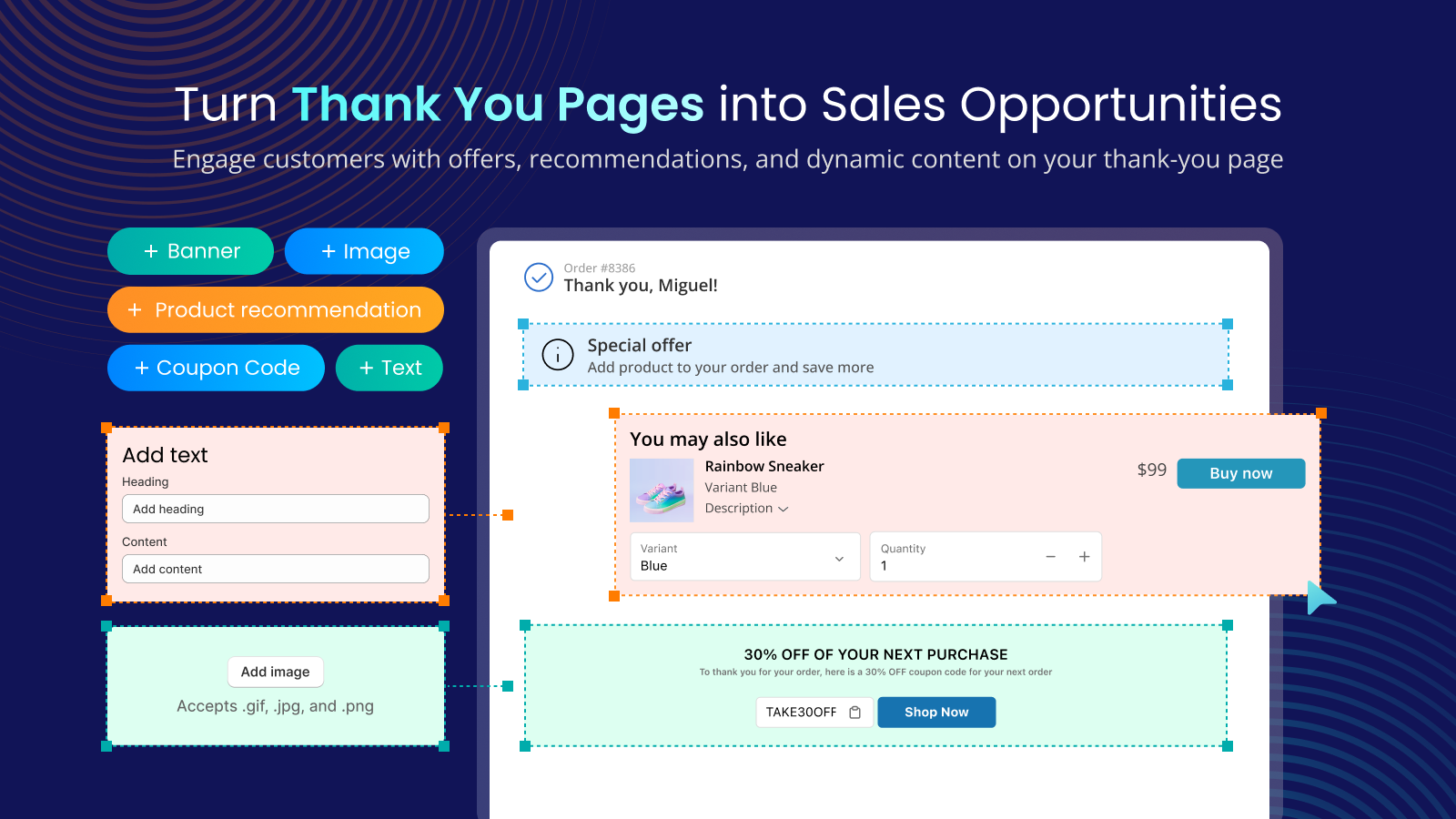
The post-purchase page is not the only place to talk to a customer after payment. The thank you page and the order status page can take app blocks on every plan. Shopify’s overview says eligible apps that customize those two pages are available on Basic and on Plus. You add blocks in the checkout and accounts editor, where an Apps tab shows all your installed blocks (Shopify added that tab on October 31, 2024). Some blocks can be placed only in certain areas, and each highlighted area holds a maximum of 3 apps.
On shopify.dev, extensions for these pages use two targets: the thank you page and the order status page. Shopify gives these examples of what they can show:
- Survey requests on the thank you page.
- Product review requests on the order status page.
- Upsell offers on the order status page, which prompt a customer to add products to their initial order through order editing.
- Social sharing on both pages.
- Download links for digital goods on both pages.
There is one hard limit. Shopify states that there is no support for APIs that directly mutate an order using a UI extension. If you need to change the order that is being created, Shopify points you to a post-purchase extension instead. A second subtlety is timing: on the thank you page the order is not yet created when the extension displays, though the order ID is available, while on the order status page the order is always available.
If your store is not on Plus, check the thank you page version
Shopify’s upgrade guide for non-Plus stores states that August 26, 2026 was the deadline to upgrade the existing thank you and order status pages to the new version. Upgrading replaces the old pages and any customizations on them, so anything you used to do with additional scripts has to be recreated with blocks, web pixels or apps. The same guide says additional scripts became view-only on August 28, 2025, and that stores on the Pause and Build plan are upgraded automatically.
You can check your own store under Settings > Checkout: if a notice to upgrade still shows in the Configurations section, you are still on the deprecated pages. The practical effect for an upsell is that blocks from apps only work on the new pages.
What still needs Plus
To keep the picture honest, here is the short list of things Shopify reserves for Plus on this topic:
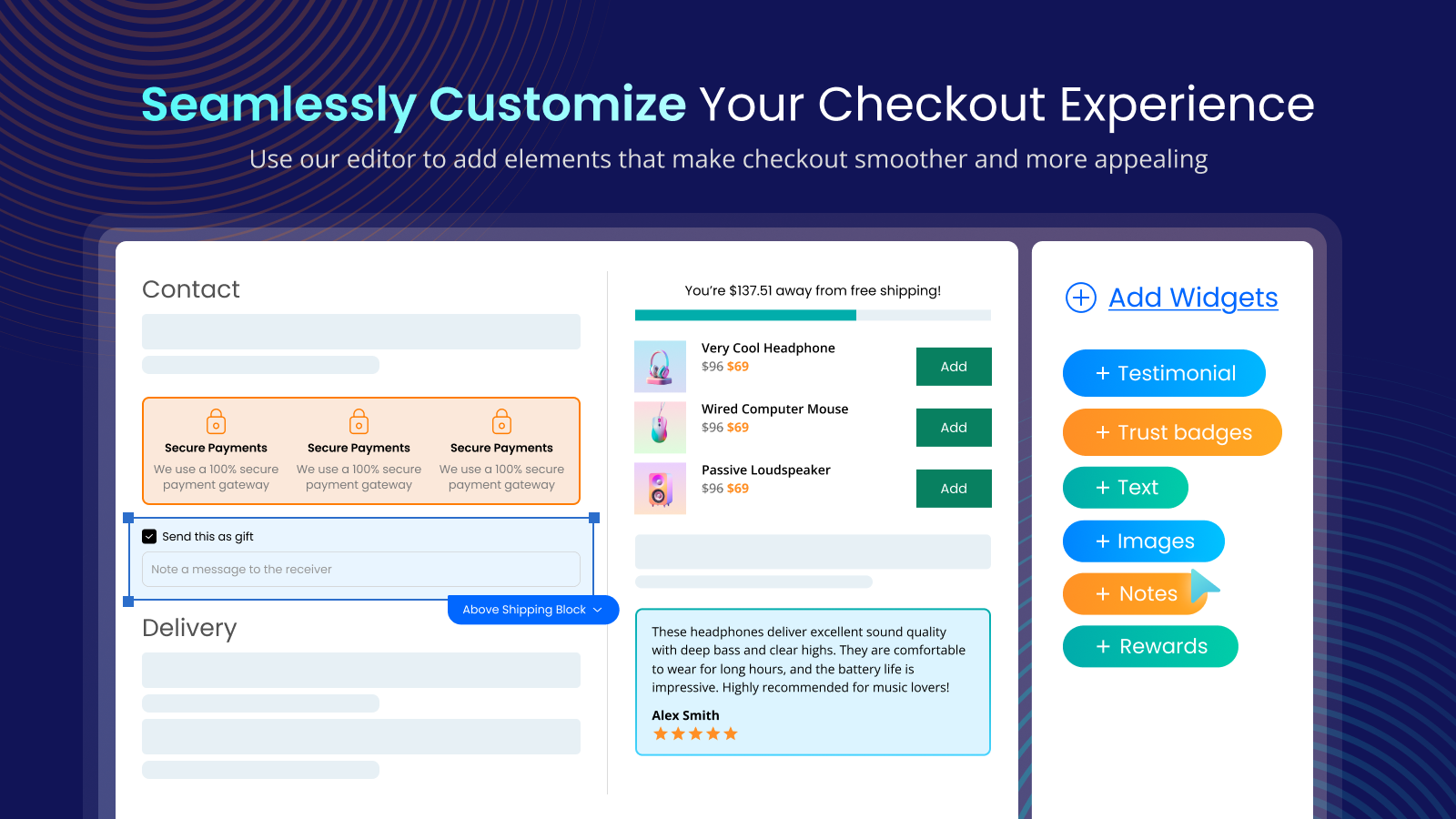
- Apps and extensions that render on the information, shipping and payment steps of checkout.
- Access to the Checkout Branding API.
- Custom apps built with Shopify Functions (public Functions apps are available on every plan).
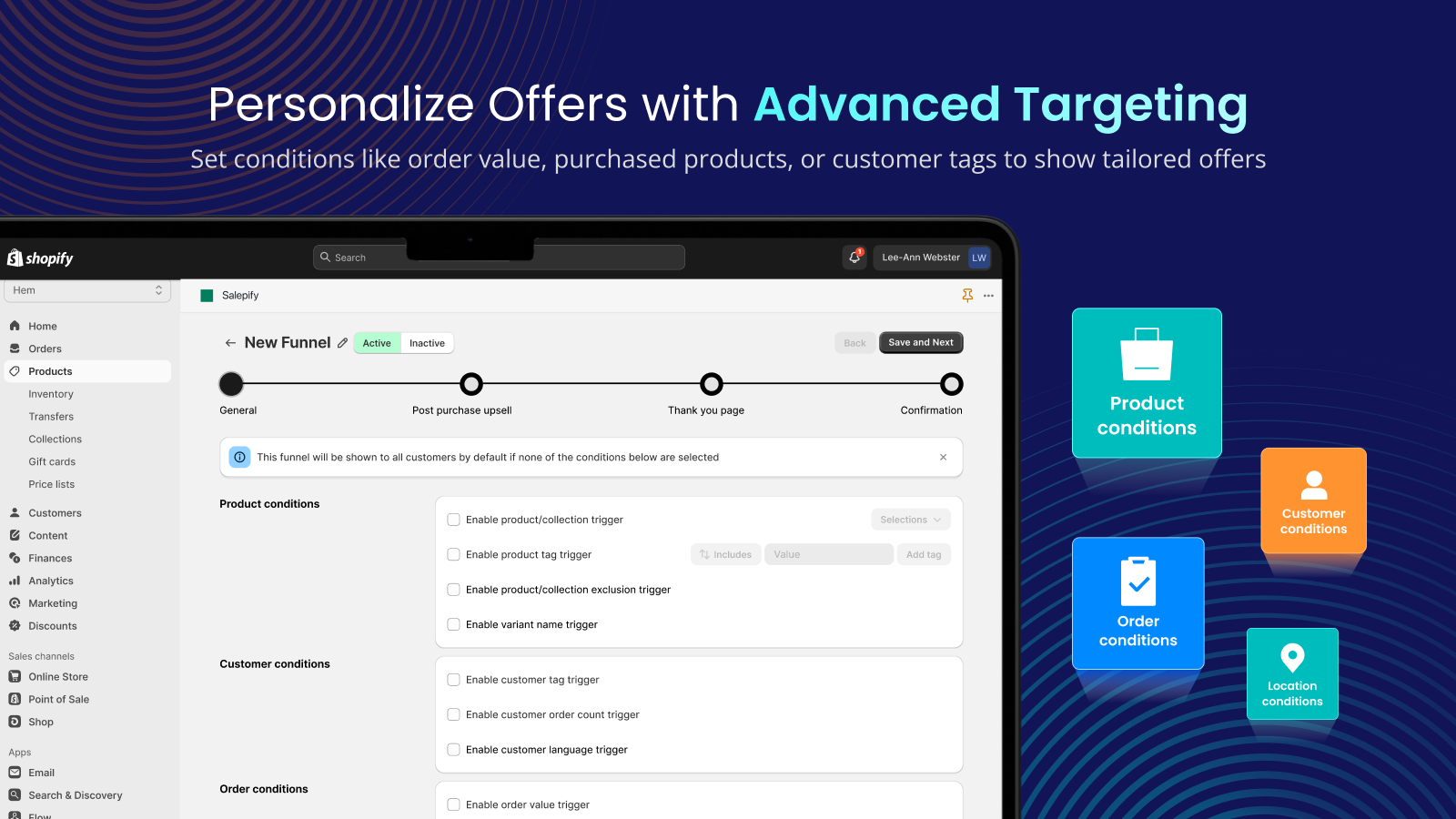
If an app listing says “checkout blocks” without further detail, ask which page they are for. On the Tek Labs Post Purchase Upsell listing, the checkout editor feature is called out as Shopify Plus only, while post-purchase and thank you page upsells do not need Plus.
Discounts on a post-purchase offer
A post-purchase discount does not come from your normal discount codes. Shopify’s documentation says that Buy X Get Y discounts created in the Shopify admin do not apply to the post-purchase page. In the developer tutorial, the discount shown on an offer is part of the change the app defines and asks Shopify to price, which means the offer’s price logic lives in the app.
Two consequences follow. First, whatever Buy X Get Y or code promotions you run on the storefront do not carry over to the post-purchase page, so you should decide separately what the add-on costs. Second, the offer’s discount should be tested as its own case. Our discount combinations test plan covers the storefront rules, and a post-purchase offer is best treated as one more row in the same sheet.
Measure the right thing: eligible orders only
Because many orders skip the page, the simplest mistake is to divide accepted offers by all orders. Shopify also warns about analytics: third-party services that use the Shopify Pixel API report only the purchase event and value for the initial purchase, and services that rely on the ScriptTag object or additional scripts have incomplete conversion data, because they only fire on the order status page.
So expect your analytics tool to show the original order and not the add-on, and expect your app dashboard to be the main source for accepted offers.
Worked example (hypothetical)
All numbers below are invented for illustration. Take a store with 1,000 orders in a month at an average order value of $60, so $60,000 in revenue. Suppose 30% of orders pay with a wallet, a gift card or another method that skips the page, leaving 700 eligible orders. The post-purchase offer is a $25 add-on with a 50% contribution margin ($12.50 per sale), and processing fees are ignored.
| Take rate on eligible orders | Offers accepted (700 x rate) | Extra revenue | Extra contribution | Revenue lift on $60,000 |
|---|---|---|---|---|
| — | — | — | — | — |
| 3% | 21 | $525 | $262.50 | 0.88% |
| 5% | 35 | $875 | $437.50 | 1.46% |
| 8% | 56 | $1,400 | $700.00 | 2.33% |
At a 5% take rate, 35 accepted offers on 700 eligible orders add $875, or $0.875 per order across all 1,000 orders, which lifts the store’s overall average order value from $60.00 to $60.88. If you mistakenly divided 35 by all 1,000 orders you would report a 3.5% take rate and might judge the offer a failure when it is actually performing at 5%.
The same table shows where the effort pays off. Moving the take rate from 3% to 5% adds 14 accepted offers, or $350 (14 x $25). Raising eligibility from 70% to 80% adds 100 eligible orders, which at a 5% take rate is 5 accepted offers, or $125 (5 x $25). In this example a better offer is worth more than a few extra eligible orders, though both are worth checking.
A rollout checklist for the next 36 days
- **Pick the app and confirm the plan.** You are looking for an app that uses post-purchase extensions and thank you page blocks. Neither needs Plus.
- **Configure one simple offer first.** A single add-on priced clearly below the main product tends to be easier to judge than a long funnel.
- **Select the app in Settings > Checkout.** Check that there is one app in the Post-purchase page section.
- **Run the test-order matrix.** Record which payment methods show the offer on your store.
- **Check fulfillment timing.** Remember the hold, and tell your fulfillment team that an order may be held for up to an hour if the customer does not finish.
- **Check the thank you page version.** If you are on a non-Plus plan and the upgrade notice is still showing, replace your old customizations first.
- **Set up measurement.** Decide how you will count eligible orders, accepted offers and the add-on’s contribution, before the sale begins.
- **Freeze changes a week before Black Friday.** A final test order on November 20 is worth more than a new funnel on November 25.
Common mistakes
- **Assuming post-purchase equals Plus.** The Plus requirement applies to checkout steps, not to the post-purchase page.
- **Installing two post-purchase apps and expecting both to run.** Only one can be selected.
- **Forgetting that wallets skip the page.** Apple Pay and Google Pay are on Shopify’s exclusion list.
- **Measuring against all orders.** Divide by eligible orders.
- **Expecting a thank you page block to change the order.** Extensions on that page cannot mutate the order; the post-purchase page can.
- **Running a storefront Buy X Get Y and expecting it to appear post-purchase.** Admin-created Buy X Get Y does not apply there.
- **Skipping the test order.** Shopify lists too many exclusions for any store to assume the page will show.
Where Tek Labs fits
If you want a ready-made option, the Post Purchase Upsell app by Tek Labs (4.9 rating from 26 reviews on the App Store, read on October 1, 2026) offers upsells on the post-purchase page right after payment and on the thank you page, plus thank you page surveys and multiple funnels for different customer segments. Checkout blocks in the app use the checkout editor, which is Shopify Plus only, while post-purchase and thank you page upsells do not need Plus. The app is free to install. If you want to compare it with other ways of cross-selling, see our overview of Shopify apps for cross-selling and upselling, and our guide to tackling cart abandonment for what to do with the shoppers who never reach the payment step. Terms such as AOV and upsell are defined in our glossary.
Frequently Asked Questions
Do I need Shopify Plus for a post-purchase upsell?
No. Shopify’s checkout apps page lists apps built with post-purchase app extensions as available on the Basic plan or higher, as well as Plus. Plus is required for apps that render on the information, shipping and payment steps of checkout.
When does the post-purchase page appear?
After the customer pays and the order is confirmed, but before the thank you page. When the customer finishes or declines, Shopify sends them to the order status page.
How many offers can a customer see or accept?
Shopify allows a customer to accept a maximum of three post-purchase offers for each checkout, and its UX guidance asks apps to show at most three consecutive offers. Orders must also be at least $0.50.
Why is my post-purchase offer not showing on some orders?
Shopify does not show the page for wallet and installment payments, gift card payments, local delivery, orders with duties and multiple currencies, or orders outside the Online Store channel. It can also be skipped when the platform is under extreme load.
Can I use more than one post-purchase app?
No. Only one app can be selected for the post-purchase page at a time. You choose it in the Post-purchase page section of Settings > Checkout, which appears once the app is configured.
Can a thank you page block add a product to the order?
Not directly. Shopify says UI extensions on the thank you page cannot use APIs that mutate an order, and recommends a post-purchase extension for changes to the order. Upsells on the order status page work through order editing.