Stock-up products
Reward customers who buy two or three of an everyday item instead of one.
Volume discounts
Show quantity tiers on your product page and discount the price as the quantity rises. Set up to 6 tiers per rule.
What it is
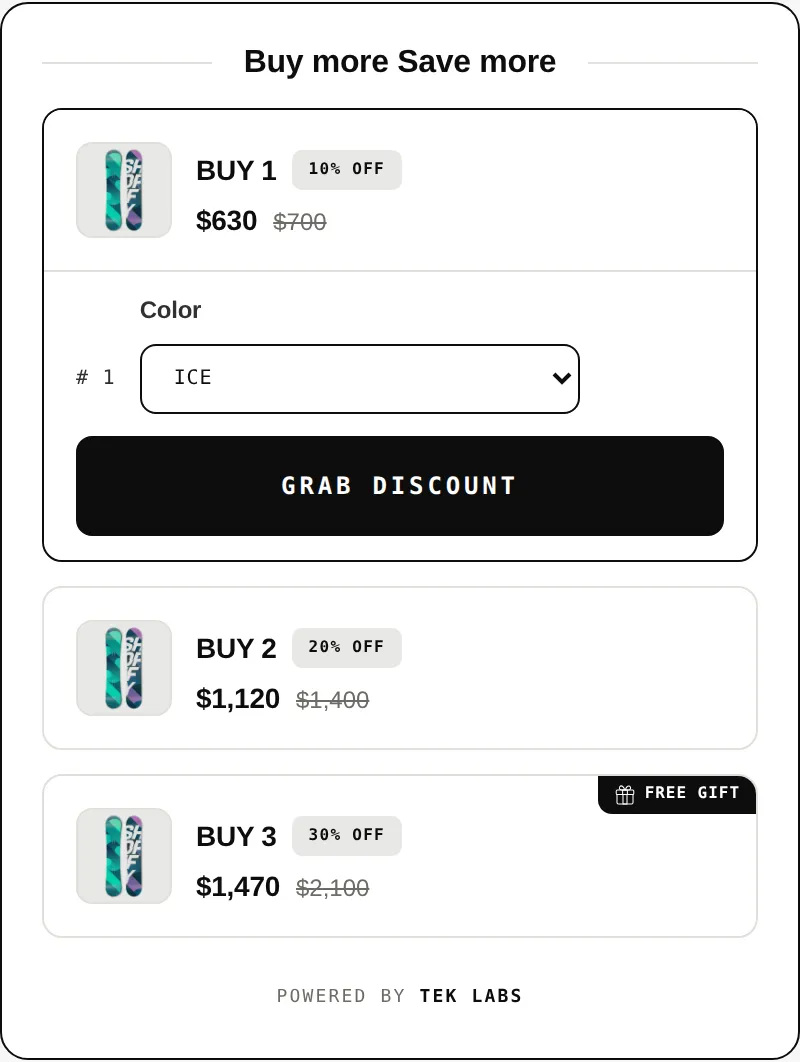
A volume discount lowers the price as customers buy more of the same product. In Free Gifts BOGO & Upsell you build tiers by quantity, discount each tier by a percentage or a fixed amount, and show them in a block on the product page.
Use it for items people stock up on, such as consumables, basics, or multi-packs you sell as separate units. If you want shoppers to mix different items to reach a quantity, the Mix & Match Bundles app also lists quantity breaks.
For the shopper
A Buy more, save more block lists the quantity tiers and what each one saves.
In the interactive layout they click Grab Discount under the tier they want.
The chosen quantity goes to the cart and the discount applies automatically.
The discount title you set appears in the cart and on the checkout page.
For you
Options you control
Enable the widget in Themes, Customize, App embeds and save, as described for the app's other blocks.
Apply the discount to all products, specific products or variants, collections, tags, a price range, or product names. Choose percentage or fixed amount.
Add up to 6 tiers, each with a minimum quantity and an amount off. Optionally pre-select a tier or add free items with Buy X Get X free.
Restrict by customer tags or logged-in status, choose discount combinations, and set start and optional end dates.
Pick Display only or Interactive, preview the block, then edit its style and default text.
Use cases
Reward customers who buy two or three of an everyday item instead of one.
Limit a tiered offer to customers with a tag such as VIP or Wholesale.
Show a tier only to logged-in customers to encourage account creation.
Use the Mix & Match Bundles app when shoppers should mix different items to reach each tier.
FAQ
Up to 6 tiers in each volume discount rule.
Yes. The Buy X Get X free option gives additional free items when a customer buys a set quantity of the same product.
Yes. You can include or exclude customer tags, or show it only to logged-in or logged-out customers.
Its App Store listing lists quantity breaks that automatically reward larger orders, and the demo store shows volume discounts by quantity with percentage, fixed amount, or set price.
Related features
Free gifts, BOGO, bundles and progress bars. Every offer type, on a free plan to start.