Table and sofa
Give a free pillow when the shopper buys both a table and a sofa (the example text in the template).
Buy both A and B to get a gift
Require shoppers to buy a specific quantity of each selected product, such as both a table and a sofa, before the gift unlocks.
What it is
Product combo is a condition type for Free gift offers. You choose products, collections, or variants and set the required quantity for each. The gift unlocks only when every required item is in the cart.
Use it to sell sets, clear paired stock, or reward a full outfit. It can be combined with a cart value condition in the template called Spend X amount and including both A and B to get gift.
For the shopper
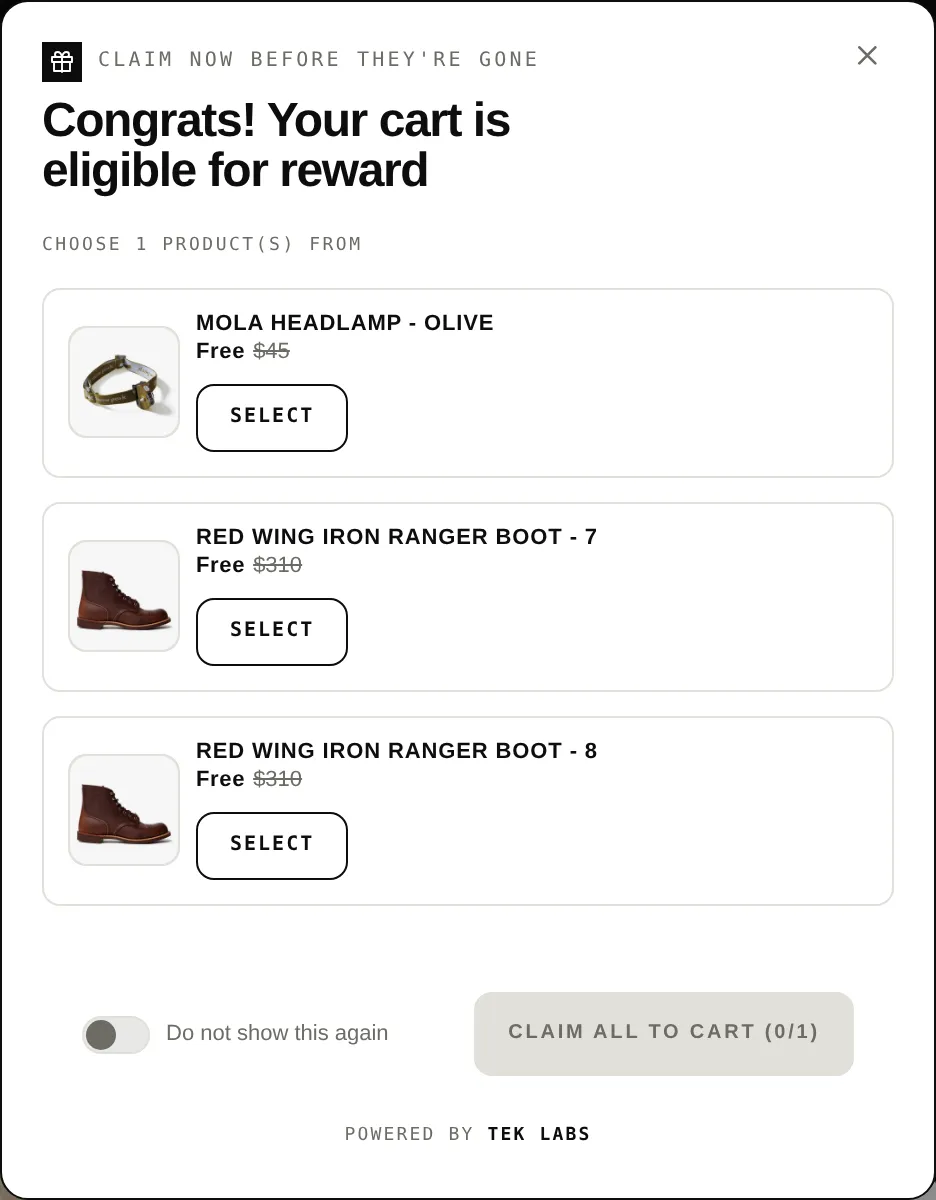
Scroll through the steps. The phone shows what the shopper sees at each one; products and prices are an example.
The widget tells the shopper which items are still needed.
When all required quantities are in the cart the offer becomes eligible.
The gift is added automatically or the shopper chooses it, depending on the offer.
If an item is removed and the condition is no longer met, the gift can be removed automatically.
For you
Options you control
Go to Offers, Create offer, Free Gift, and pick From template: Buy both A & B to get gift. Or choose Manually.
On the Condition step, under Product condition, choose Product combo.
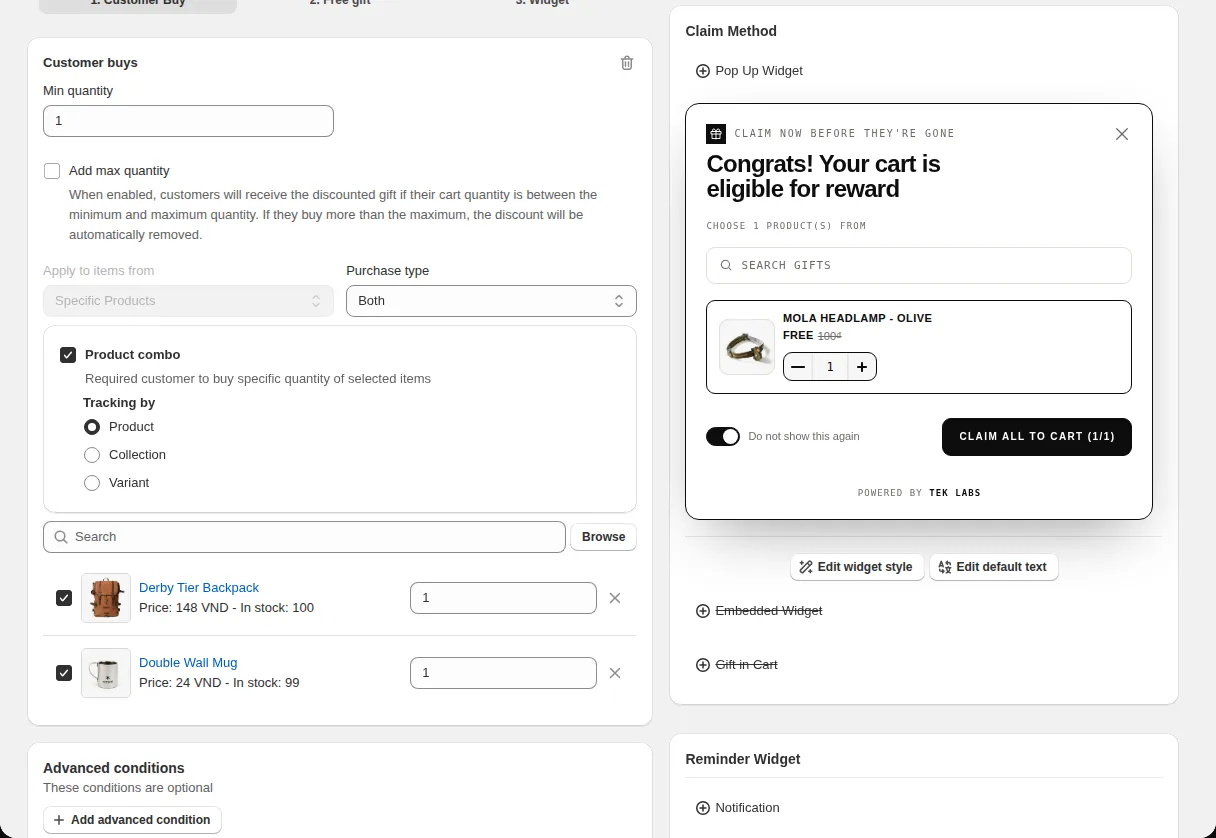
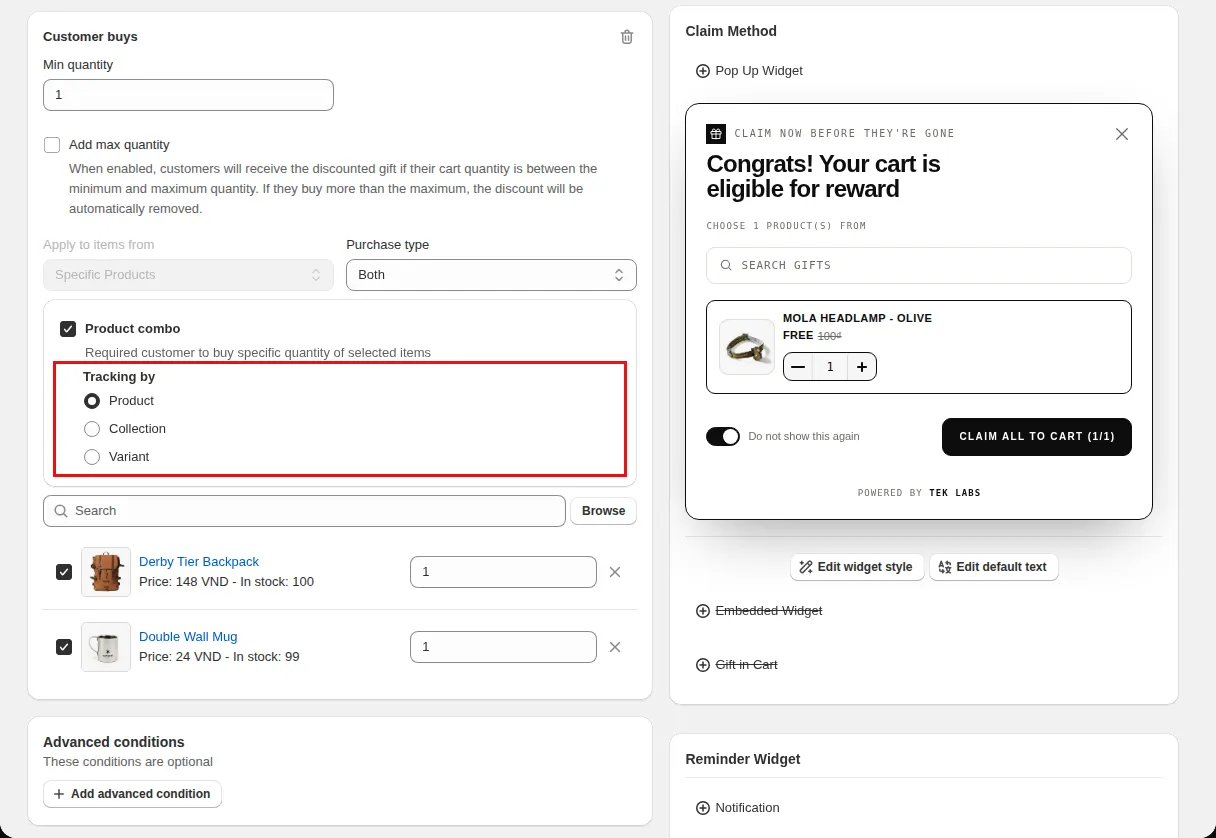
Under Tracking by pick Product, Collection, or Variant and select the items with a required quantity for each.
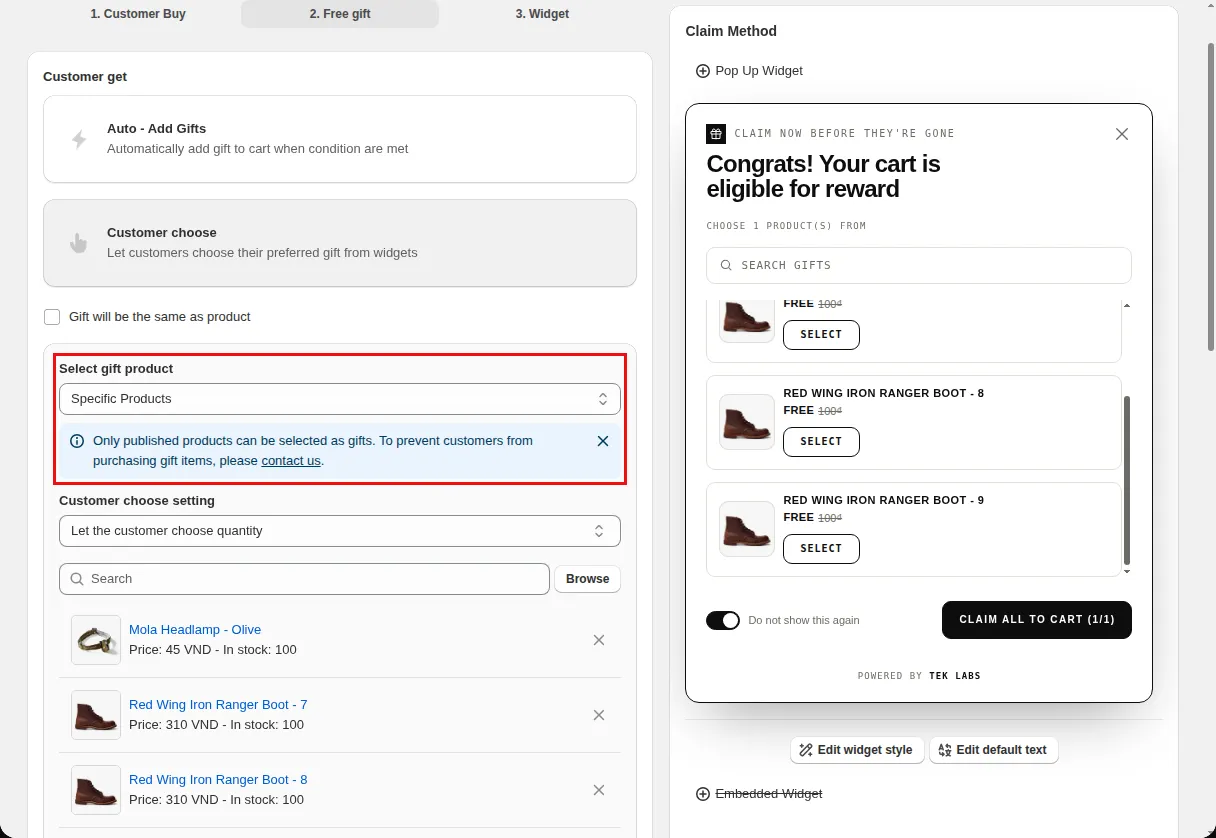
On the Reward step choose the gift products and how they are added.
Use cases
Give a free pillow when the shopper buys both a table and a sofa (the example text in the template).
Spend an amount and include a shirt and a pant to get a hat.
Require one item from each of two collections.
FAQ
Yes. Tracking by Collection lets you set a required quantity of products within the collections.
The template Spend X amount and including both A and B to get gift combines both ideas. The cart value and cart quantity conditions themselves cannot be combined with each other.
No. The app notes that product combo and the Add the cheapest product option cannot be used together.
Free gifts, BOGO, bundles and progress bars. Every offer type, on a free plan to start.