Flash sale gift
Show a 24 hour timer on a gift offer.
Countdown timer for offers
Add urgency with a countdown that runs to the offer's end date. The timer can appear in the popup, embedded widget, today offers, gift in cart, and milestone reward bar.
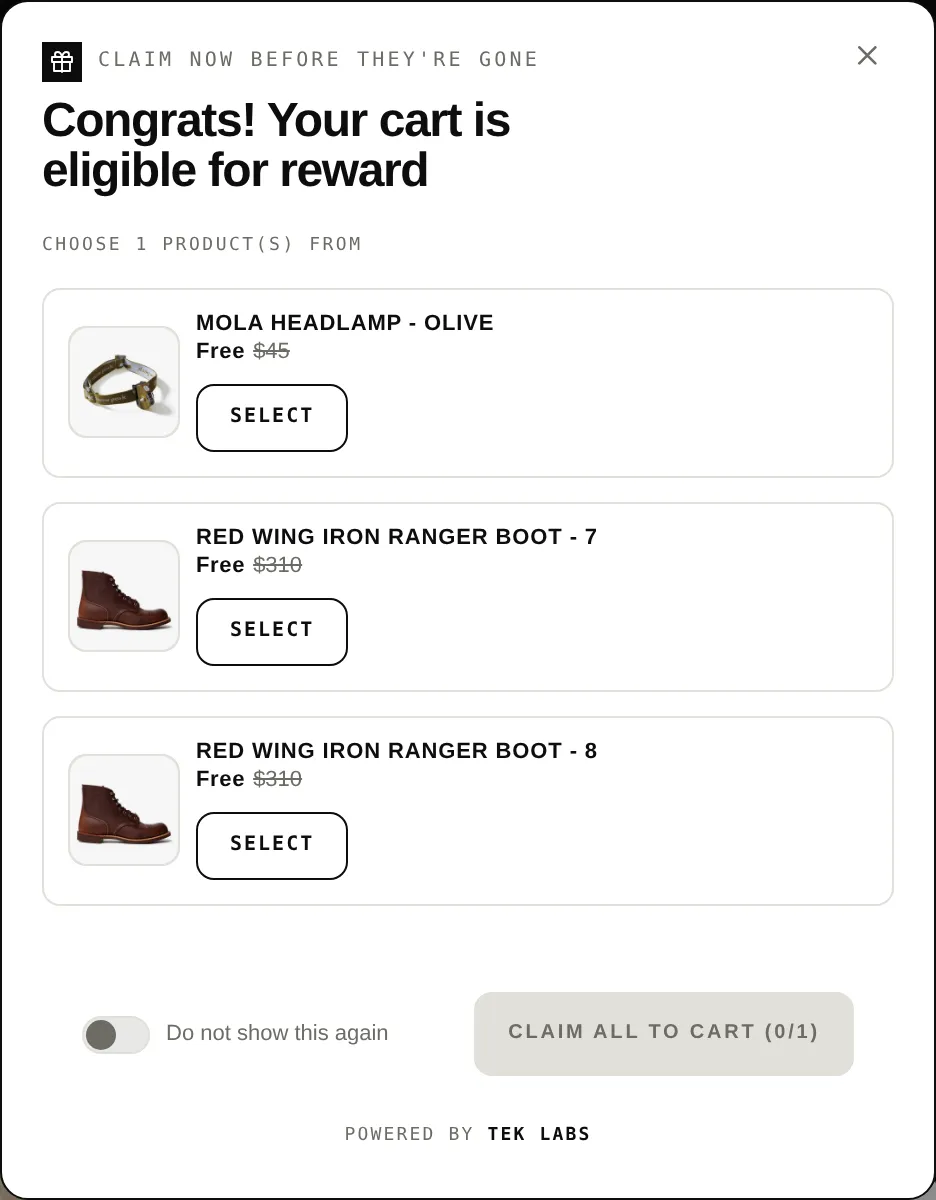
What it is
The countdown timer counts down to the end date you set on the offer. You choose the format, from days, hours, minutes, and seconds down to just minutes and seconds. It needs Choose end date to be switched on in Active dates.
Use it for flash sales and limited offers. Each widget has its own timer styling and its own text for the timer label.
For the shopper
Scroll through the steps. The phone shows what the shopper sees at each one; products and prices are an example.
A timer shows in the offer widget.
The timer runs to the offer end date in the format you chose.
Shoppers see how long the reward stays available.
After the end date the offer is no longer active.
For you
Options you control
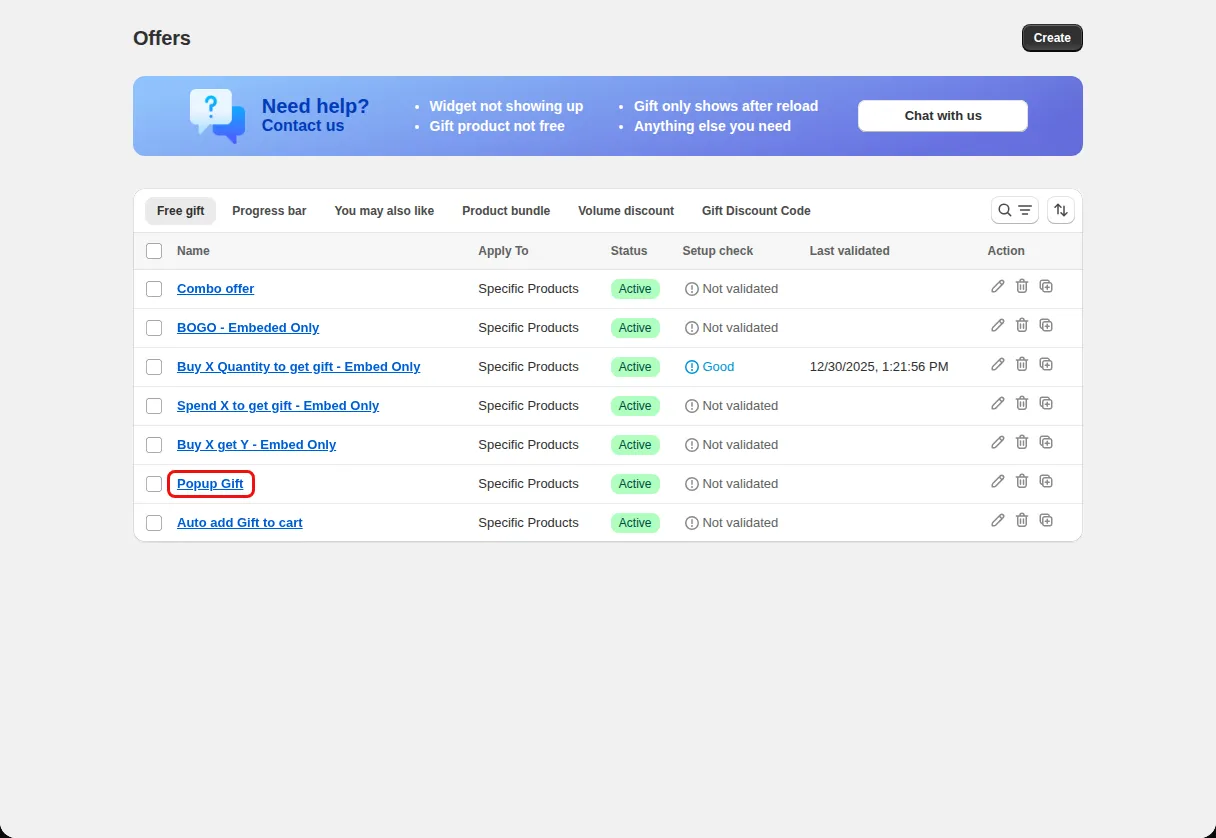
Go to Offers and open a Free gift offer or a Milestone reward.
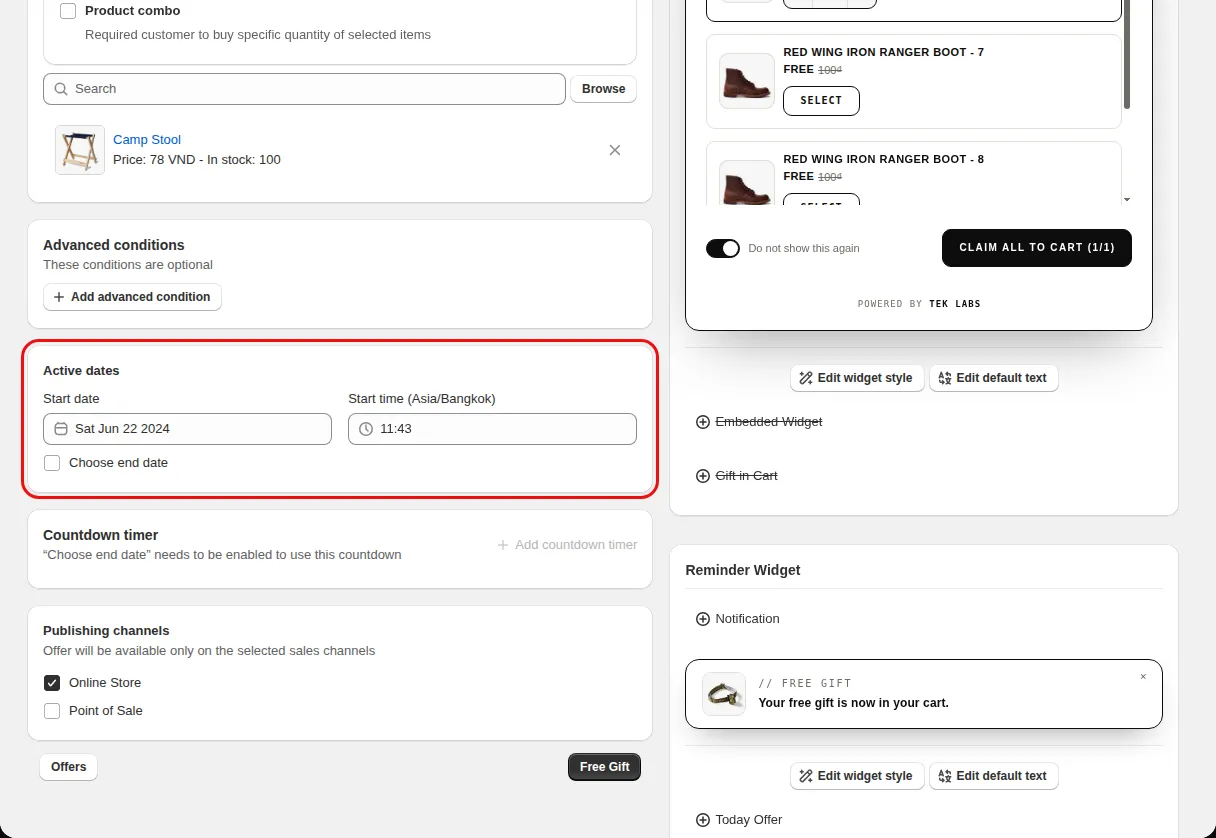
Under Active dates set the Start date and tick Choose end date, then set the End date.
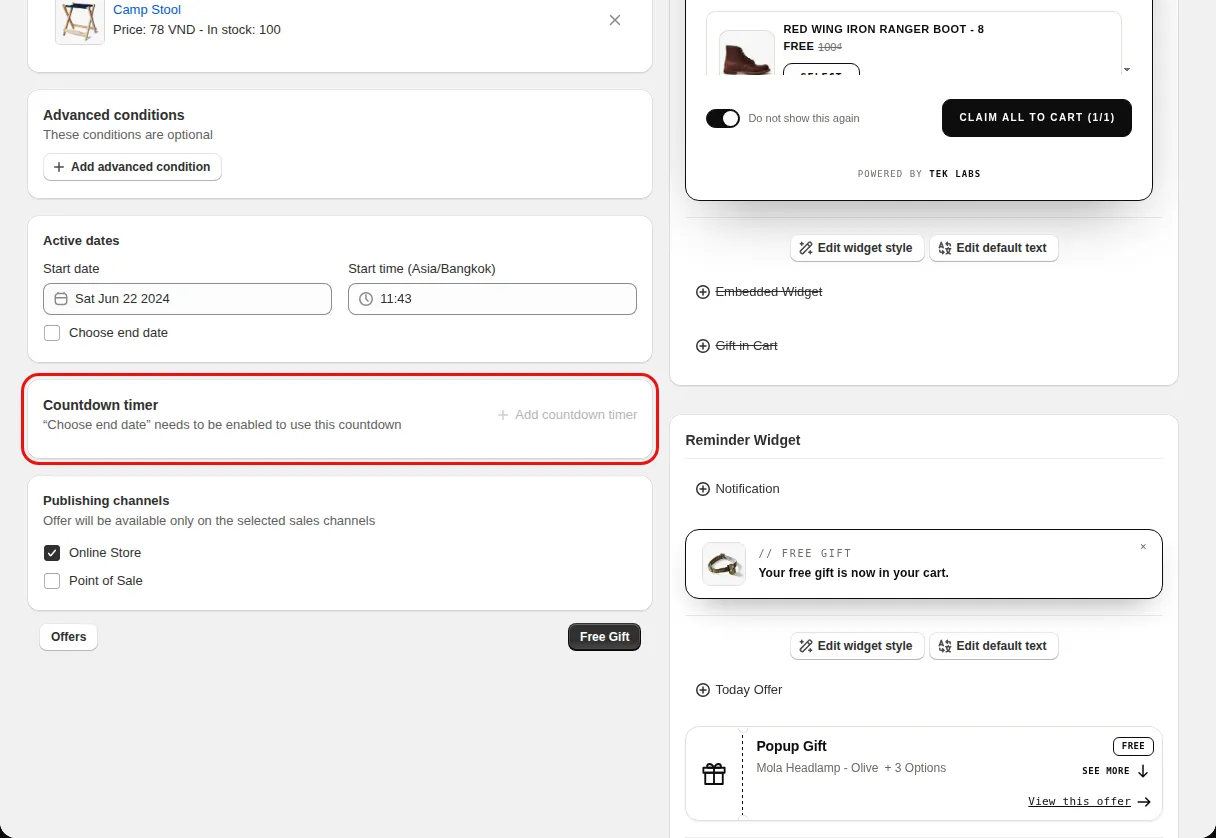
In the Countdown timer card click Add countdown timer, keep the timer type, and choose the Timer format.
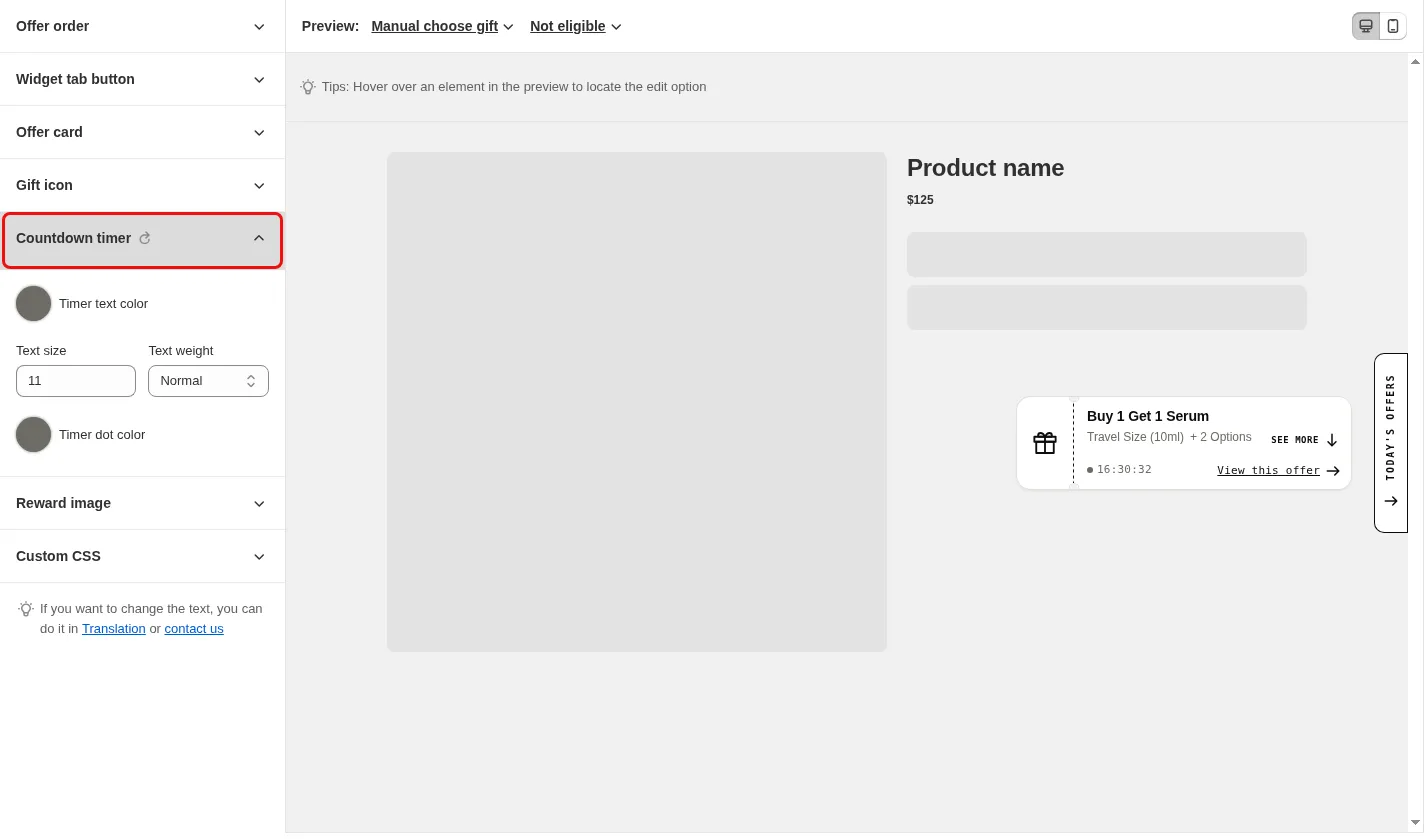
Open Styling and edit the Countdown timer section of the widget you use.
Use cases
Show a 24 hour timer on a gift offer.
Use dd:hh:mm:ss for an offer that runs for a few days.
Add a timer to a milestone bar for a campaign.
FAQ
The app says Choose end date needs to be enabled to use the countdown.
Styling sections for a countdown timer exist for the popup, embedded widget, today offers, gift in cart, and milestone reward bar.
Yes. The Translations tab has Countdown timer fields for title, days, hours, minutes, and seconds.
Free gifts, BOGO, bundles and progress bars. Every offer type, on a free plan to start.