Widget not showing
Find that the block was not enabled in the theme.
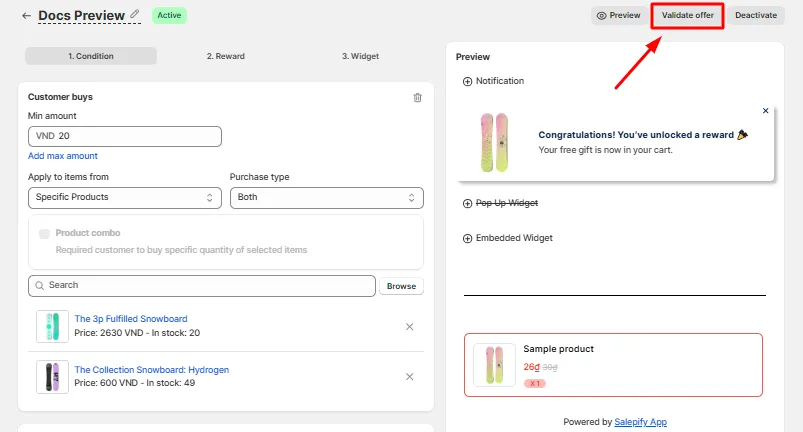
Offer setup check (Validate offer)
Run a built-in check on any offer to find a missing theme block, draft or out-of-stock gifts, or a popup that is not set to display.
What it is
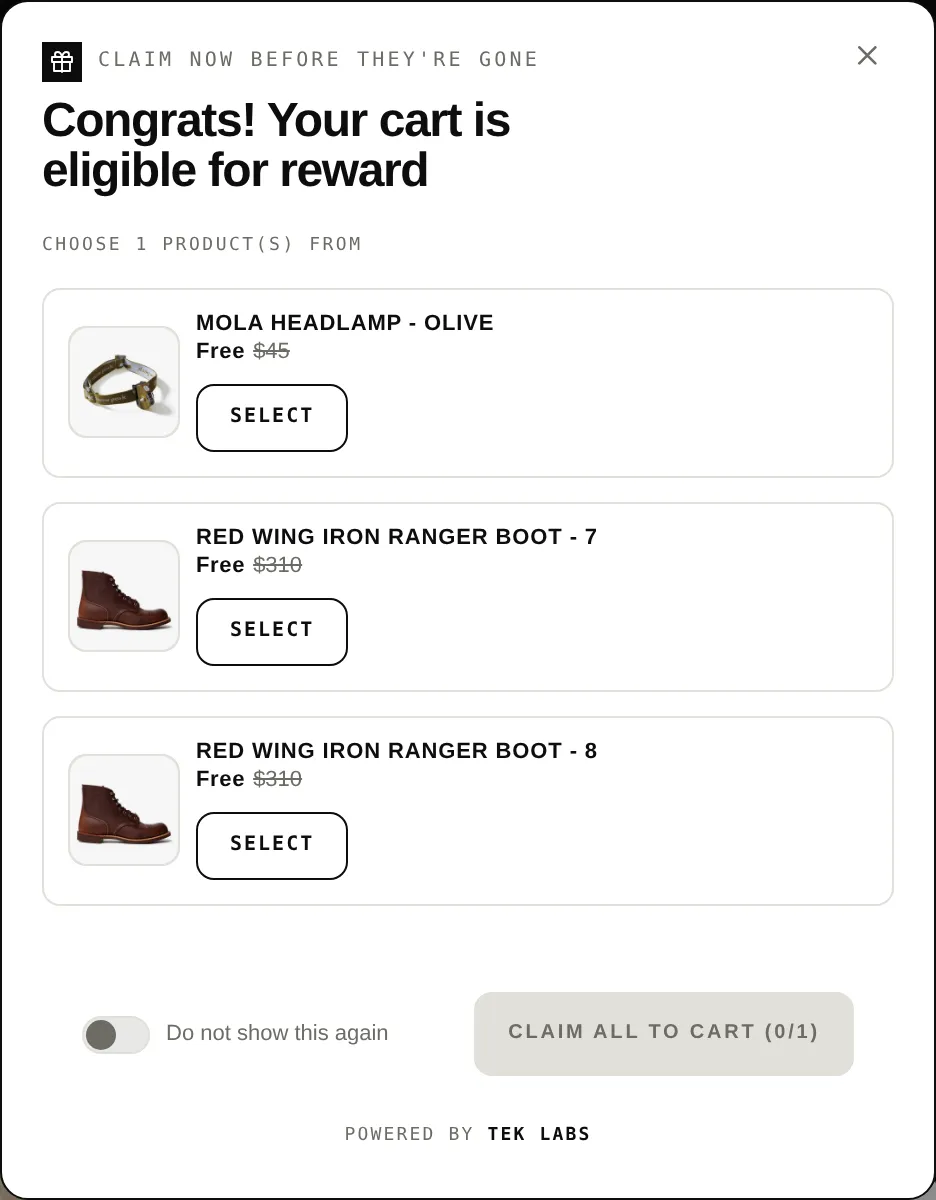
The Validate offer button analyzes your offer configuration in the background. It checks that the widget block is enabled in your theme, that auto-add gifts are in stock and not drafts, that products are visible, and that the popup is set to display on at least one page.
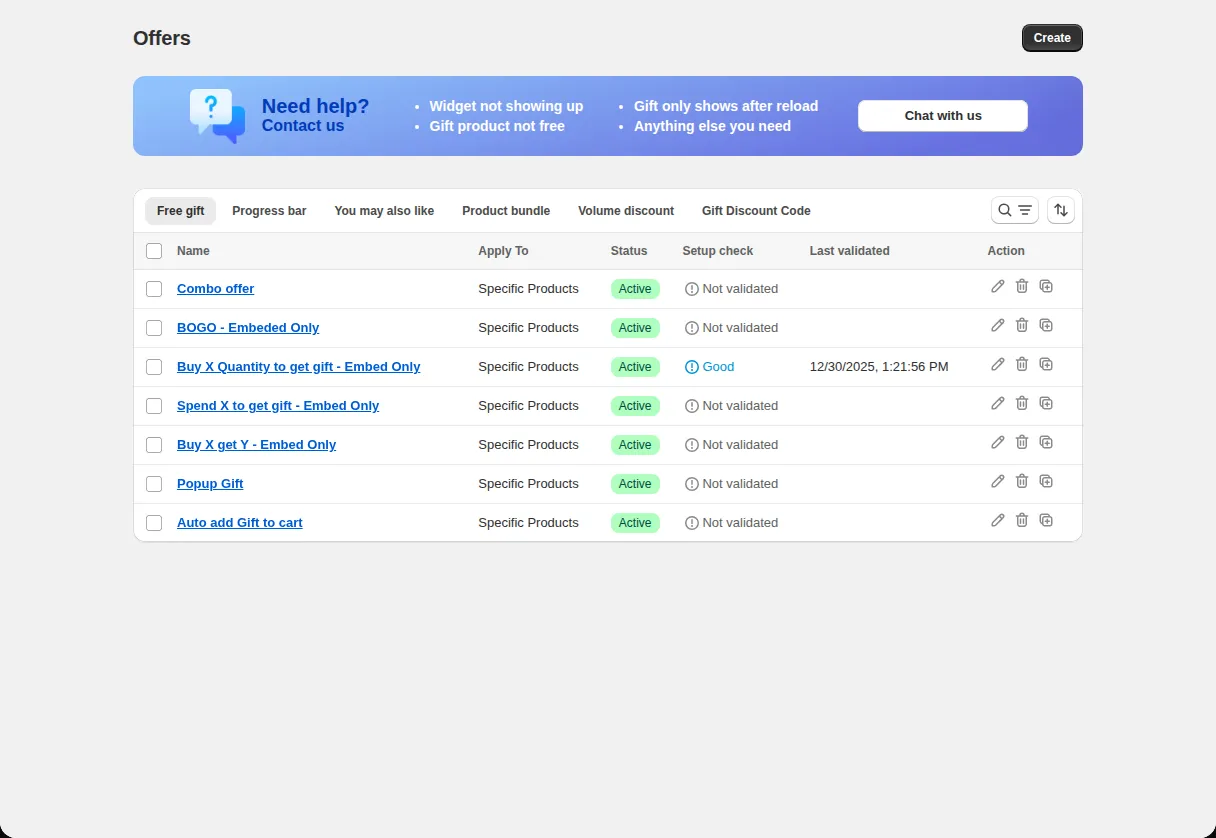
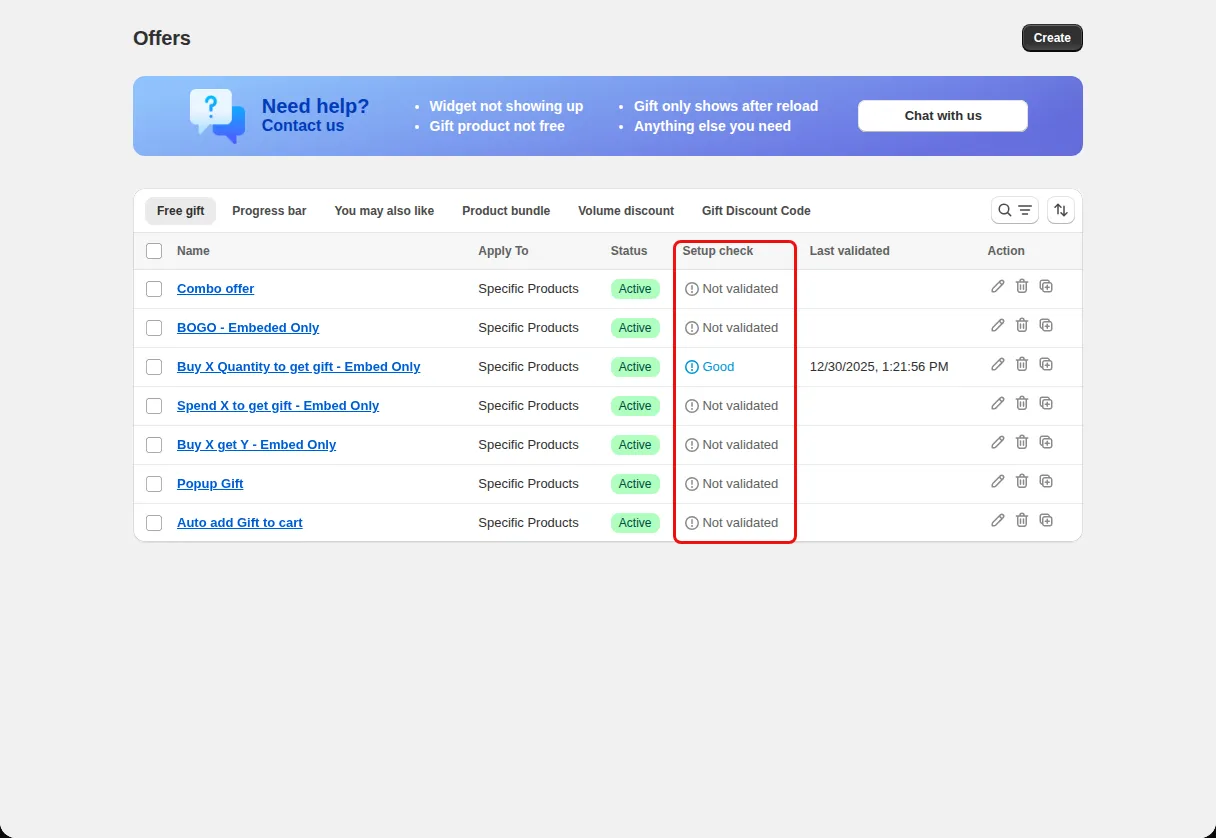
The Offers list has a Setup check column with a Last validated date and statuses such as Not validated and Action needed. Use it after creating an offer and after changing products.
For the shopper
Scroll through the steps. The phone shows what the shopper sees at each one; products and prices are an example.
The offer is created or updated.
The app shows Analyzing your offer configuration. You can close the popup and keep working.
For each issue the app explains it, for example The widget block hasn't been enabled in your theme.
After fixing, click Validate offer again to refresh the status.
For you
Options you control
Look at the Setup check column for Not validated or Action needed.
Use the buttons in the result, such as Enable widget block or Review products, then validate again.
Use cases
Find that the block was not enabled in the theme.
Find that a gift is out of stock or still a draft.
Re-validate to make sure the block is still on.
FAQ
Yes. You can continue editing, but saving is temporarily disabled until the analysis is complete.
Out-of-stock or draft gift products (auto-add may not work) and draft products that prevent the offer from appearing.
No. It reports problems and offers buttons to review them.
Related features
Free gifts, BOGO, bundles and progress bars. Every offer type, on a free plan to start.