Stepped incentives
Free shipping at the first tier, a cart discount at the second, and a free gift at the third.
Milestone rewards
Show shoppers how close they are to the next reward. Set up to 6 milestones per rule, each giving a free gift, a cart discount, or a shipping discount.
What it is
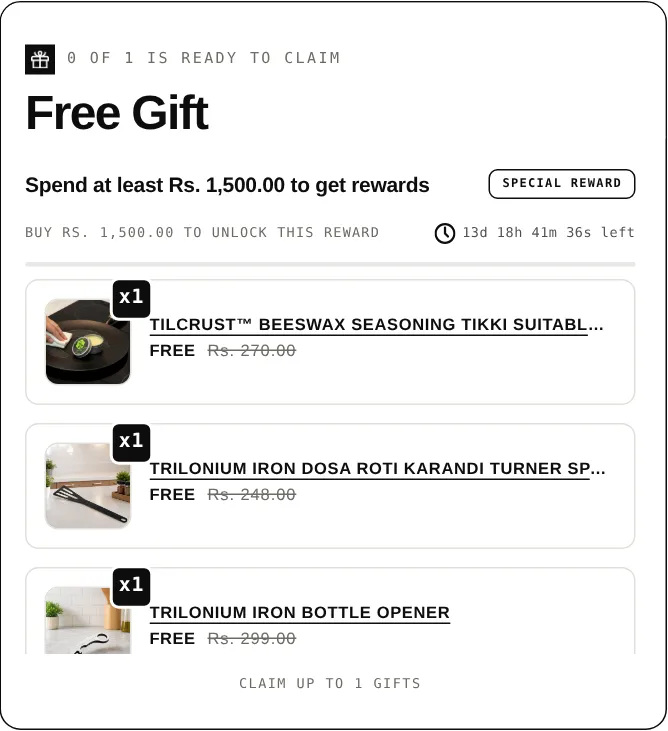
A milestone progress bar fills as the cart grows and unlocks a reward at each tier. In Free Gifts BOGO & Upsell, each milestone has a spend goal and a reward type: free gift, cart discount, or shipping discount.
Use it when you want to lift the order total in steps, for example free shipping first, then a discount, then a gift. The bar makes the next target visible without any extra messaging from you.
For the shopper
A progress bar in the cart shows the milestones and how far the cart has come.
As the cart value rises, the bar fills toward the next milestone.
When the spend goal is reached, the reward unlocks. Rewards can be added to the cart automatically.
If you let customers choose their free gift, they select it from a gift modal. Otherwise they keep adding toward the next tier.
For you
Options you control
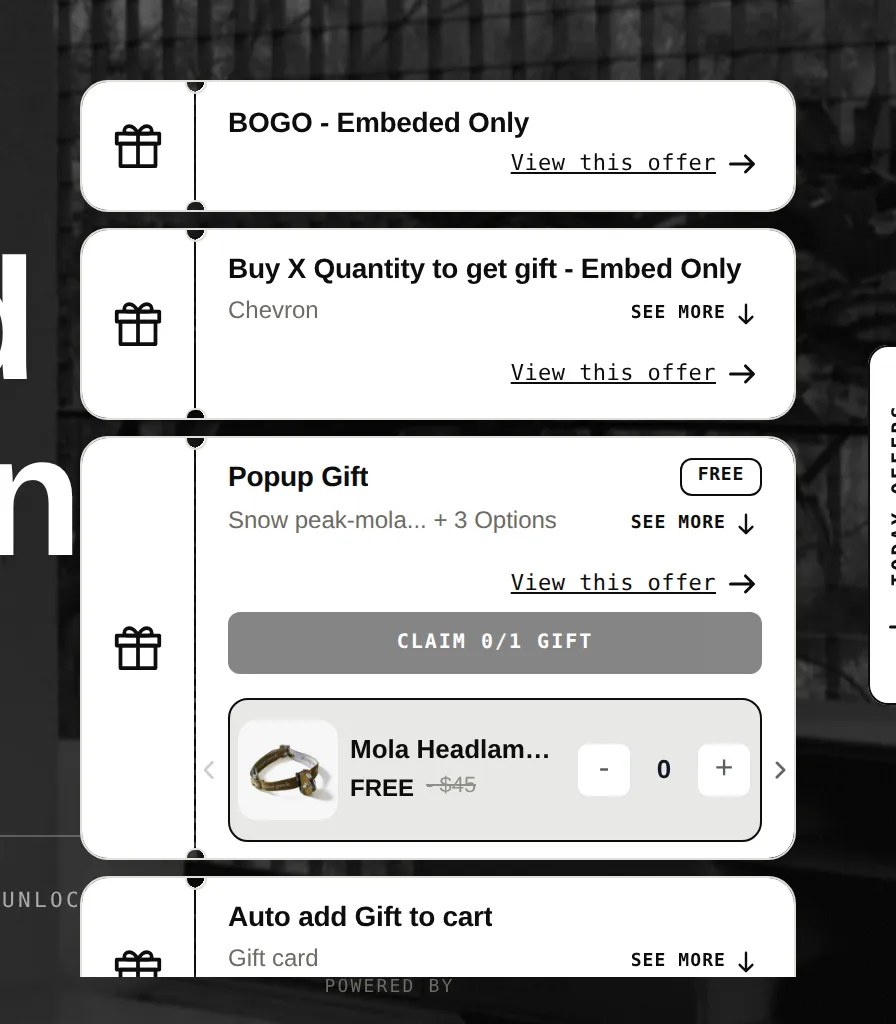
Go to Themes, Customize, App embeds, switch on Progress bar, and save.
Choose to give all milestone rewards or only the latest one, and whether rewards are added and removed automatically.
Add up to 6 milestones. For each, set the spend goal and a reward type: free gift, cart discount, or shipping discount.
Apply the campaign to all products, specific products, or specific collections, and set active dates.
Check the bar in the preview, then edit the widget style and default text. You can also choose where it sits in the cart and cart drawer.
Use cases
Free shipping at the first tier, a cart discount at the second, and a free gift at the third.
Run a time-limited bar with a custom reward name that matches your sale theme.
Limit the shipping discount to chosen countries or shipping methods.
FAQ
Up to 6 milestones in each rule.
A free gift, a cart discount (percentage or fixed), or a shipping discount (percentage or fixed).
That is your choice. You can give all milestone rewards or only the latest milestone's reward.
Yes. If the reward is a free gift and you choose manual selection, shoppers pick from a gift modal.
In the cart and cart drawer, and the demo store shows it on the cart page and at checkout too. You can set its position relative to a page element.
Related features
Free gifts, BOGO, bundles and progress bars. Every offer type, on a free plan to start.