Spend more, get a gift
Offer a small product when the cart passes a spend level a little above your usual order.
Free gift with purchase
Reward shoppers with a free or discounted product once their cart meets the conditions you set. The gift can be added automatically, or the shopper can pick it.
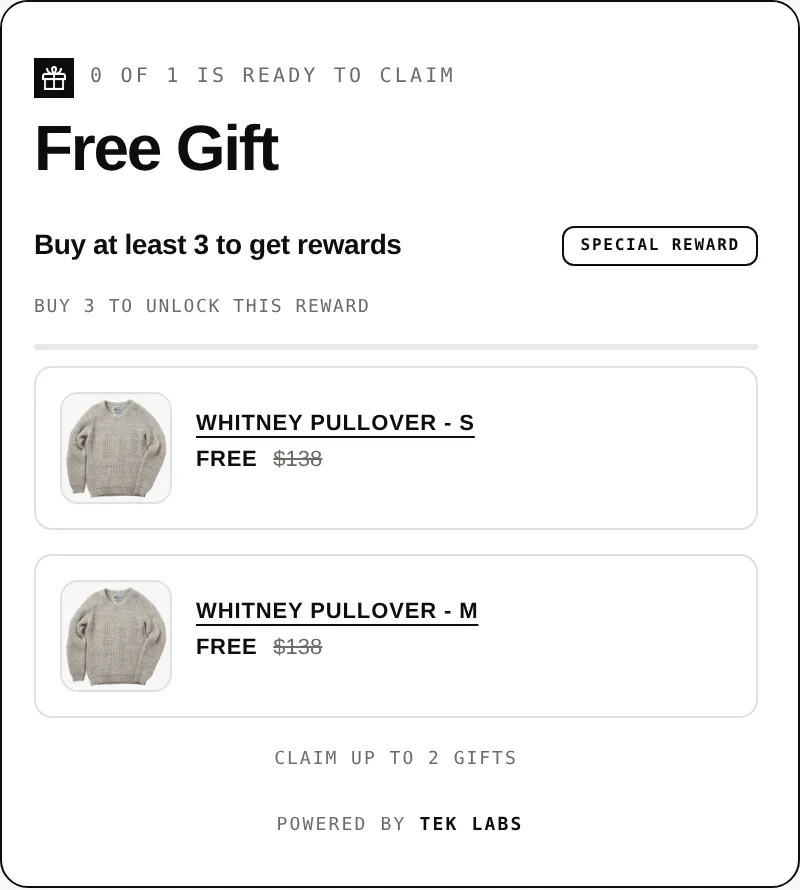
What it is
A free gift with purchase is a simple deal: reach a spend or item count, and a product is added at no cost or at a discount. In Free Gifts BOGO & Upsell you define the condition, choose the gift products, and pick how the gift reaches the cart.
Use it when you want a reason for shoppers to add one more item, when you have stock to move, or when you want to reward every order with a small extra. Gifts can follow a cart value, a cart quantity, or apply to every order.
For the shopper
They browse as usual and add products. The offer counts the items or cart value you chose as the condition.
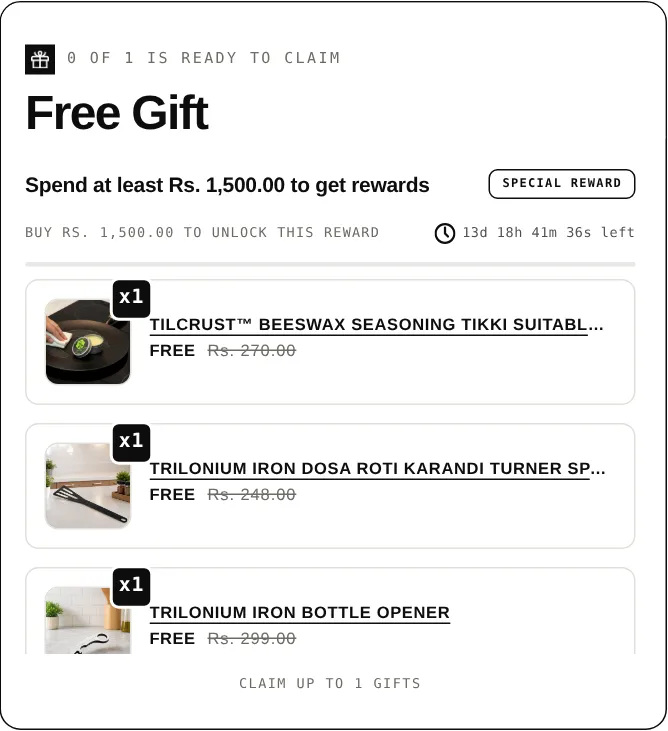
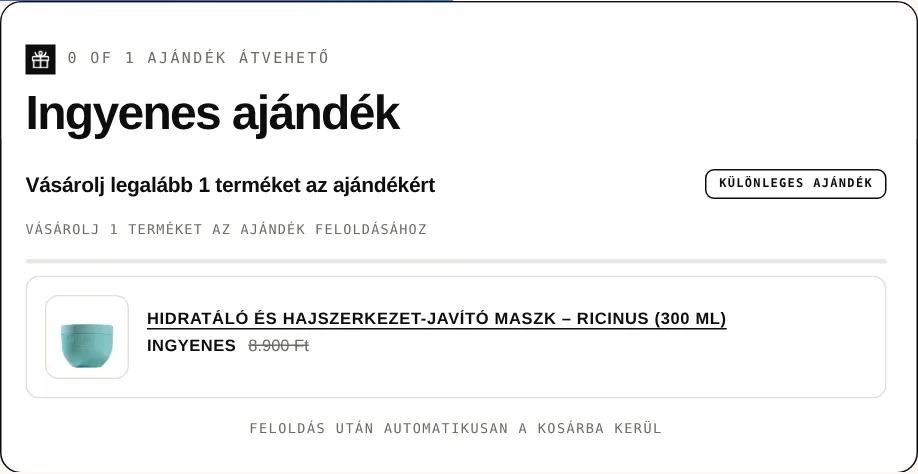
A widget on the product page, in the cart, or in a popup shows what the shopper needs to unlock the gift.
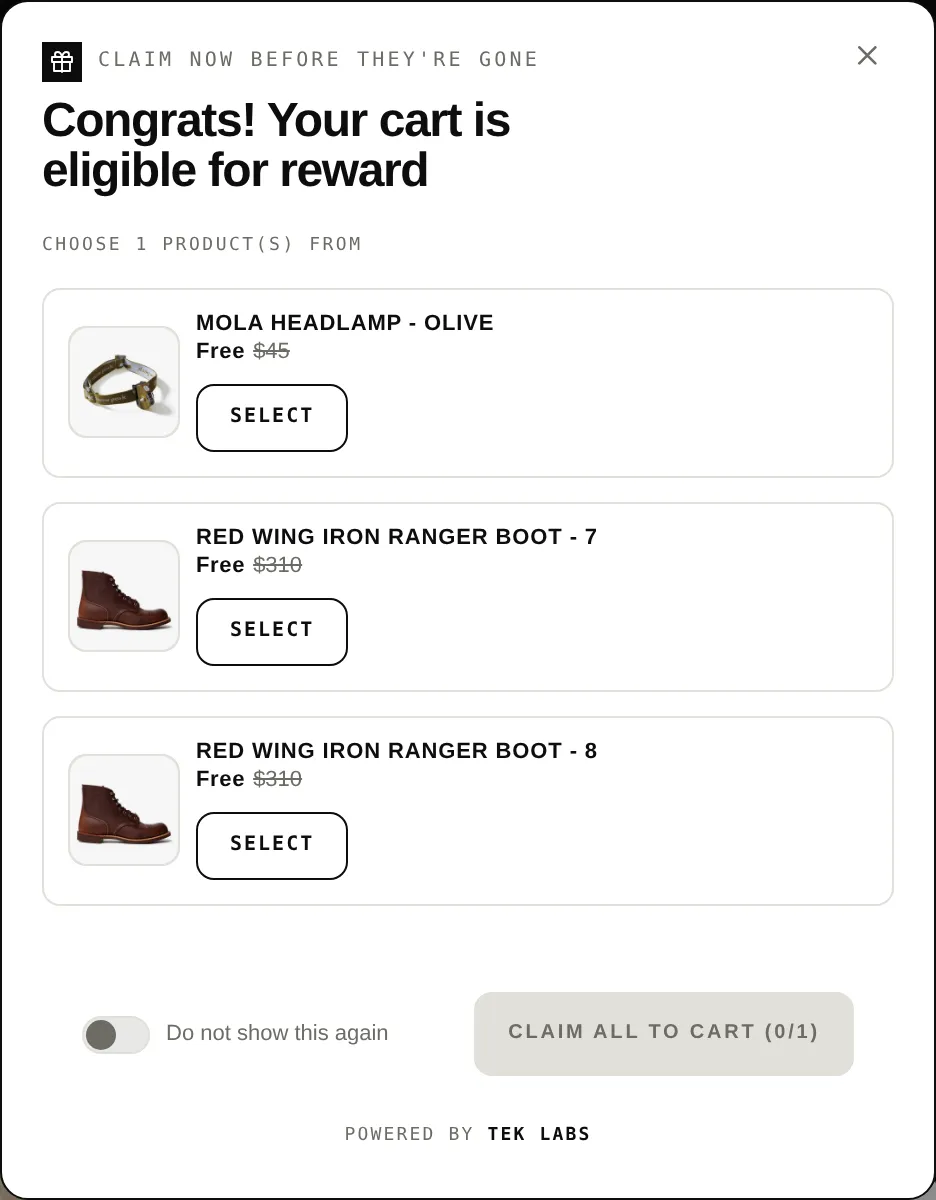
When the cart qualifies, a notification or popup tells the shopper they have unlocked a gift.
Depending on your rule, the gift is added automatically, or the shopper selects it from your gift list and claims it.
The gift shows at zero, or at the percentage or fixed discount you configured.
For you
Options you control
In your Shopify admin go to Themes, Customize, App embeds, switch on Free Gift, and click Save.
Give the Free Gift rule an internal name and set it to active. Only active rules work on your storefront.
Choose cart value or cart quantity, set minimum and maximum, then choose which products count (specific products, collections, variants, tags, or all products). Set start and optional end dates.
Pick the gift products, decide whether gifts are added automatically or chosen by the customer, and set the discount (percentage, fixed amount, or free).
Choose Notification, Pop Up, and Embedded widgets, preview them, then click Validate Offer to check the setup before you go live.
Use cases
Offer a small product when the cart passes a spend level a little above your usual order.
Use older or overstocked items as the gift so they leave the shelf without a standalone markdown.
Add a sample or small extra to every order with the Every Order template.
Show a short gift list and let shoppers pick, so the gift feels personal rather than random.
FAQ
Yes. You can add all listed gifts, add only the first available gift (falling back to the next if it is out of stock), or let customers choose manually.
Yes. The gift price can be a percentage off, a fixed amount off, or free.
You can enable auto-removal so the gift leaves the cart when the qualifying condition is no longer met.
The rule has a Discount Combinations setting for product, order, and shipping discounts. The guide recommends ticking it on if you use other discounts or apps.
Yes. The Validate Offer button checks the widget block, auto-add behavior, offer visibility, and popup position without activating the offer.
Related features
Free gifts, BOGO, bundles and progress bars. Every offer type, on a free plan to start.