Auto-add offers
Confirm that a gift was added so shoppers do not remove it by mistake.
Gift added notification
Show a small notification when a free or discounted item is added to the cart, so shoppers notice their reward.
What it is
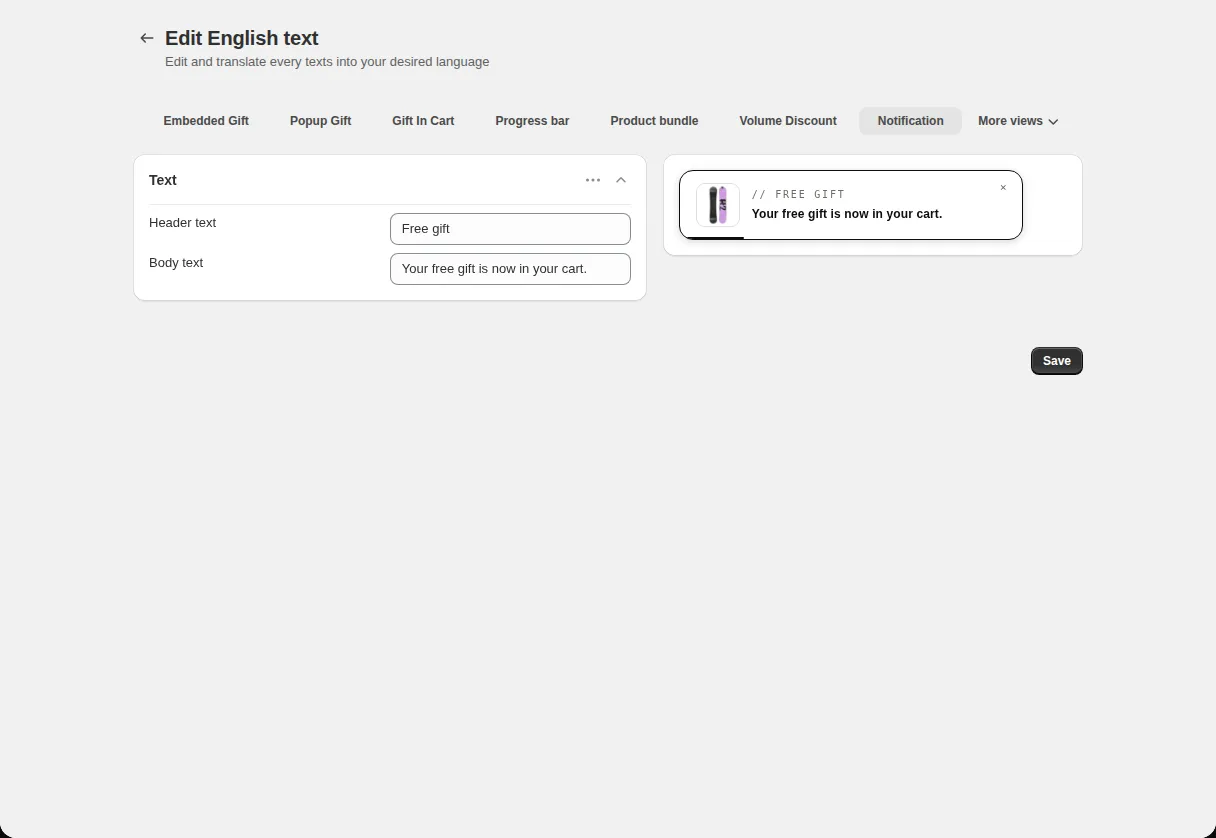
The Notification reminder widget displays a short banner when an offer applies or a gift is auto-added. It has a header, a body text, an optional product image or icon, a position on screen, an animation, and a display duration.
Use it with auto-add offers. Without a message, shoppers can be surprised by a new item in the cart. The notification makes the reward clear and pleasant.
For the shopper
Scroll through the steps. The phone shows what the shopper sees at each one; products and prices are an example.
The cart reaches the spend or quantity you set.
The offer adds the gift to the cart automatically.
A banner animates in at your chosen position with a header and body text.
The banner hides after the duration you set.
For you
Options you control
On the Widget step, under Reminder Widget, tick Notification (Show offers as notification banners).
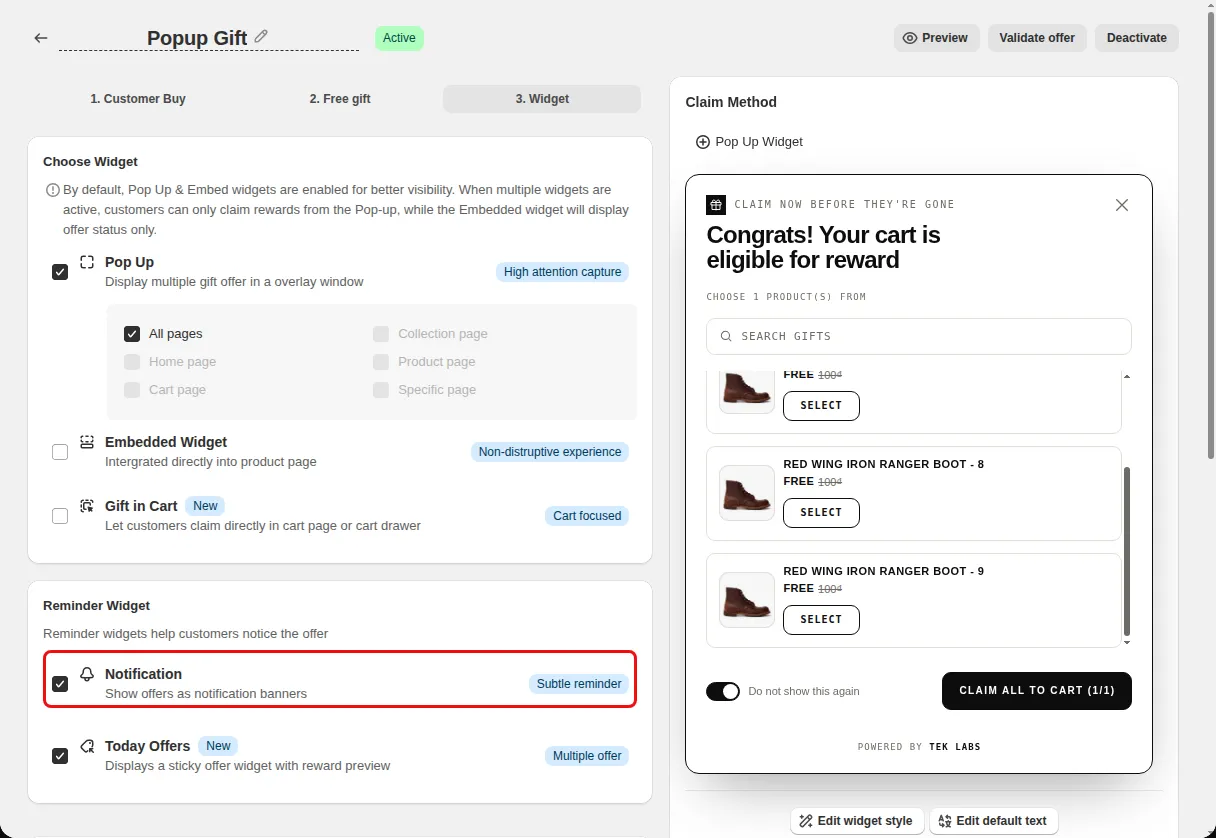
Open Styling and choose Notifications. Set the position, animation, image, and duration.
Open Translations and choose the Notification tab to edit the header and body text.
Use cases
Confirm that a gift was added so shoppers do not remove it by mistake.
Write a friendly header and body that fit your store voice.
Use a bottom corner position so the message does not cover the product.
FAQ
The Styling tab describes it as informing the customer when a free or discounted item has been auto-added to the cart.
Yes. There is a duration field in seconds under display settings.
Yes. You can show the first gift product image, an icon, or no image.
Free gifts, BOGO, bundles and progress bars. Every offer type, on a free plan to start.