Large catalogs
Offer relevant add-ons without choosing them by hand.
Automatic upsell recommendations
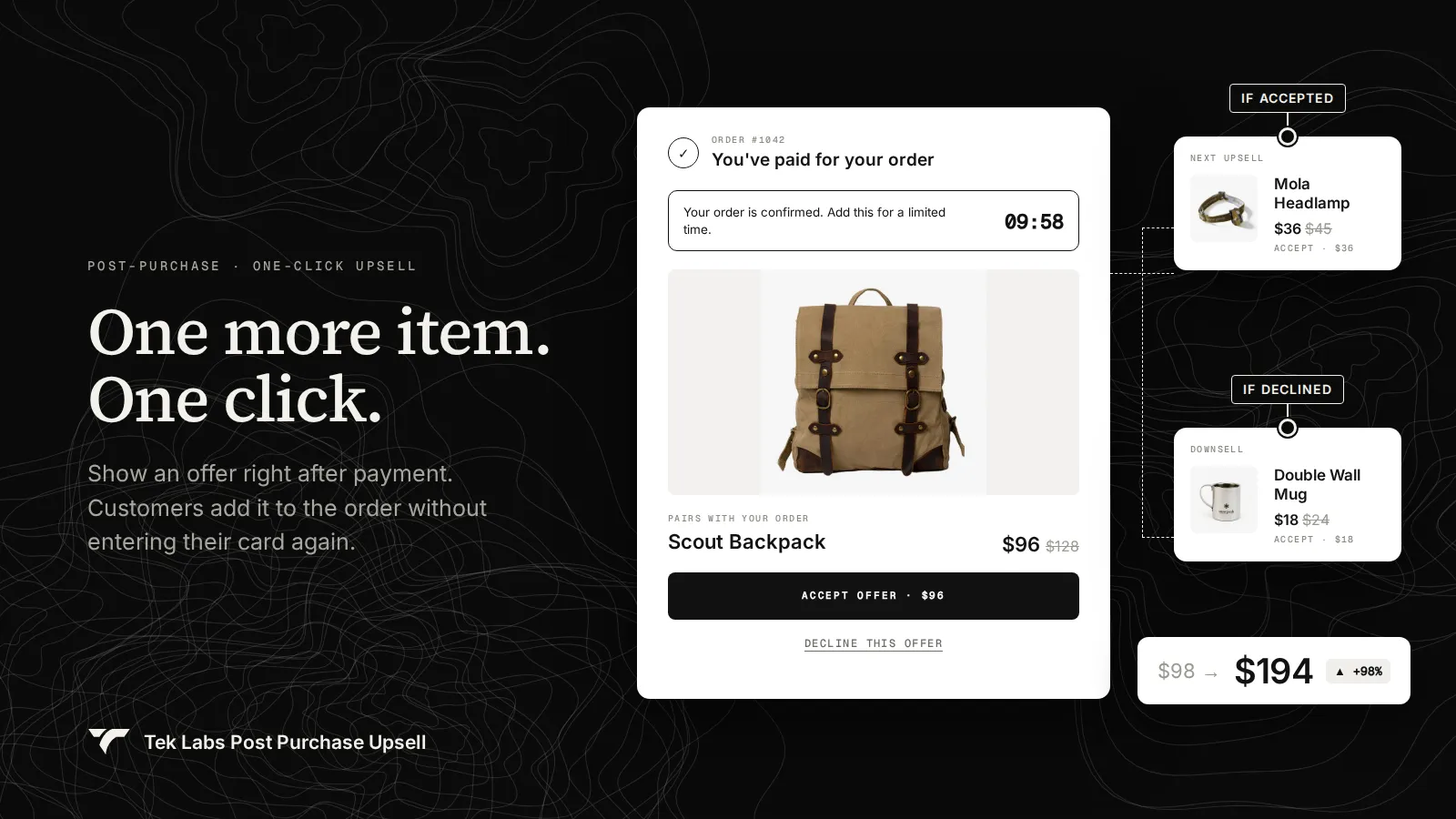
Skip hand-picking products. An Automatic upsell offer shows related products chosen by Shopify based on what the customer just bought.
What it is
When you add an offer you can choose Specific products or Automatic upsell. With Automatic upsell the app asks Shopify for related products for the first item in the order and shows up to the number you set. Products that are unavailable are skipped.
Use it when your catalog is large or changes often and you do not want to maintain upsell lists. You still control the discount, shipping, price breakdown, and layout, and you can show several products at once in a multiple columns layout.
For the shopper
Scroll through the steps. The phone shows what the shopper sees at each one; products and prices are an example.
The post purchase offer starts for the matching funnel.
It requests related products for the first purchased item.
Out of stock or inactive products are skipped, up to your Number of recommended products.
They accept a product with the discount you set, and accepted products drop out of the next step.
For you
Options you control
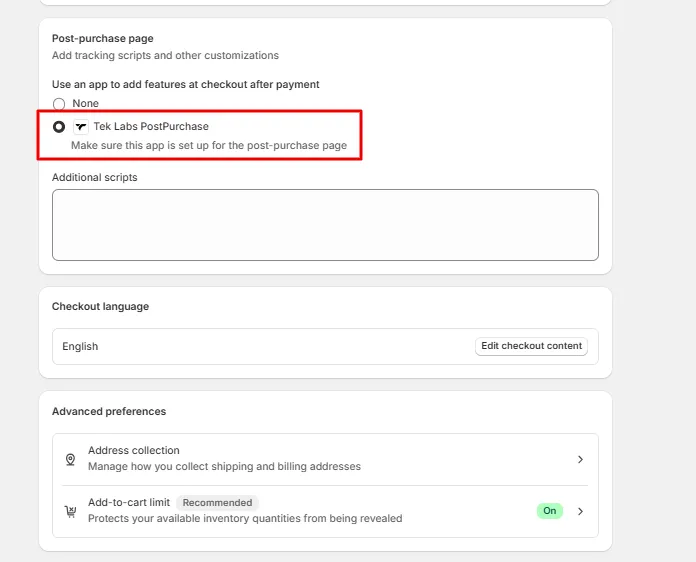
In Shopify Checkout settings, choose Tek Labs Post Purchase under Post-purchase page.
In a funnel's Post purchase upsell tab, open Upsell 1 and click Add offer, then choose Automatic upsell.
In Product selection, enter Number of recommended products.
Open the item to set the discount and shipping, then choose a Layout and Products per row.
Check the preview, which repeats the sample product to the count you set, then save.
Use cases
Offer relevant add-ons without choosing them by hand.
Let Shopify pick related items as your range changes.
Show three related products in columns and let the customer pick.
FAQ
It asks Shopify for related product recommendations for the first purchased line item.
Yes. Add offer lets you choose Specific products, and you can add more products and reorder them.
Unavailable products are skipped when the offer is built.
Upsell and downsell funnels, thank-you page offers: our team sets it up with you and checks it before it goes live.
Free to install. Built for Shopify. Rated 4.9 from 30 reviews.