Gift message
Offer a gift checkbox with a text box for the message to the recipient.
Checkout order notes and gift message
Add an optional checkbox to Shopify checkout, with an optional text box, that writes the shopper's choice into the order note.
What it is
The Notes widget shows a checkbox with a title you write, for example a gift wrap request. You can show a text box when the box is ticked, with your own placeholder, so shoppers can type a message.
Whatever the shopper ticks or types is saved to the order note as a readable line, one line per Notes widget, so your team sees it on the order. Use it for gift messages, delivery instructions, or consent checkboxes. Checkout customization needs Shopify Plus.
For the shopper
Scroll through the steps. The phone shows what the shopper sees at each one; products and prices are an example.
The checkout block shows your checkbox title.
If you enabled the text box, a field appears with your placeholder.
The text is saved when they leave the field.
The note gets a line in the form title, colon, message. Unticking removes that line.
For you
Options you control
In a funnel on a Shopify Plus store, open the Checkout tab and click Edit block.
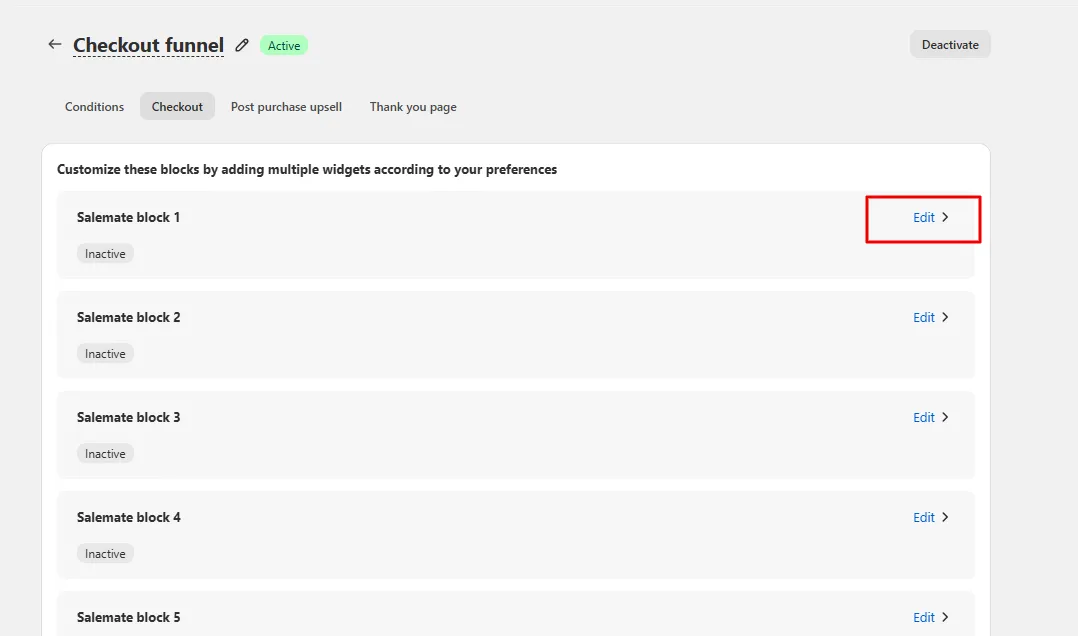
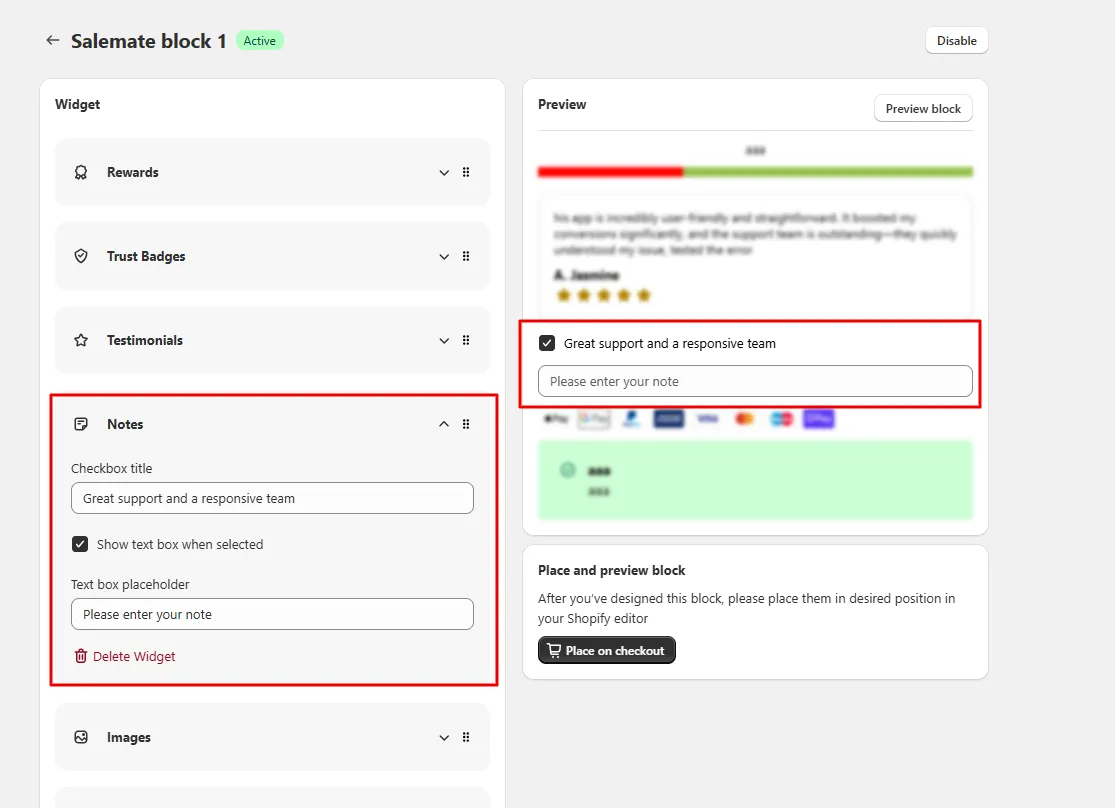
Pick a Salemate block, click Add widget, and choose Notes.
Enter the Checkbox title, switch on Show text box when selected if you want a message field, and set the Text box placeholder.
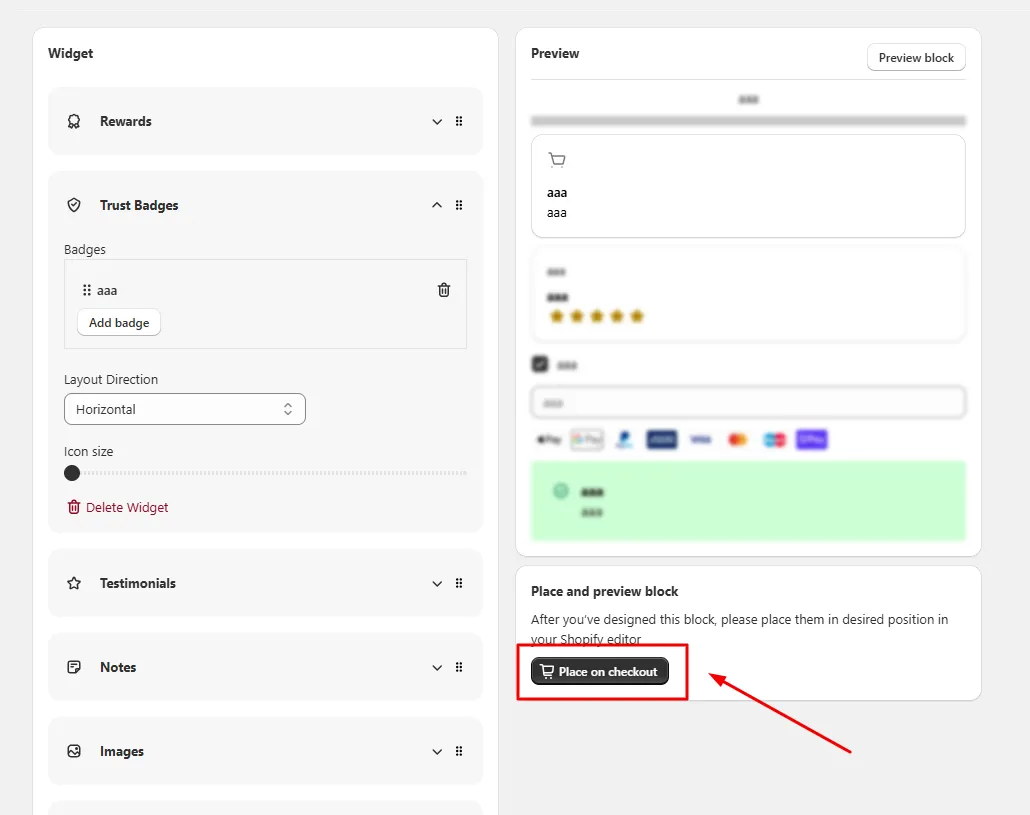
Save, then click Open Shopify editor and drag the Salemate block to the position you want.
Use cases
Offer a gift checkbox with a text box for the message to the recipient.
Let shoppers add a delivery note without editing the cart.
Add a checkbox such as a request for a catalog, with no text box, and read the note on the order.
FAQ
In the order note. The widget writes lines in the form checkbox title, colon, message to the checkout note.
Yes. Each Notes widget writes its own line using its checkbox title as the key.
Yes. Checkout widgets are only available on Shopify Plus stores.
Related features
Upsell and downsell funnels, thank-you page offers: our team sets it up with you and checks it before it goes live.
Free to install. Built for Shopify. Rated 4.9 from 30 reviews.