To upsell on Shopify, show one relevant offer, a better version or an add-on, at a moment when the shopper is already buying: on the product page, in the cart, in checkout, on the post-purchase page right after payment, or on the thank you page. Every placement except the checkout steps works on any paid plan, so most stores can start today without Shopify Plus.
Last verified against Shopify documentation on 2026-10-04.
Key takeaways
- Upselling offers a bigger or better version of what the shopper is buying. Cross-selling adds a complementary item. A downsell is a cheaper fallback shown after a decline. Most offers you build are a mix of the three.
- There are six places an offer can sit. Product page, cart and thank you page are open to every plan. Offers inside the information, shipping and payment steps of checkout need Shopify Plus.
- The post-purchase page needs no Plus plan but has hard limits: three accepted offers per checkout, orders of $0.50 or more, and no page at all for wallet, buy now pay later and gift card payments.
- Show one offer per moment, price it as a small fraction of the cart, and let the shopper decline with one click.
- Measure on the orders that could actually see the offer. Shopify’s AOV is gross sales minus discounts and leaves out edits made after the order is created, so track attach rate and profit per order next to it.
Upsell, cross-sell and downsell: what each one means
The three terms are used loosely, and the loose use is a problem when you set up an app, because each app asks you to choose. Shopify’s own guide defines upselling as “a sales technique in which a seller encourages a customer to purchase a more expensive item, upgrade, or add on to increase the overall value of the sale” (Shopify, Upselling). Its cross-selling guide says cross-selling “suggests complementary items which pair well with the original product” and “typically shows up in the cart or at checkout as an add-on” (Shopify, Cross-selling). Neither of the two guides we read defines a downsell, so the downsell definition below is ours.
| Term | What the shopper sees | Typical example | Best moment |
|---|---|---|---|
| Upsell | A more expensive or larger version of the item they chose | 12-pack instead of 6-pack, the Pro size, a warranty tier | Product page, cart, post-purchase |
| Cross-sell | A product that goes with what is in the cart | Case with a phone, conditioner with a shampoo | Product page, cart, thank you page |
| Downsell | A cheaper or smaller fallback shown after a decline | A trial size after the full-size offer is refused | Post-purchase page |
| Order bump | A one-tick add-on just before payment | Gift wrap, extended warranty | Checkout (Plus) |
An order bump sits on the path to payment, so it should be small and cheap, as our glossary explains. A post-purchase upsell is shown after payment. That one difference decides most of the rules in the rest of this guide: before payment the shopper can leave because of friction, after payment they cannot.
For a Shopify store the practical distinction is not the vocabulary but the question you ask the shopper. An upsell asks “do you want this version instead?”, a cross-sell asks “do you want this as well?”, and a downsell asks “if not that, would this smaller thing work?”. Keep the question to one at each screen.
Every place an offer can sit on Shopify
Shopify gives you six surfaces. The table puts the plan limits next to each one, taken from Shopify’s help center and developer docs.
| Placement | When the shopper sees it | Plan needed | Main limit from Shopify |
|---|---|---|---|
| Product page | While deciding | Any plan | Theme and app blocks; Shopify’s own recommendations are complementary and related, up to 10 each |
| Cart page or cart drawer | After add to cart, before checkout | Any plan | Governed by your theme and the app; automatic discounts cap at 25 |
| Checkout (information, shipping, payment) | Mid-purchase | Shopify Plus | Apps on these steps are Plus only |
| Post-purchase page | After payment, before the thank you page | Basic and up | Max 3 accepted offers, $0.50 minimum, no wallets or gift cards |
| Thank you page | After the order is confirmed | Basic and up | Cannot change the order; order is not yet created when it renders |
| Order status page | Any later visit | Basic and up | Order always available; same no-mutation rule |
Product page: the first moment of intent
On the product page the shopper is choosing, so this is the place for upsells in the strict sense: a larger pack, a bundle, a quantity tier. Shopify’s Search and Discovery app can show “complementary” and “related” product recommendations here, with up to 10 of each selected by hand and the rest generated from purchase history and collections (Shopify Help Center). Those are cross-sell and substitute lists, not offers with a price attached.
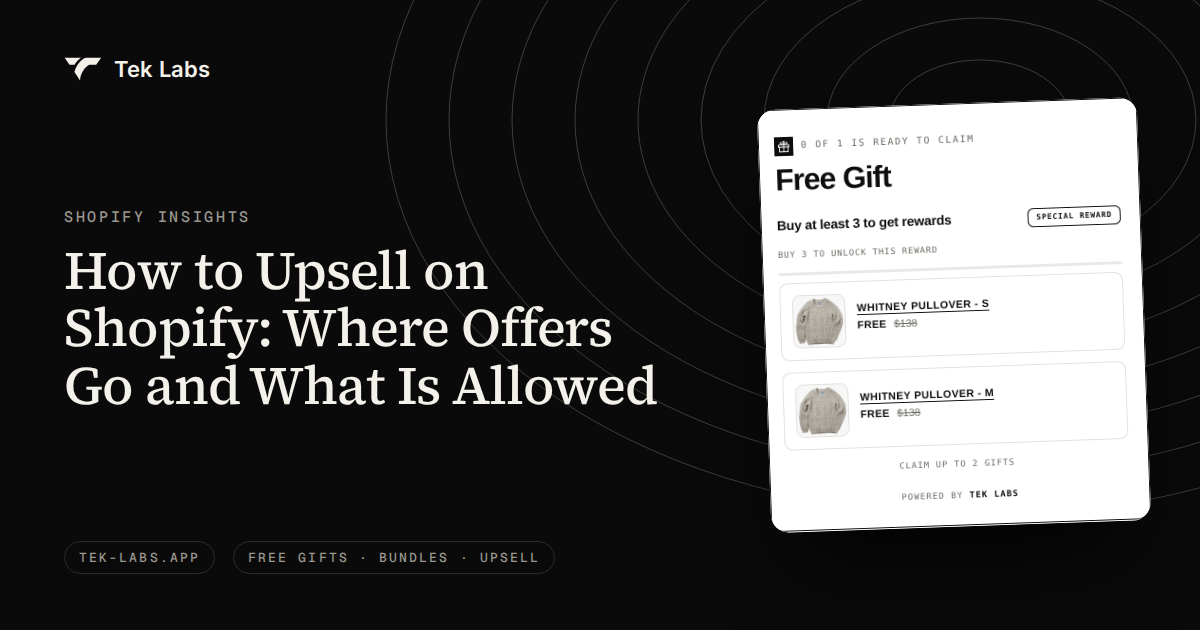
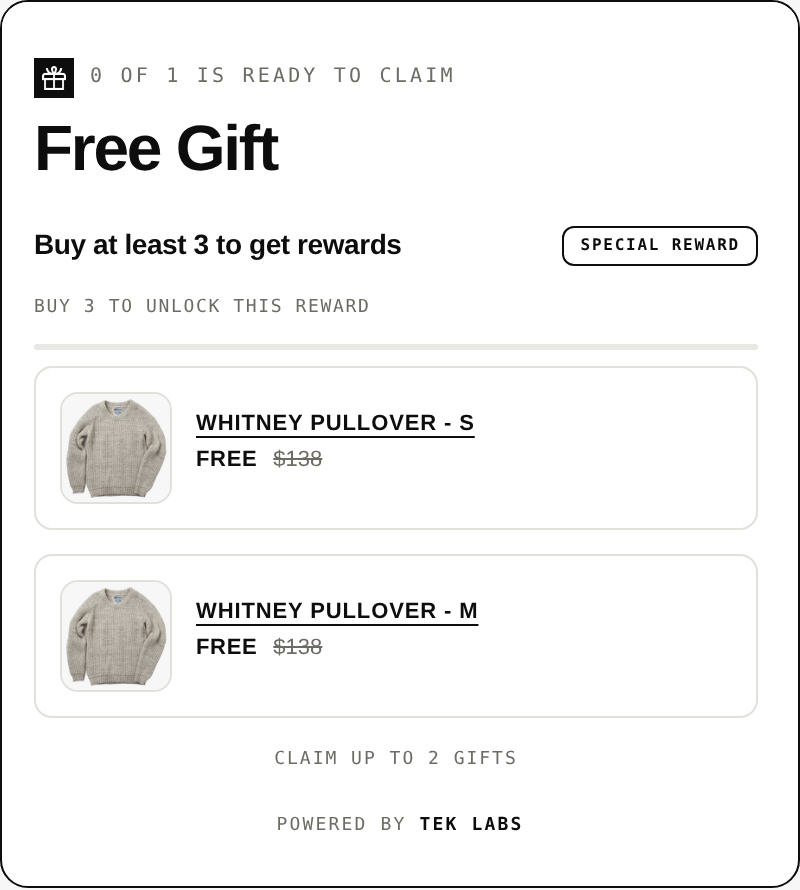
For an offer with a price attached you need discounts. Our volume discounts let you set up to 6 quantity tiers, by percentage or fixed amount, with an optional free item on a tier, and our product bundles sell items together at one price. The free gift widget sits in the same area and states the rule in plain words.
Cart: where cross-sells fit best
The cart is where the shopper reviews, so an add-on needs to be quick to accept. Shopify’s cross-selling guide says cross-sells typically show up in the cart or at checkout. Our You May Also Like widget shows in the cart when a product is added, and its recommendations can come from Shopify’s engine or a product you pick by hand (see the user guide).
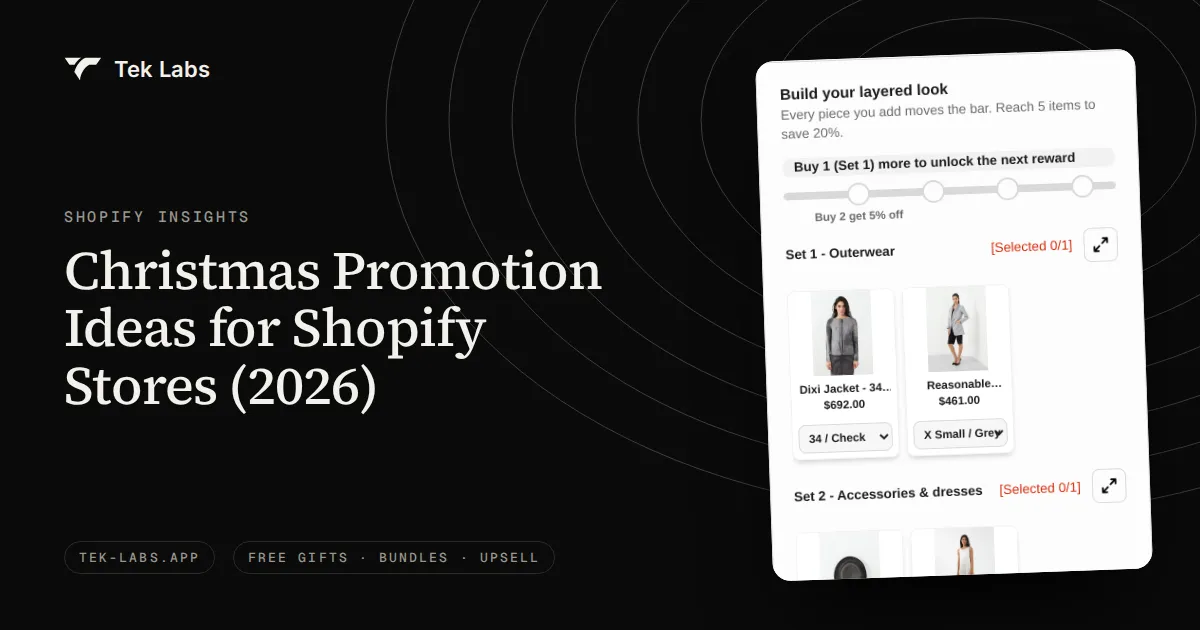
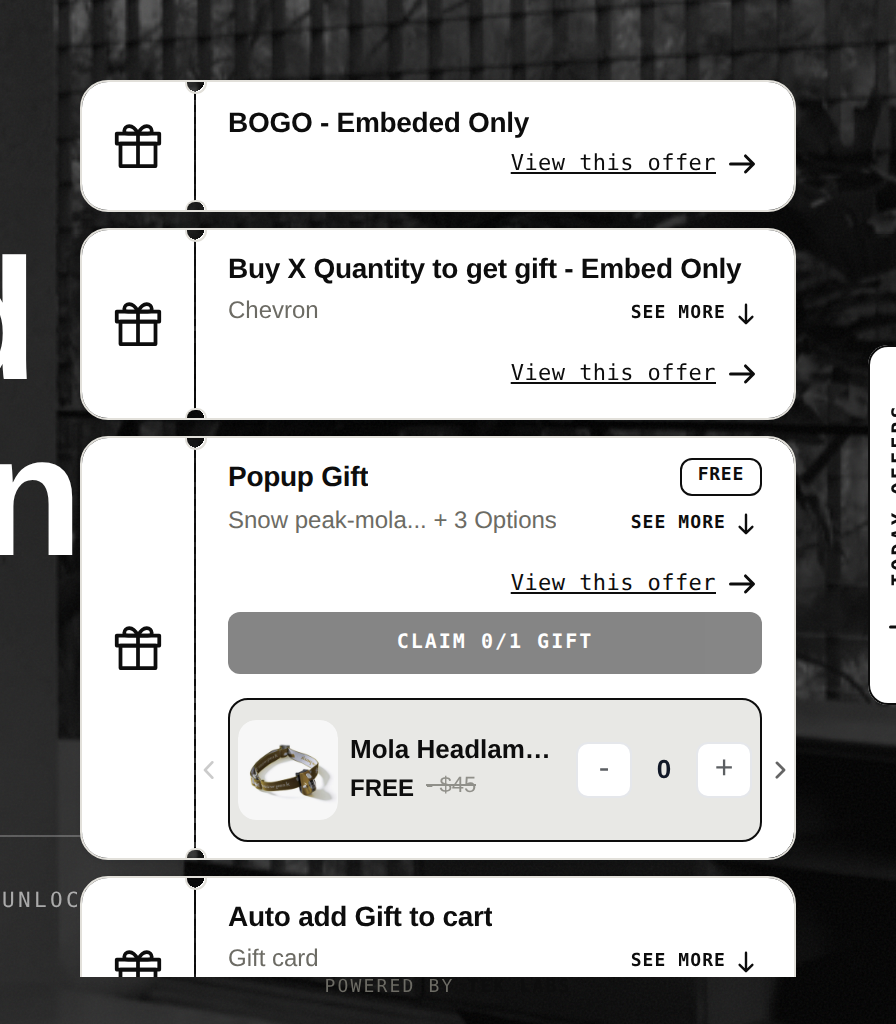
The cart is also the right place for progress toward a reward. A milestone progress bar can hold up to 6 tiers, each giving a free gift, a cart discount or a shipping discount, and the drawer view lists the store’s live offers in one place.
Cart upsells also matter for a reason that has nothing to do with the offer: the cart is where people leave. Baymard’s list of 50 studies puts the average documented cart abandonment rate at 70.22 percent, and the top reason given is extra costs that are too high (40 percent) (Baymard Institute). An offer that adds cost surprises at this stage is working against the biggest reason for leaving. Keep the price visible and the add-on small. Our cart abandonment guide covers the other causes.
Checkout: the Plus-only part
Checkout is where the plan matters most. Shopify’s help center says standard checkout customizations are available on all pages for the Basic plan or higher, while “advanced checkout customization features are available only on the Shopify Plus plan.” For apps, the split is specific: eligible apps that customize the thank you and order status pages are available on Basic and Plus, but eligible apps that customize the information, shipping and payments pages are available only on Shopify Plus (Shopify, Checkout extensibility).
Shopify’s developer docs call an offer shown there a pre-purchase product offer, “an additional sales opportunity that’s displayed to customers before they complete checkout,” and add that checkout UI extensions are available only to Shopify Plus merchants (shopify.dev). The help center gives the standard example: install an item upsell app and add it to the order summary area so customers can add items during checkout.
If you are on Plus, this is the right home for an order bump or a progress bar in the order summary. If you are not, do not hunt for a workaround. The honest equivalents are the cart (before checkout) and the post-purchase page (after payment). Our post purchase upsell feature page shows how the after-payment offer fits when you are not on Plus.
Post-purchase page: the offer after payment
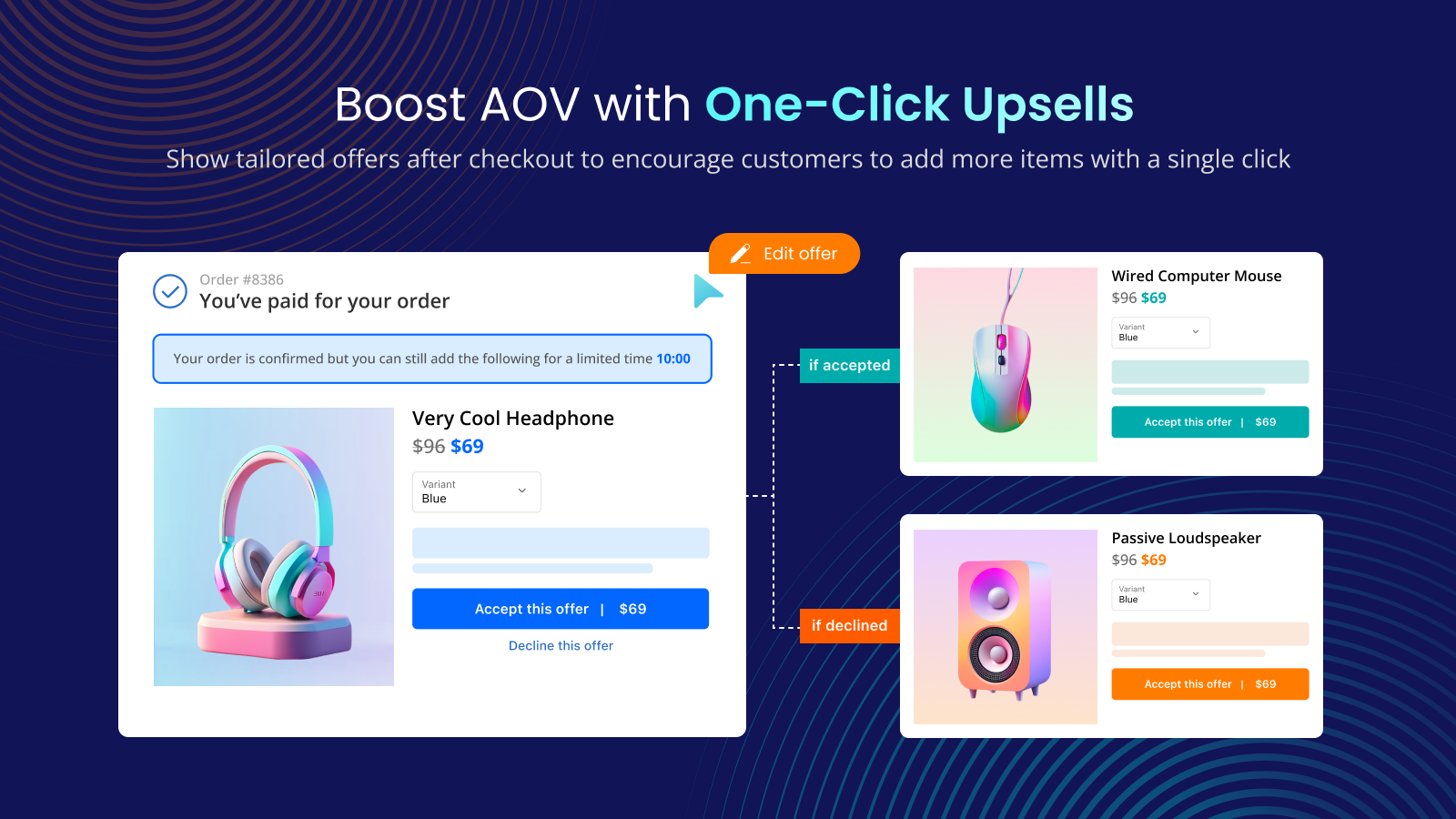
The post-purchase page appears after the order is confirmed and before the thank you page. It is the one placement where the shopper has already paid and can accept an extra item with one click. Apps built with post-purchase extensions are available on the Basic plan or higher (Shopify, Checkout apps). The limits are worth knowing by heart, so they get their own section below.
Thank you and order status pages
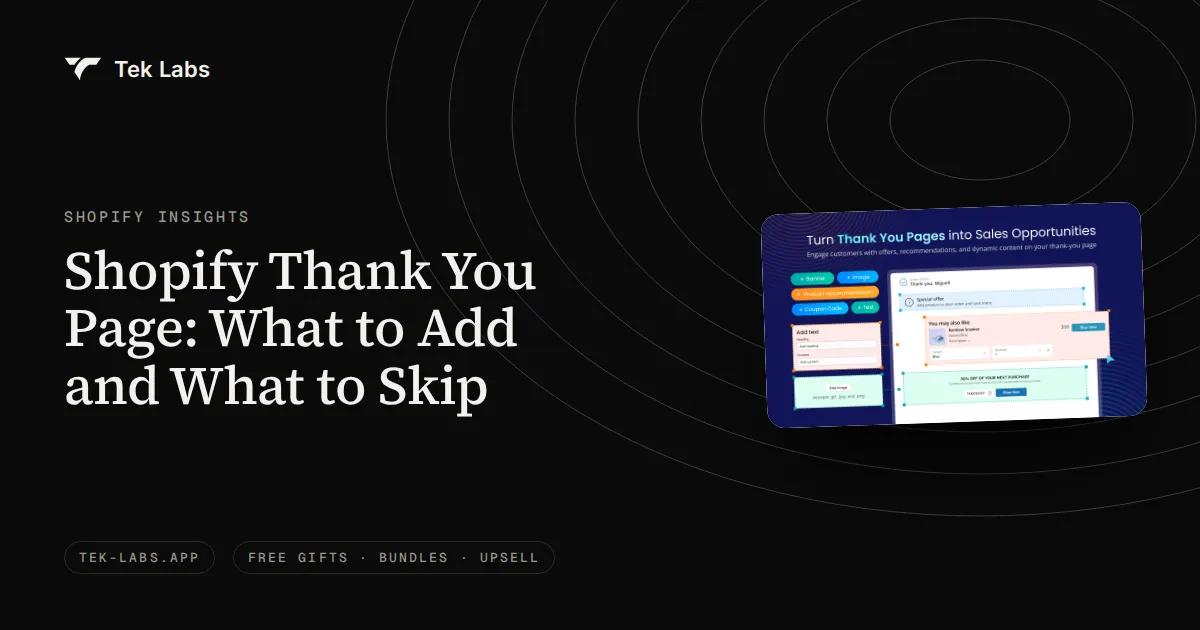
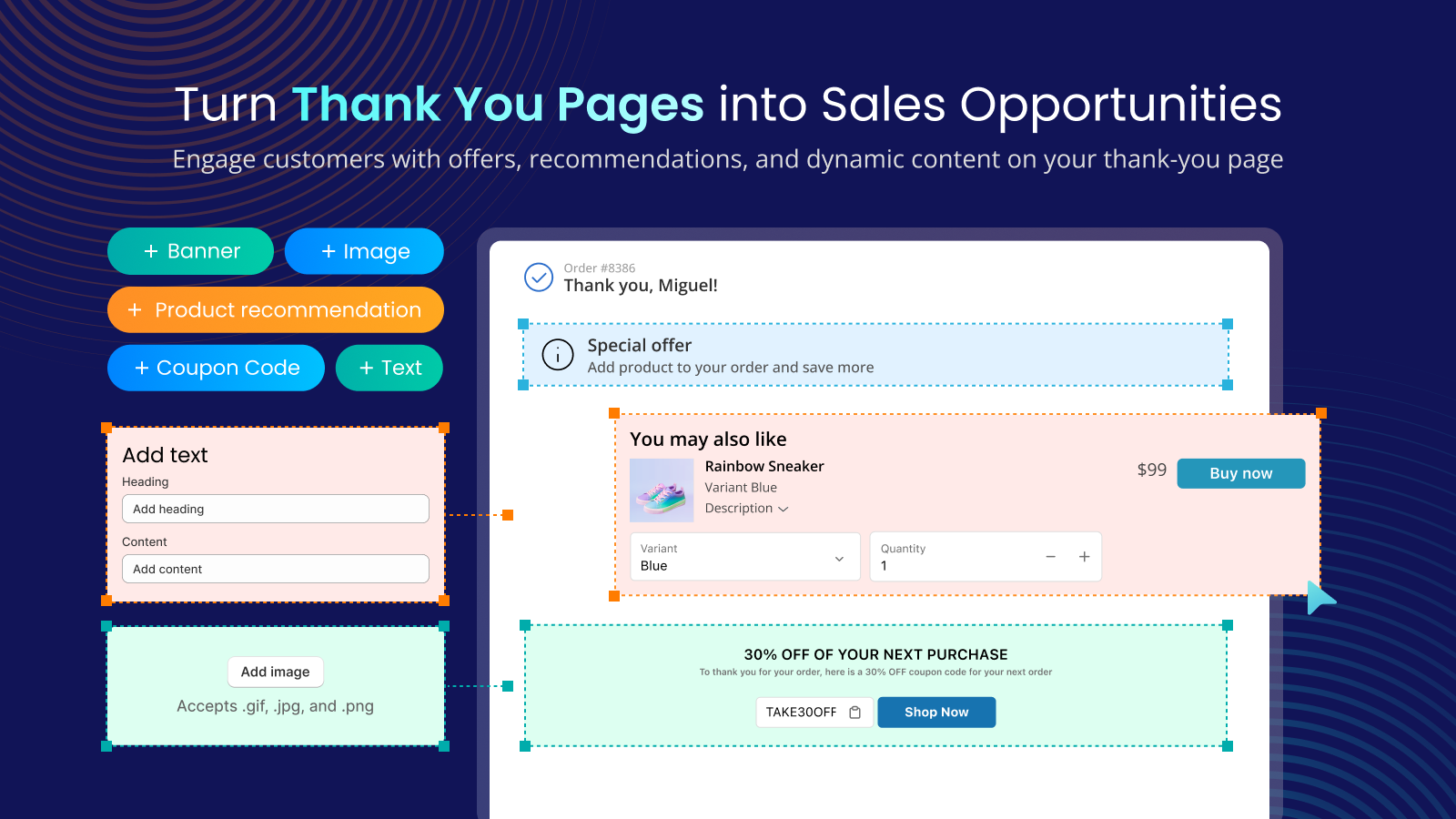
Extensions on these pages can add “survey requests, product reviews, upsell offers, social sharing and download links.” They cannot change the order: “there’s no support for APIs that directly mutate an order using a UI extension.” On the thank you page the order is not yet created while the extension renders, although the order id is available, and on the order status page the order is always available (shopify.dev). The practical meaning is that a thank you page offer is a link or a new order, a coupon code, or a recommendation, not an add-on to the order the shopper just paid for. That is what the post-purchase page is for.
Stores that were not on Plus had to move to the new thank you and order status pages by August 26, 2026, per Shopify’s upgrade guide, so on any current store these pages run on the new version (Shopify, Upgrade guide). Our thank you page offers cover what to place there, and the Post Purchase Upsell app handles both pages.
What Shopify allows on the post-purchase page
These are the rules from shopify.dev, listed so you can design around them rather than discover them after launch.
- **Order value.** Orders must be $0.50 or more to qualify.
- **Number of offers.** A customer can accept a maximum of three post-purchase offers for each checkout, and the UX guidelines say to display at most three consecutive offers.
- **One app.** Only one app can be selected for post-purchase product offers, and the help center repeats that you can use only one checkout app to add post-purchase features at a time.
- **Sales channel.** Orders need to be placed through the Online Store sales channel.
- **Payment method.** The page is not shown if the customer paid with an installment service or a wallet such as Klarna, Affirm, Afterpay, Apple Pay, Amazon Pay or Google Pay, or with a gift card or any method other than a credit card.
- **Currency and delivery.** No post-purchase offers on orders with duties and multiple currencies, or on orders for local delivery.
- **Fulfillment hold.** Shopify holds fulfillment while the flow runs, and lifts the hold one hour after the initial checkout if the shopper does not finish.
- **Analytics.** Third-party analytics that use the Shopify Pixel API report only the purchase event and value for the initial purchase, so the add-on will not appear in those tools.
- **Access.** The docs describe post-purchase checkout extensions as in beta, usable without restrictions in a development store, with a request for access needed on a live store. An app that already has access does this step for you.
Two more details matter. The Buy X get Y discounts you create in the Shopify admin do not apply on the post-purchase page, so a native BOGO cannot be the offer there. And the page is a payment screen: Shopify’s UX guidelines ask for a clear accept and decline, a price with the original struck out, and help text under the accept button saying the customer will be charged immediately (shopify.dev, UX guidelines).
Our app’s own user guide lists the same cases where offers do not show, adding digital-only orders, local pickup and a few payment providers that require the card verification number to be retained. If your store sells mostly through wallets, a large share of orders will never reach the page, which is a design input, not a defect. Read the full list in the Post Purchase Upsell user guide before you promise a number to anyone.
Offer design: what makes an upsell accepted
Placement decides who sees the offer. Design decides who accepts it. The rules below start from Shopify’s own UX guidance, so treat them as defaults to test, not laws.
Fit the offer to the moment
| Moment | Shopper state | Offer that fits | Offer that backfires |
|---|---|---|---|
| Product page | Comparing options | A larger pack, quantity tier, bundle | A second unrelated product |
| Cart | Reviewing | A low-price add-on, a progress reward | An offer that raises the cart by more than half |
| Post-purchase | Paid, still engaged | A second item with a small discount, a refill | A price above the original order |
| Thank you | Done, waiting | A coupon for next time, a survey | Anything that needs to change this order |
Keep the price small and the choice simple
A common rule of thumb is to keep an add-on to a small fraction of the cart value. We have no study to cite for the exact fraction, so find yours by testing, but the direction is reliable: the shopper has already agreed to one price, and an offer that doubles it is a new decision. Shopify’s guidance points the same way: it caps the sequence at three consecutive offers and asks for a clear way to decline. Offer one product at a time and show the price with the original struck out when you discount.
Use the downsell as a safety net
A decline is data. A post-purchase funnel in our app can hold two upsell offers and one downsell offer. The downsell is usually a smaller pack or a trial size of the item they refused. It is worth keeping the downsell price below the original upsell, otherwise it reads as the same offer repeated.
Segment before you scale
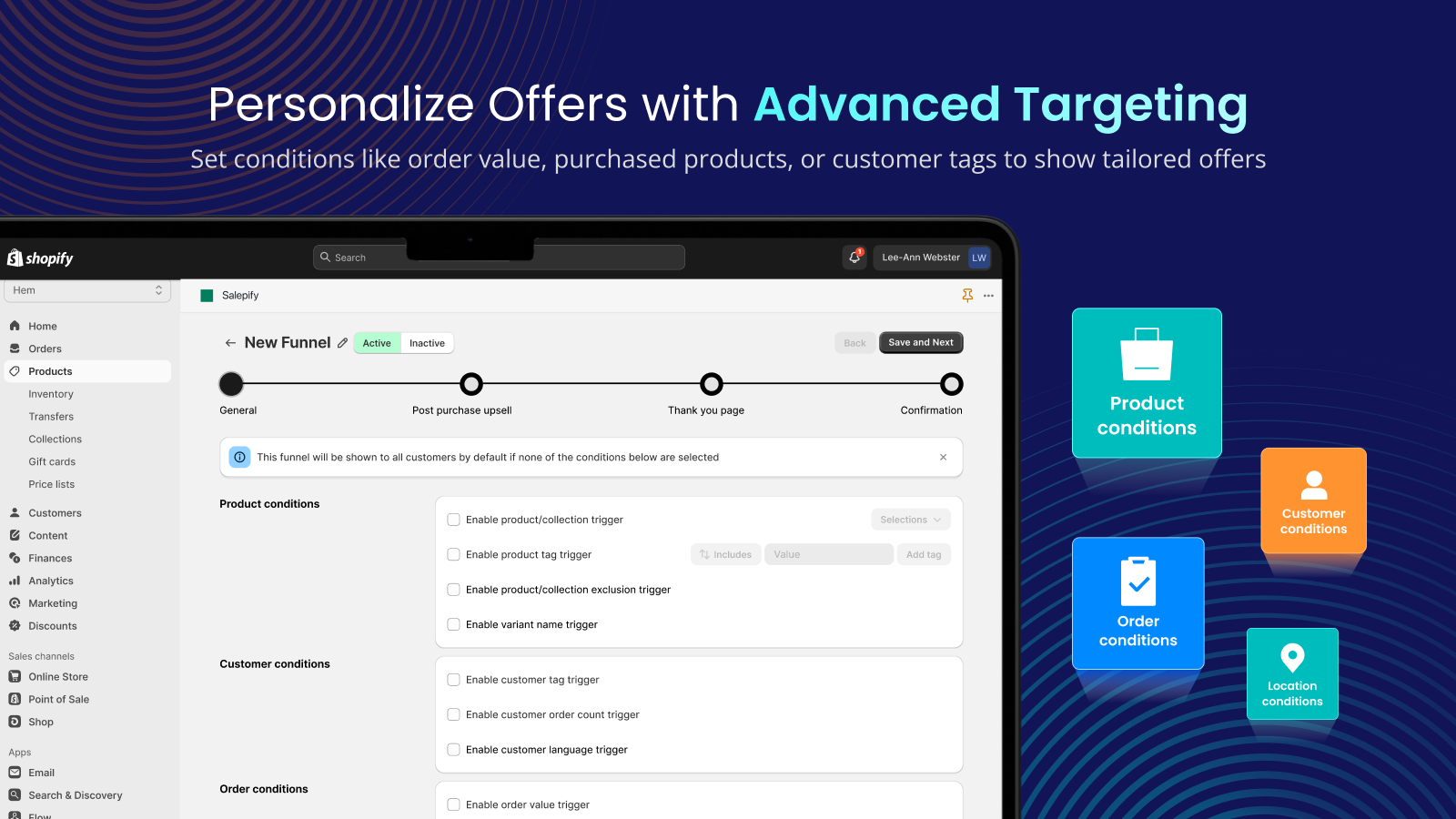
A first-time buyer, a repeat buyer and a high-value cart are different shoppers. Our post-purchase funnels accept conditions by product, product tag, customer tag, order count, order value, shipping country and date, and several funnels can run in priority order. Start with one funnel for all orders, then split once you can see which group declines.
Use time pressure carefully
A countdown timer is available on post-purchase offers, but a timer that expires and then resets is misleading. If the offer is limited, make the limit real. Use it for genuinely seasonal items rather than on every funnel.
A worked example: two offers on one store (hypothetical)
All figures here are invented to show the arithmetic. They are not benchmarks. Assume a store with 1,000 orders a month and these inputs:
- Cart add-on: every order passes the cart, so 1,000 orders see it. Take rate 4 percent, price $12, gross margin 55 percent.
- Post-purchase offer: 60 percent of orders pay by card, so 600 are eligible (the rest used wallets or other excluded methods). Take rate 6 percent of eligible orders, price $18, gross margin 50 percent.
| Placement | Orders that see it | Take rate | Accepted | Price | Revenue | Gross profit |
|---|---|---|---|---|---|---|
| Cart add-on | 1,000 | 4% | 40 | $12 | $480 | $264 |
| Post-purchase | 600 | 6% | 36 | $18 | $648 | $324 |
| Total | 76 | $1,128 | $588 |
The arithmetic: 1,000 x 4% = 40 add-ons, 40 x $12 = $480, and $480 x 55% = $264. For post-purchase, 600 x 6% = 36, 36 x $18 = $648, and $648 x 50% = $324. Revenue per order rises by $1,128 / 1,000 = $1.13, or about 1.9 percent if the starting average is $60.
Three lessons follow. First, the post-purchase offer made more revenue from fewer orders because its take rate and price are higher, but it reached only 60 percent of orders. Second, if you reported its take rate on all 1,000 orders you would see 3.6 percent (36 / 1,000), which understates the offer by 40 percent. Third, the post-purchase page is not on the path to payment, so it cannot lower the conversion of the first order. Whether the cart add-on does is the thing to test.
How to roll out your first upsell, step by step
- **Baseline.** In Shopify’s Sales report, note AOV, orders per day and the share of orders paid with wallets or other excluded methods for the last 60 days, outside a sale period.
- **Pick the moment.** If wallets are a small share of payments and you are not on Plus, start with the post-purchase page. If you sell one hero product with variants, start on the product page. If shoppers buy two or three items, start with a cart progress reward.
- **Choose one offer.** One product, one price, one sentence of reason. Avoid a recommendations grid for the first test.
- **Set the discount rule.** Remember the combination limits: automatic discounts cap at 25 and customers can apply up to 5 product or order codes and 1 shipping code per order (Shopify, Discount combinations). Our free gift threshold example shows how to check the margin before you launch.
- **Run it for a fixed period.** Decide the length before you start, using a sample size calculator with your baseline rate and the smallest lift you care about.
- **Read the result on eligible orders only,** then change one thing and repeat.
Measurement: what to track and what will mislead you
Shopify’s AOV is “((gross sales – discounts) / orders), excluding post-order adjustments such as edits or exchanges” (Shopify, Sales report). Two things follow for upsells.
First, a discount-led offer can raise units and lower AOV at the same time, because discounts are subtracted from gross sales. Second, we have not verified how Shopify’s reports classify an item added on the post-purchase page, which is an edit after the order is created. Before you trust AOV for that offer, place a test order, accept an offer, and see where the amount lands. Third-party analytics will not help either, because those that use the Shopify Pixel API report only the initial purchase.
| Metric | What it answers | Watch out for |
|---|---|---|
| Attach rate (accepted offers / orders that saw the offer) | Is the offer relevant? | Use eligible orders, not all orders |
| Revenue per order | Did the offer add money? | Check if post-purchase items are counted |
| Gross profit per order | Did the offer add profit? | Include discount, gift and shipping cost |
| AOV | Did the average rise? | Mean can hide a skewed spread; look at the median too |
| Checkout conversion | Did the offer hurt conversion? | Only relevant for placements before payment |
For test length, a sample size calculator needs a baseline conversion rate, the minimum effect you want to detect, statistical power and a significance level, and returns a sample size per variation (Evan Miller, Sample Size Calculator). A small lift needs a large sample, so run the calculator with your own numbers before you start. Test big differences first, such as offer versus no offer, rather than two similar offers.
Common mistakes
- **Stacking offers.** A cart bar, a popup, a product widget and a post-purchase page all asking for more is noise. Run one primary offer per moment.
- **Pricing the add-on near the cart value.** The shopper agreed to a price. A big jump is a new purchase decision.
- **Forgetting wallet orders.** On the post-purchase page, a large wallet share means your reach is much smaller than your order count.
- **Expecting a native BOGO on the post-purchase page.** Admin-created Buy X get Y discounts do not apply there, and the free item in a Buy X get Y is never auto-added to the cart (Shopify, Buy X get Y).
- **Judging by AOV alone.** Check profit per order after discount, gift and shipping costs. Our BOGO margin math shows how an offer can raise revenue and still lose money.
- **Adding friction at checkout.** Baymard lists account creation (18 percent) and a long checkout process (17 percent) among reasons for abandonment. Do not add steps before payment to show an offer.
Which tool covers which placement
If you want to build the placements above, here is how the pieces map to our apps. Each has a free way to start on the Shopify App Store.
| Placement | Offer type | Tek Labs page |
|---|---|---|
| Product page | Free gift rule, Buy X Get Y, quantity tiers | Free Gifts BOGO & Upsell, Buy X Get Y |
| Product page | Bundles and mix and match | Mix & Match Bundles, build a box |
| Cart | Recommendations, progress bar rewards | You May Also Like, milestone rewards |
| Post-purchase | One-click offer, two upsells and one downsell | Post purchase upsell |
| Thank you page | Offers, coupons, surveys | Thank you page offers |
| Checkout (Plus) | Checkout blocks | Post Purchase Upsell, checkout editor (Plus only) |
For an overview of the wider app landscape see our roundup of cross-selling and upselling apps. If you want to see the post-purchase flow end to end, the Post Purchase Upsell app is free to install, so a first test costs only your time.
Frequently Asked Questions
What is the easiest way to upsell on Shopify?
Start with one offer in the cart or on the post-purchase page. Both work on any paid plan, can be set up with an app, and are easy to measure by comparing orders that saw the offer with orders that did not.
Do I need Shopify Plus to upsell at checkout?
You need Plus for apps and extensions that change the information, shipping and payment steps. You do not need Plus for the post-purchase page, which comes after payment, or for the thank you and order status pages. Shopify lists both as available on the Basic plan or higher.
How many upsell offers can I show after checkout?
Shopify limits a customer to a maximum of three accepted post-purchase offers per checkout, and its UX guidelines say to display no more than three in a row. Only one app can run post-purchase offers at a time.
Why does my post-purchase offer not show for some orders?
Shopify skips the page for wallet and installment payments, gift cards, non-card methods, orders under $0.50, orders with duties and multiple currencies, local delivery and orders outside the Online Store channel. A store with many Apple Pay or Google Pay payments will see the page on far fewer orders.
What is the difference between an upsell and a cross-sell?
An upsell offers a more expensive or larger version of the item being bought. A cross-sell suggests a complementary product that goes with it. A downsell is the cheaper fallback shown after a decline.
How do I measure whether an upsell worked?
Compare attach rate, revenue per order and gross profit per order on the orders that could see the offer. Shopify’s AOV is gross sales minus discounts and excludes edits made after the order is created, so do not rely on AOV alone.