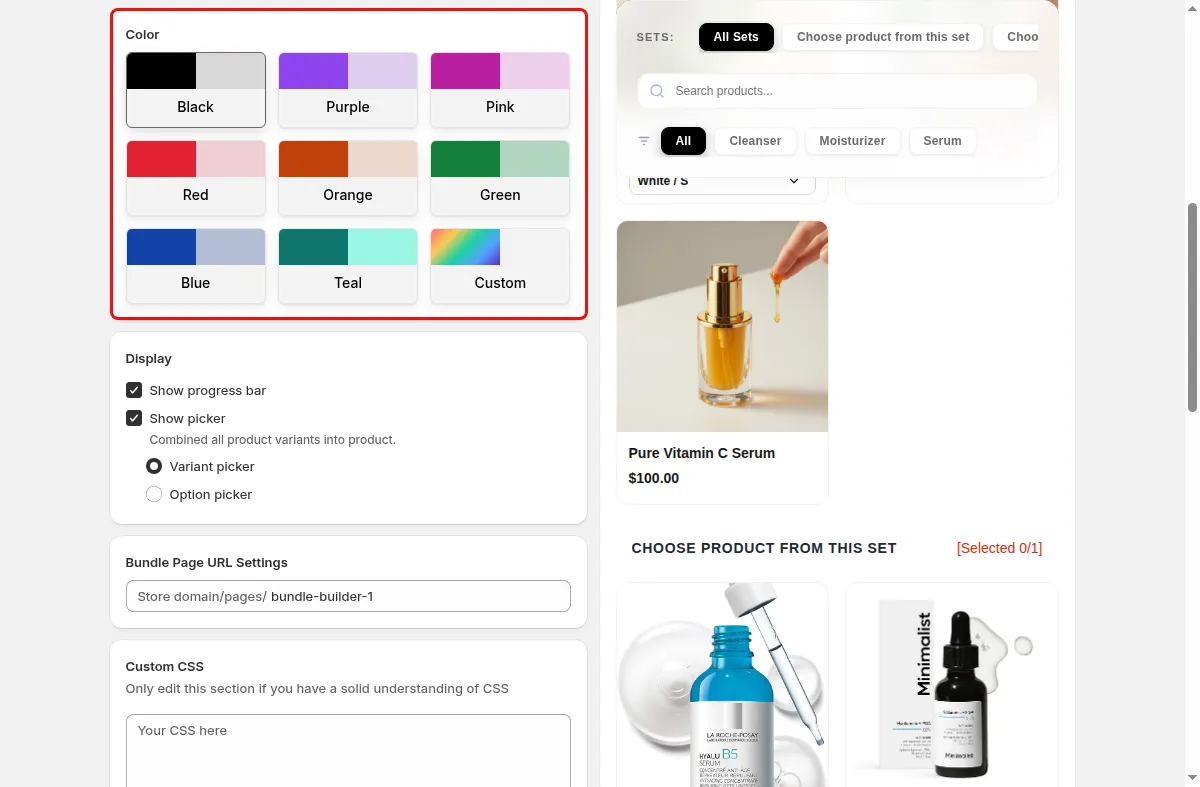
Bottled and boxed goods
Use the Bottle or Pouch slot so the empty bundle looks like the pack the shopper is building.
Bundle page templates
Pick a ready-made layout for your bundle builder page, add a banner, and choose the empty slot shape shoppers fill.
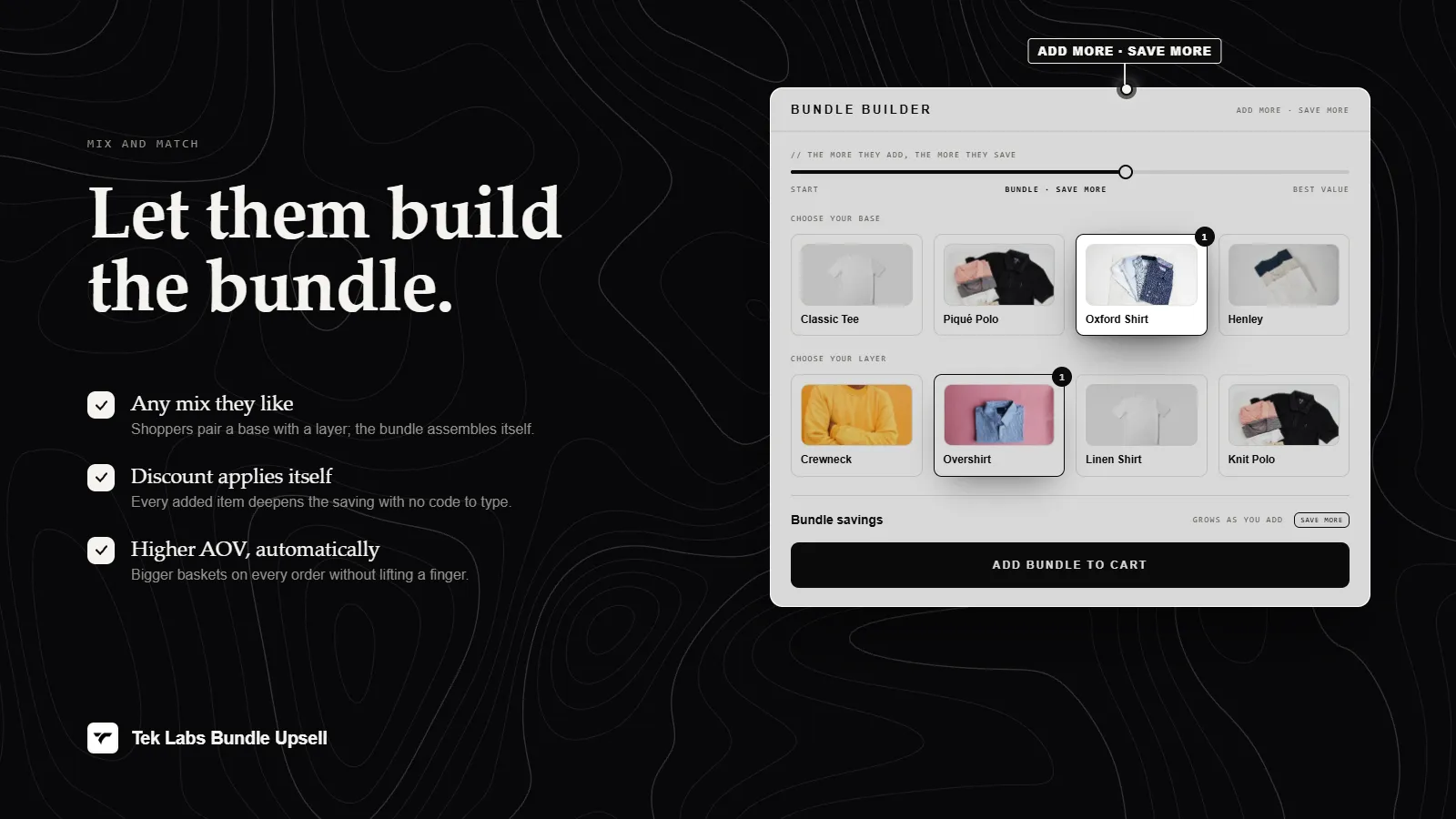
What it is
The Bundle Builder page ships with a template gallery. Each template is a full page layout, not just a color change, and you can switch between them without rebuilding the campaign. A Theme Layout Preview lets you see a template before you apply it.
Use it to match the page to the product you sell: a compact list for large catalogs, a summary-first layout to highlight savings, or a seasonal banner template for kits. If none fits, the gallery has a Custom Template card where you can ask the Tek Labs team to build one.
For the shopper
Scroll through the steps. The phone shows what the shopper sees at each one; products and prices are an example.
The bundle page opens with the layout you chose, optionally with a banner image at the top.
Before a product is added, each slot shows an outline in the shape you picked, such as a bottle or a pouch.
Each product they add fills a slot in the bundle summary.
The summary with total, savings, and rewards sits beside or below the products depending on the template.
For you
Options you control
Edit a Bundle Builder campaign and go to the Display step (step 2 of the editor).
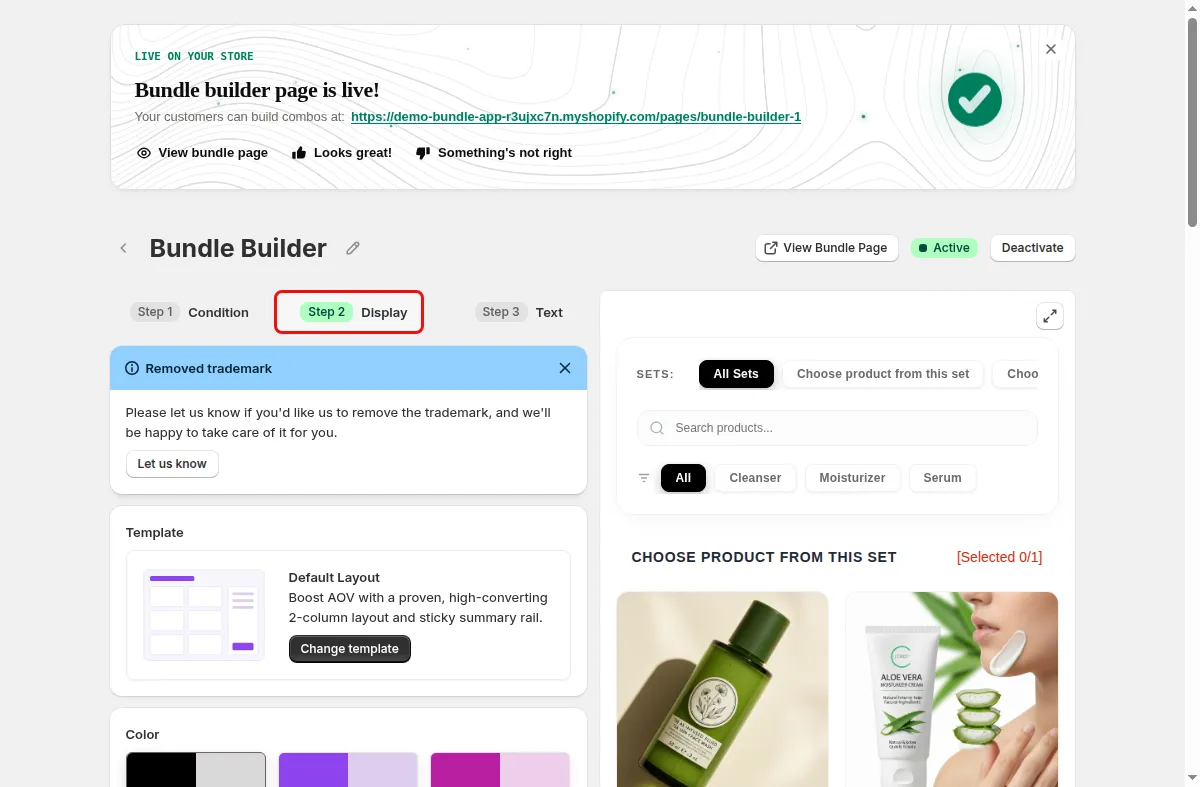
Open the Template section, click Change template, search or sort the gallery, use Preview layout, and click Apply this Template.
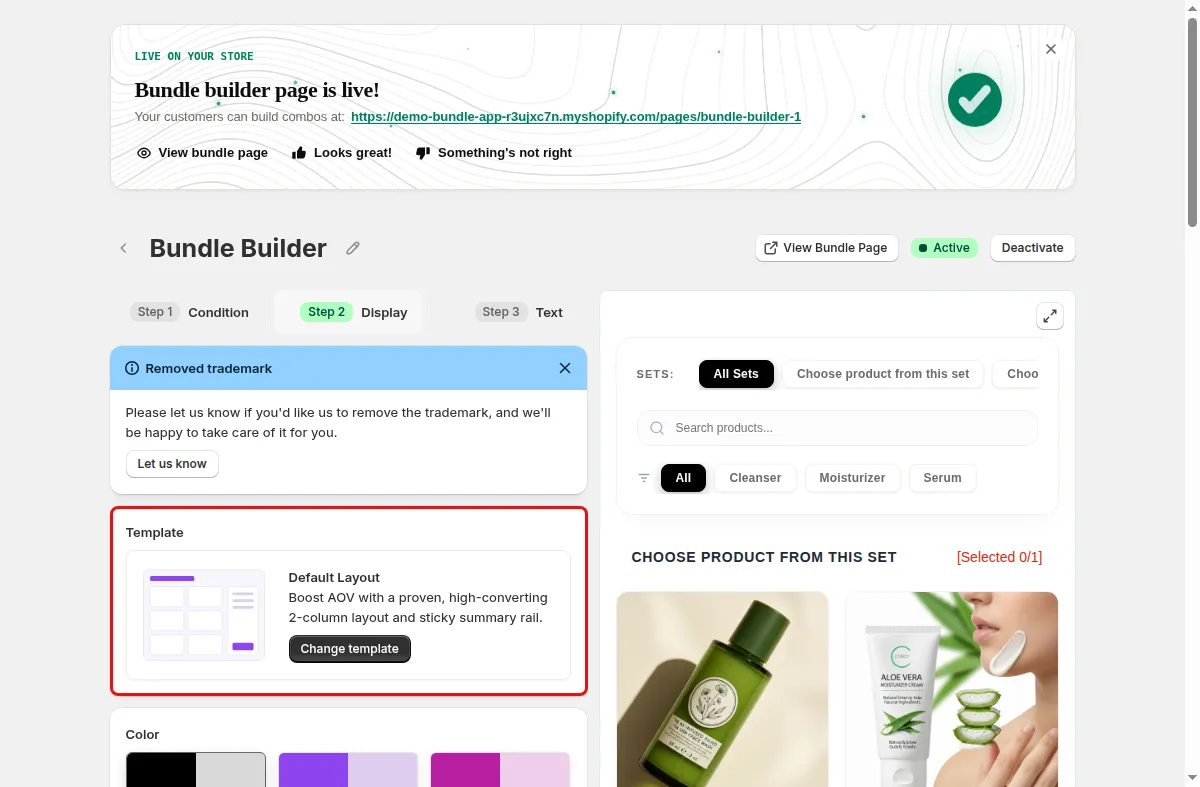
Upload a Desktop image and an optional Mobile image under Banner image, then choose the Banner position.
Under Empty slot shape pick one of the six outlines.
Use cases
Use the Bottle or Pouch slot so the empty bundle looks like the pack the shopper is building.
Use the Horizontal Card Layout to fit more products on screen.
Use the Back to School template with its hero banner for a seasonal kit page.
FAQ
Yes. The Template section has a Change template button, and the app confirms with a Template changed message.
The gallery includes a Custom Template card that sends a request to the Tek Labs team through the in-app chat.
No. The mobile image is marked optional and the banner section is separate from the template choice.
Build-a-box, gift sets, tiered bundle discounts: our team sets it up with you and checks it on your theme before it goes live.
Free plan available. Built for Shopify. Rated 4.9 from 35 reviews.