Multi-language store
Show the bundle in French and German to matching visitors.
Translate bundle text
Edit all the text shoppers see in your bundle widgets and add a translation for each language you sell in.
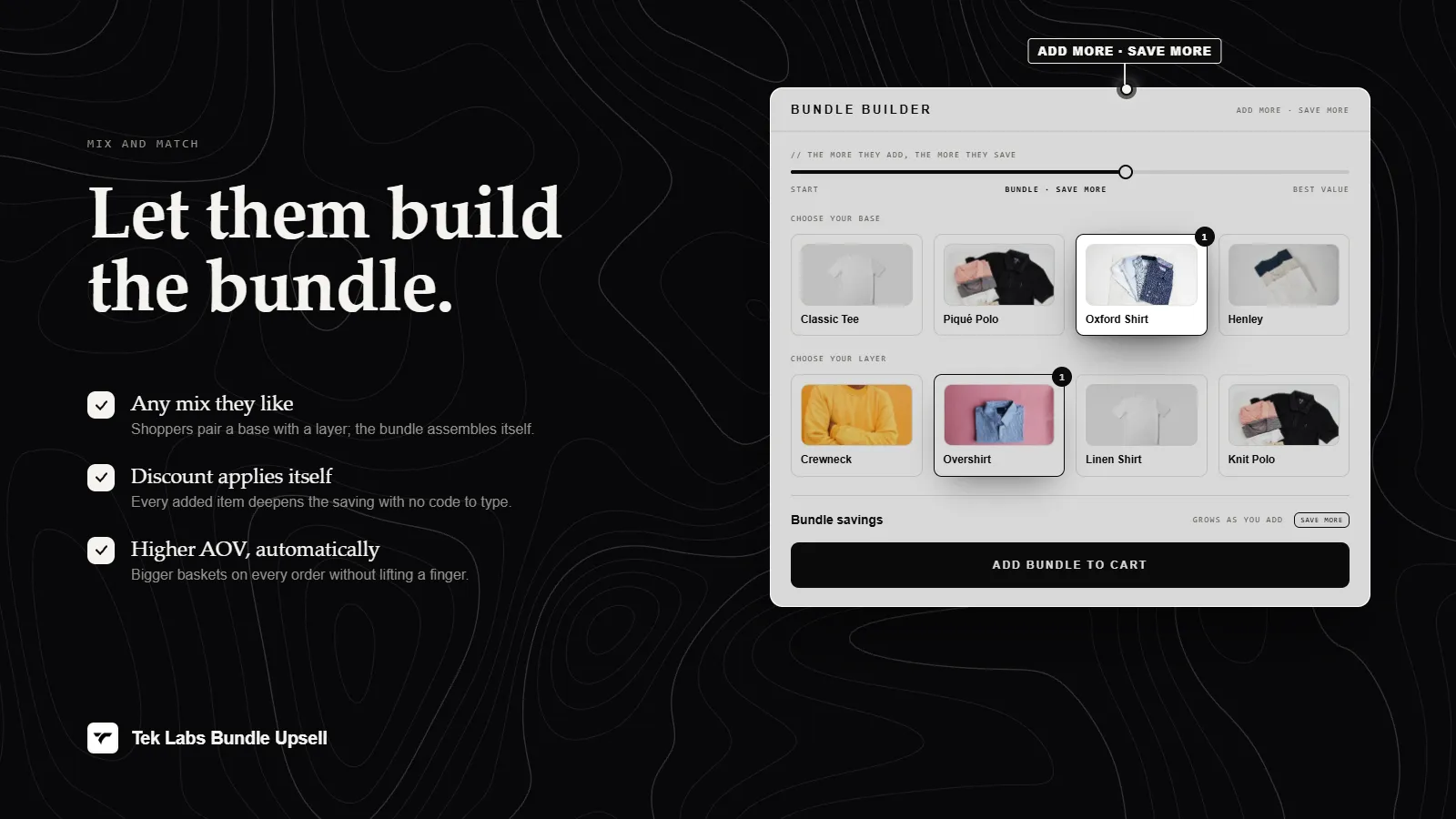
What it is
All storefront copy in Mix & Match Bundles is written by you, per campaign. A Text step lists every label: headings, reward lines, buttons, toasts, and error messages. You can use variables, such as the remaining count or the discount amount, and insert them with an Insert variable button.
To sell in more than one language, use Add locale and choose from the list of languages. English is the required locale and the others are optional. The widget shows the text that matches the shopper's store language. The admin app itself also comes in 35 languages.
For the shopper
Scroll through the steps. The phone shows what the shopper sees at each one; products and prices are an example.
The widget reads the storefront locale of the page.
Titles, reward lines, buttons, and toasts appear in the translation you provided.
Placeholders such as the remaining items and discount amount are replaced with live values.
English is the required text for every campaign, so there is always a base message.
For you
Options you control
In a campaign editor go to step 3, Text and Locales (or Text and Translations for volume discounts).
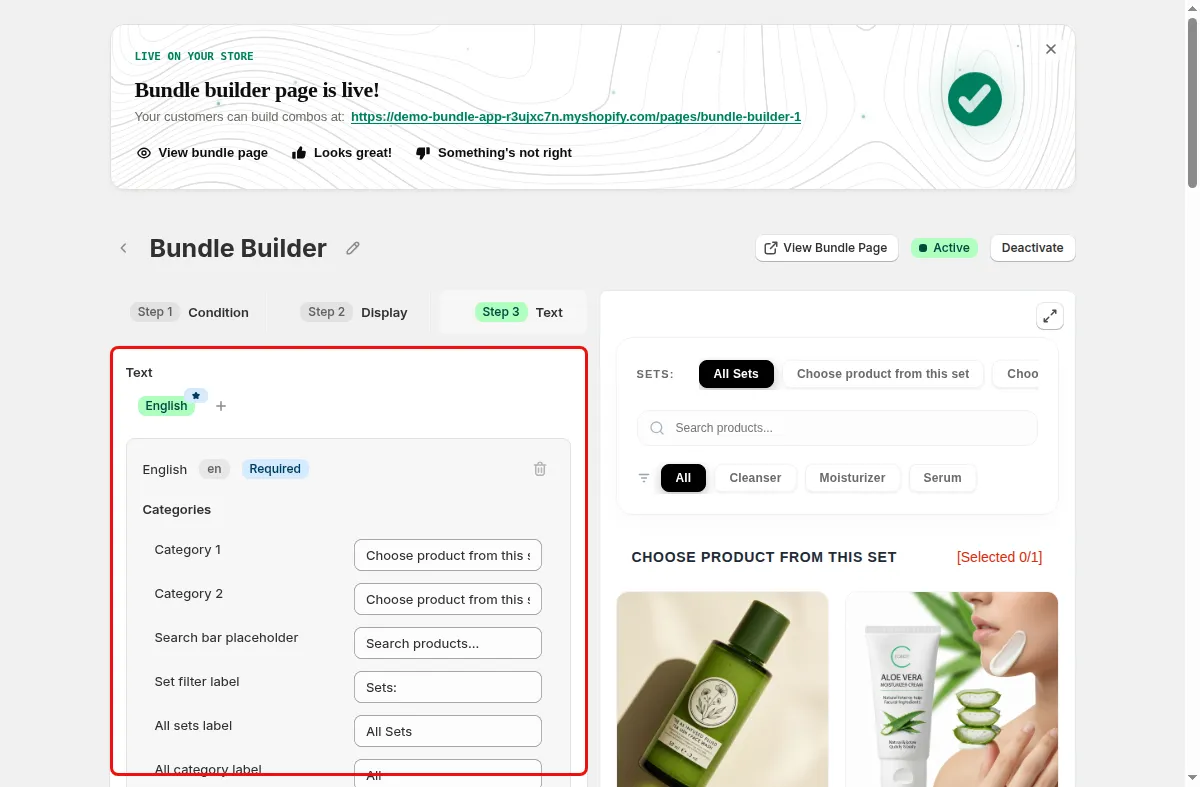
Edit the English text, which is marked as the required locale.
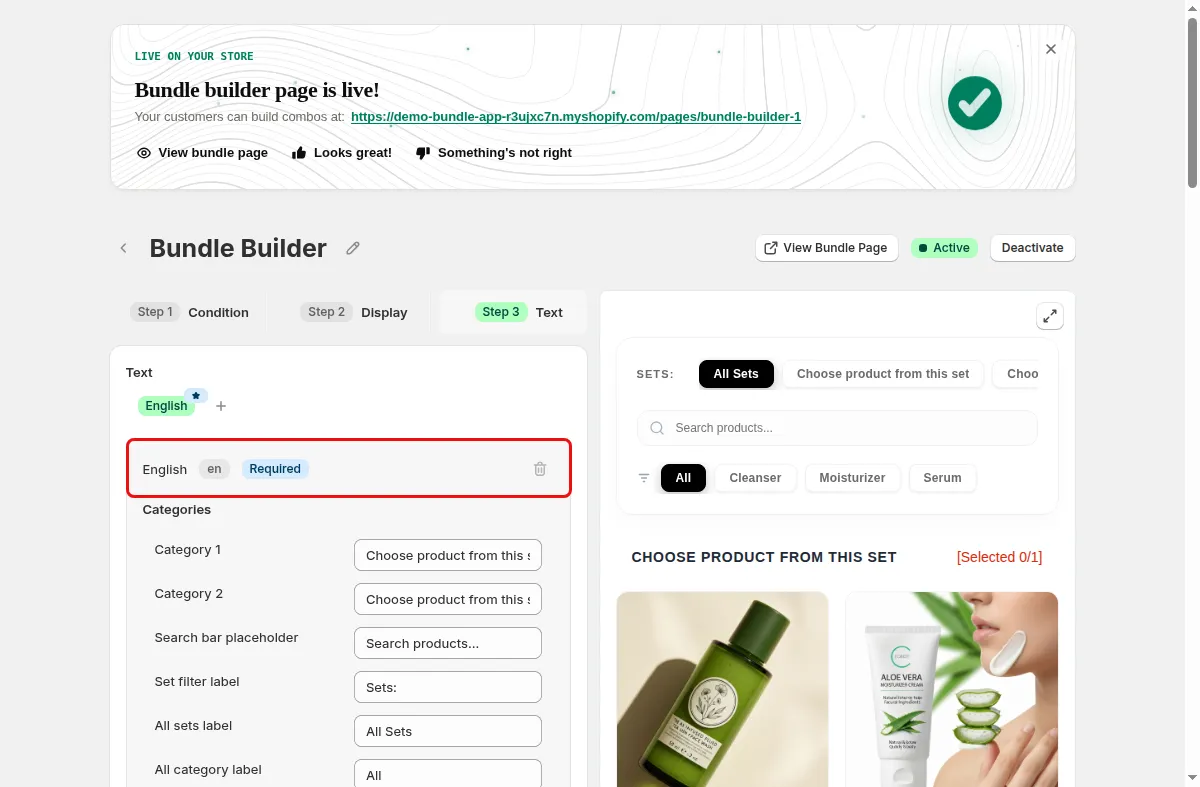
Click the plus icon (Add locale) and pick a language from the menu.
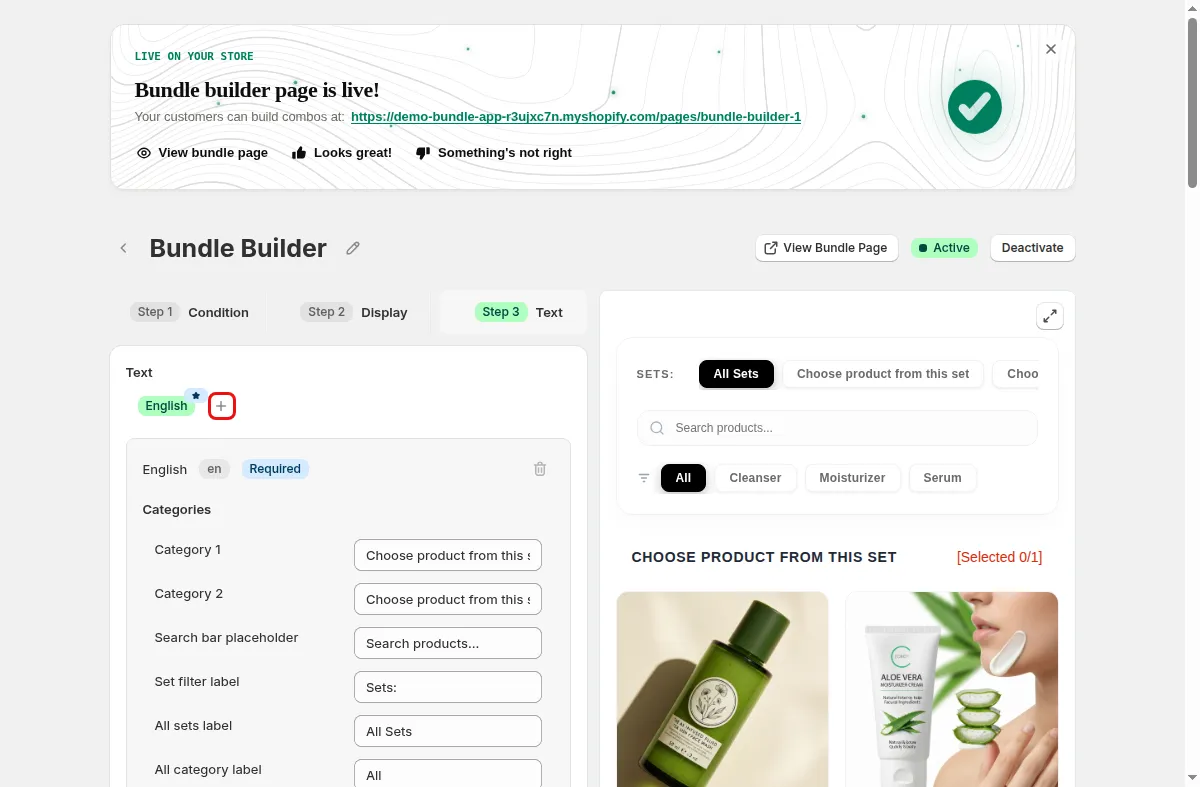
Switch between locales and edit each field, using Insert variable where needed.
Click Save.
Use cases
Show the bundle in French and German to matching visitors.
Rewrite the default button and toast text to match your tone.
Customize the notice shown when a group needs more items.
FAQ
The locale list in the code has 33 entries including English, Chinese (Simplified and Traditional), Dutch, French, German, Japanese, Korean, Spanish, and more.
Yes. The app ships 35 admin locale files, and the dashboard has a language switcher.
Yes. English is marked with a star as the required locale.
Related features
Build-a-box, gift sets, tiered bundle discounts: our team sets it up with you and checks it on your theme before it goes live.
Free plan available. Built for Shopify. Rated 4.9 from 35 reviews.