Starter kit with a hero item
Require the main product and let shoppers choose accessories from other groups.
Bundle selection rules
Control exactly what a valid bundle contains with per-group minimums, maximums, minimum spend, required products, and no duplicates.
What it is
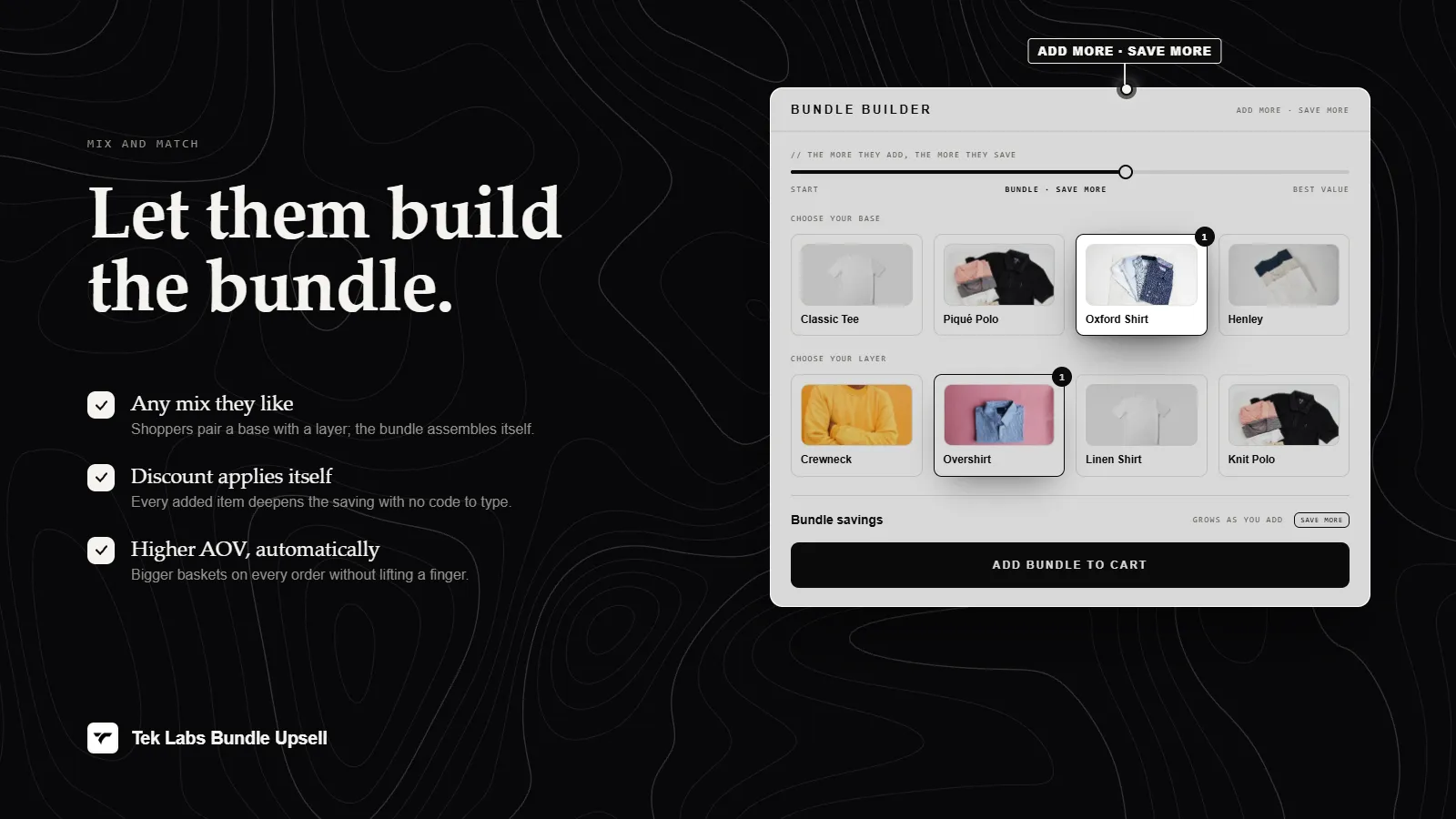
A Mix & Match bundle is made of groups of products. For each group you decide how much the shopper must pick: a minimum quantity, a minimum spend, and an optional maximum. A bundle is only eligible when every group meets its rule.
You can also force products into the bundle. Required products are pre-selected and cannot be removed, and on product pages the app can require the product the shopper is currently viewing. Use these rules to build kits that always contain a hero item, or sets where each category must be represented once.
For the shopper
Scroll through the steps. The phone shows what the shopper sees at each one; products and prices are an example.
Each group shows what to choose from and how many items are needed.
If a group needs more items or spend, a message such as Please select [missing] more item(s) in [group] explains what is missing.
Required products carry a Required badge and cannot be removed from the bundle.
When every group meets its rule, the Add bundle to cart button completes the bundle.
For you
Options you control
In the Condition step under Mix items click Add group, name it, and use Select products to choose products or variants.
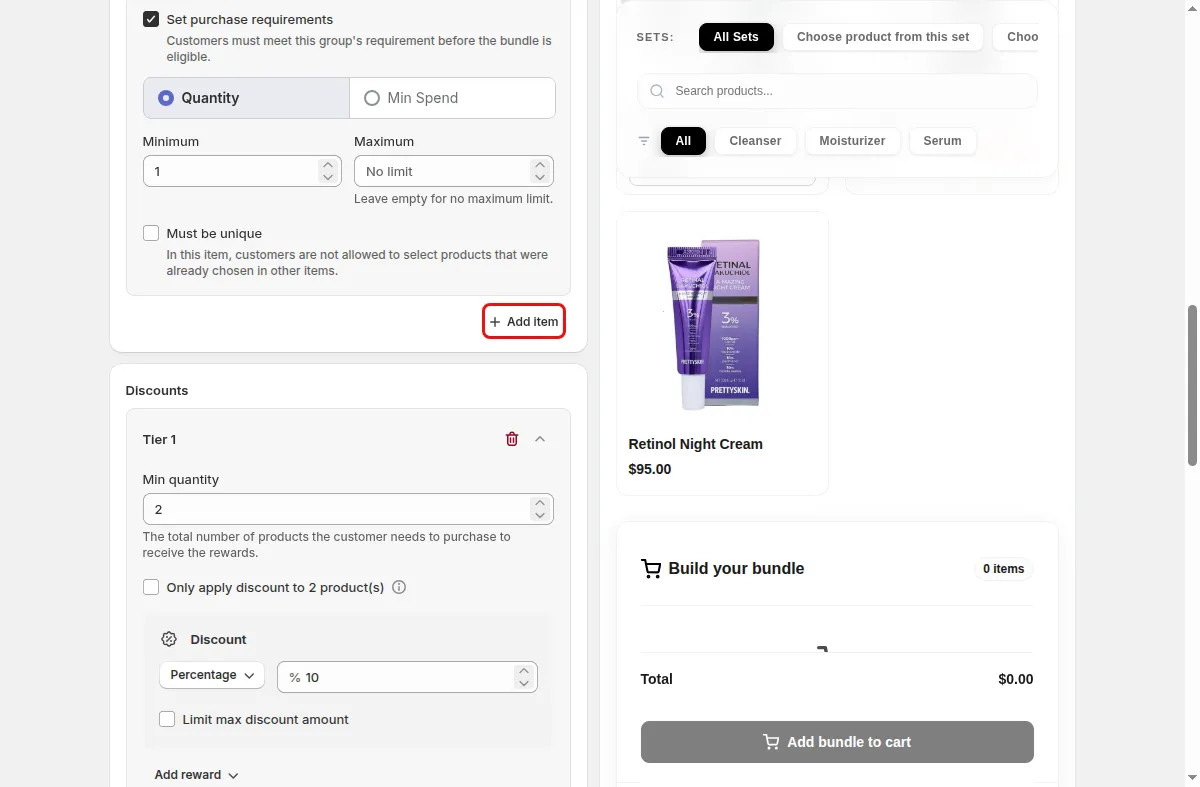
Open Set purchase requirements, choose a minimum quantity or a minimum spend, and set Minimum and Maximum.
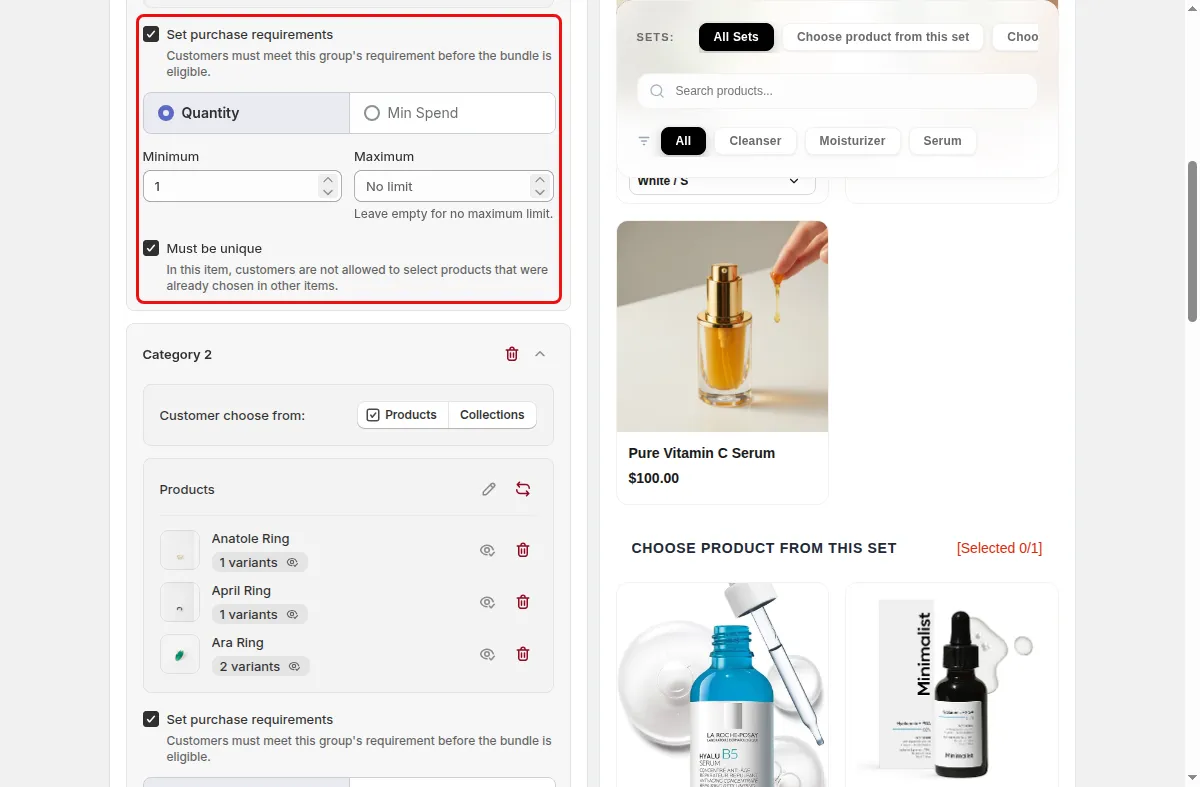
Turn on Must be unique if a product should be chosen in only one group.
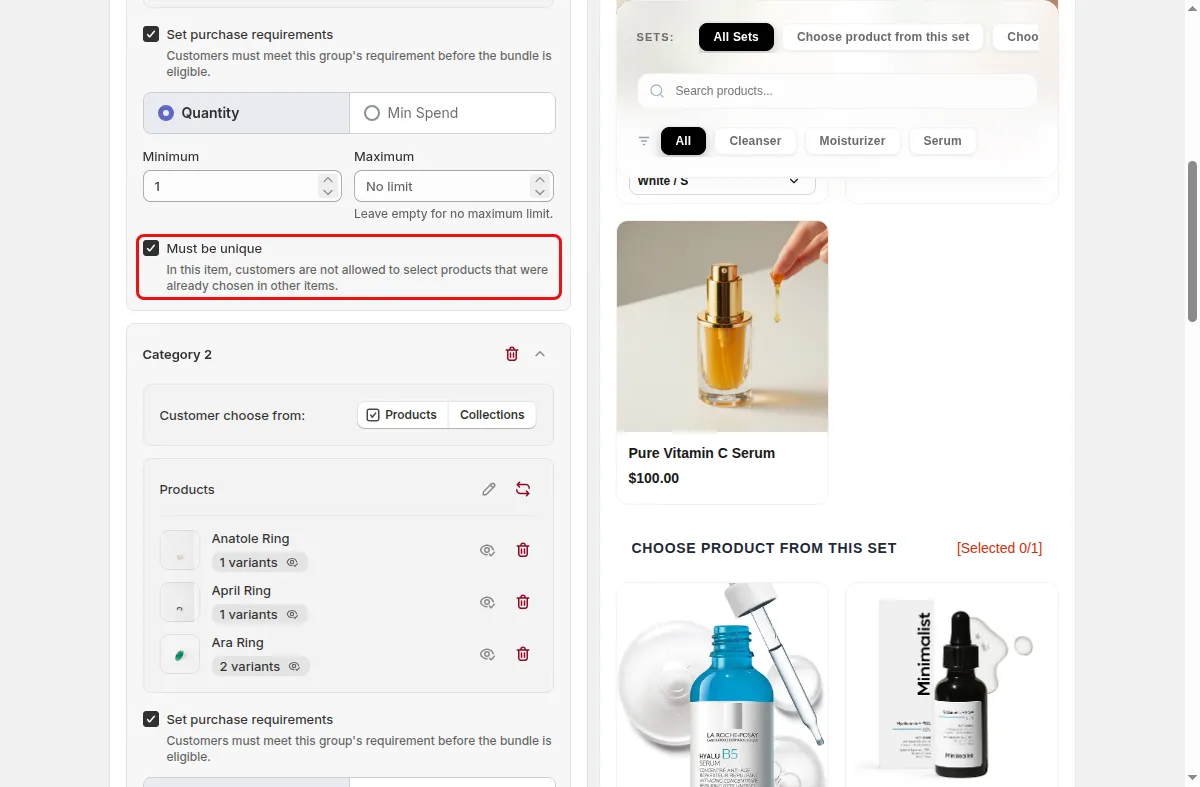
Turn on Required products and use Pick required products, or choose Current products to require the product on the page.
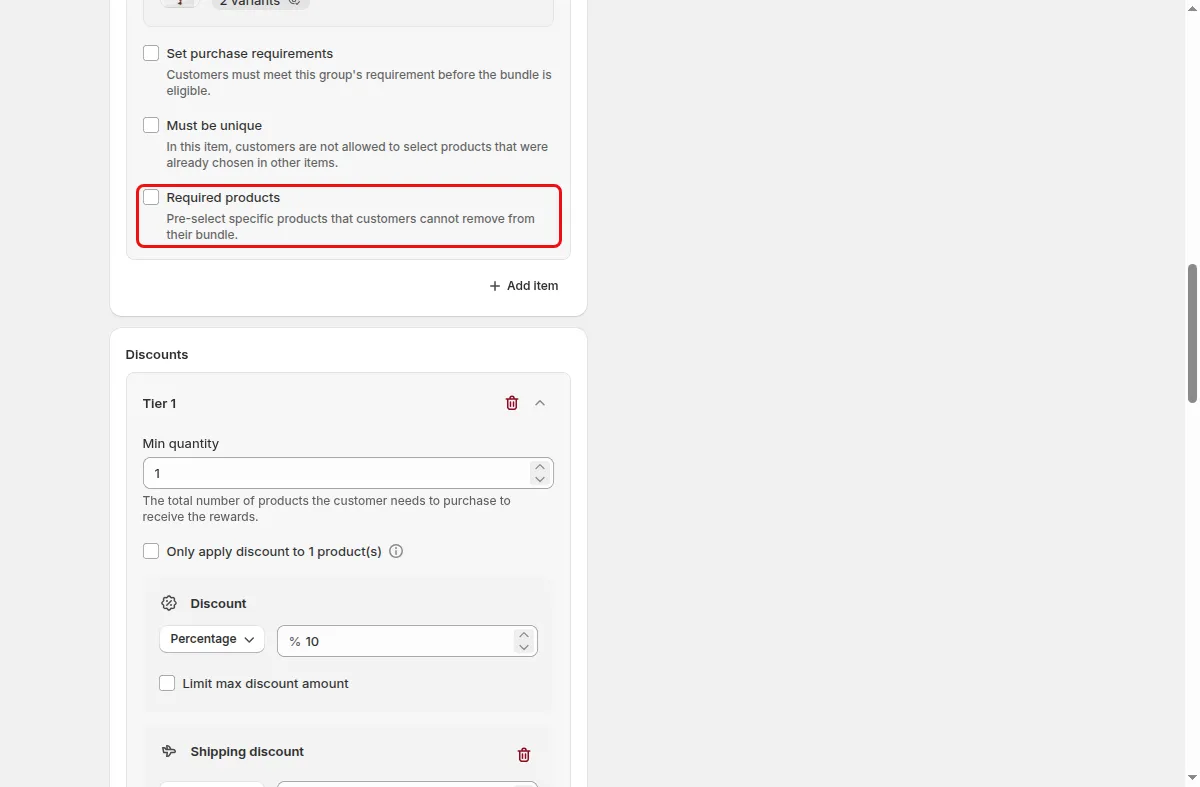
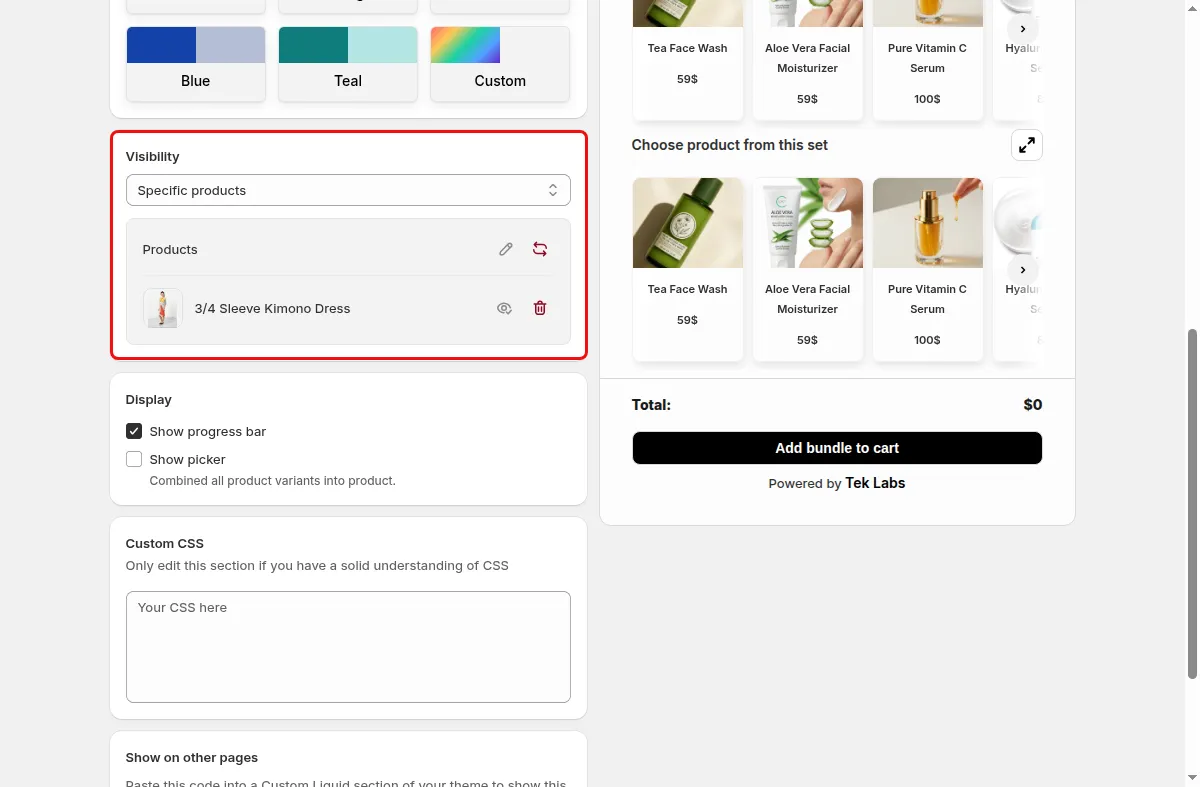
When a current product is required, visibility is set automatically to All products in bundle. Save the campaign.
Use cases
Require the main product and let shoppers choose accessories from other groups.
One group per category, each with a minimum of one and unique products.
Require a minimum spend in a premium group before the bundle counts.
FAQ
Yes. Maximum can be left empty for no limit, and the widget has a message for when the maximum is reached.
The editor shows a notice to ensure required products are in stock and active for bundle checkout.
Yes. Validation reports a tier that can never be reached because the groups allow fewer items in total.
Build-a-box, gift sets, tiered bundle discounts: our team sets it up with you and checks it on your theme before it goes live.
Free plan available. Built for Shopify. Rated 4.9 from 35 reviews.