To add quantity discounts on Shopify, you can create an automatic “amount off products” discount with a minimum quantity of items, which gives one threshold per discount, or install a volume discount or bundle app that shows a “buy more, save more” tier table on the product page and applies several tiers from one rule. Native discounts are free and enough for one simple threshold. A tier ladder (buy 2, buy 3, buy 4) with a visible table is what apps are for. Below you will find the native steps and limits, how the apps work, a margin calculation with hypothetical numbers, and what to measure afterward.
Key takeaways
- Shopify’s native discount lets you require “a minimum number of products” and apply it automatically, but the help page describes one minimum requirement per discount, not a ladder of tiers.
- Shopify itself points to discount apps for “tiered discounts”, and to Shopify Functions for custom volume logic.
- Both Tek Labs apps cover this job: Free Gifts BOGO & Upsell has a Volume Discount rule and Mix & Match Bundles has a Volume Discount campaign type, each with up to 6 tiers.
- Design tiers from contribution margin, not from the discount you wish to advertise. In the worked example below, a 10% discount on a second unit pays for itself only if about 14 of every 100 orders move from one unit to two.
- Measure average order value, units per order and contribution per order together. AOV alone can rise while profit falls.
Last verified: 2026-10-04. Plan details change, so check each linked source before you build.
What a quantity discount is
A quantity discount (also called a volume discount, quantity break or “buy more, save more” offer) lowers the price per unit when a customer buys more units of the same product. Typical shapes are “buy 2, save 10%”, “buy 3, save 15%”, or “any 3 for $90”. Our glossary has a short entry on volume discount and on tiered bundle pricing.
It differs from a bundle. A bundle groups different products and sells them together. A quantity discount rewards a bigger quantity, usually of one product or of one group of products. The two overlap in the middle: “any 3 from this collection” is both a quantity discount and a mix and match bundle. If you are unsure which you need, our comparison of the Shopify Bundles app vs bundle apps sorts it by bundle type.
It also differs from BOGO. “Buy 2, get 1 free” is a quantity-triggered offer, but the reward is a free unit, not a lower unit price. We work through that choice in BOGO vs percentage off: the margin math.
Option 1: native Shopify discount with a minimum quantity
Shopify’s help center says an amount off products discount can require “that customers order a minimum number of products to qualify for the discount”, and that both discount codes and automatic discounts are supported; automatic discounts apply without a code (Shopify Help Center, percentage and fixed amount discounts, read 2026-10-04).
Steps
- In the Shopify admin, open Discounts and create a new discount of the type “Amount off products”. Menu labels shift between admin versions, so follow the help page if yours differs.
- Choose the automatic method if you want the discount to apply without a code, or a discount code if you want to hand it out.
- Pick the products or collections the discount applies to.
- Set the value, either a percentage or a fixed amount.
- Under minimum purchase requirements, choose a minimum quantity of items and enter the number (for example, 2).
- Set eligibility (all customers, specific customers, segments or markets) and the combination settings with other discounts.
- Set the start and end dates, save, and test with a real cart.
What this route does well
- It costs nothing and needs no app.
- It applies at cart and checkout without extra scripts.
- It works for a single, simple rule such as “10% off when you buy 3 or more”.
Where it stops
The page describes setting a minimum quantity or a minimum purchase amount for a discount. It does not describe several quantity tiers inside one discount. That is my reading of what the page covers, so verify it in your admin. Shopify’s own overview is more direct: when a store needs “tiered discounts, multi-logic step discounts, or custom eligibility requirements”, Shopify points to discount code apps from the App Store, or Checkout Blocks on Shopify Plus (Shopify Help Center, discount types).
| Need | Native amount off products | Why |
|---|---|---|
| One threshold (buy 3, save 10%) | Yes | Minimum quantity of items, automatic method |
| Several tiers (buy 2, 3, 4) | Possible only as separate discounts, which you must keep from stacking | One minimum requirement per discount, per the help page |
| A tier table on the product page | Not described in the help page | Native discounts apply at cart and checkout, and the page shows no storefront widget |
| Tier-specific free shipping or a gift | Not in this discount type | Needs a separate shipping discount or an app |
| Customer groups (VIP, wholesale) | Yes, through customer eligibility | Specific customers or segments |
Separate discounts also eat into a hard limit: you can have a maximum of 25 active automatic discounts, and the total includes app-based discounts (Shopify Help Center, discount combinations). Shopify applies product discounts first, then order discounts on the revised subtotal, then shipping discounts. If you stack a quantity discount with a sitewide sale, check the order of operations on a test cart. We wrote a test plan for Shopify discount combinations for this.
Option 2: Shopify B2B volume pricing
Shopify has a built-in volume pricing feature, but it sits in the B2B catalogs area. Shopify describes it as a way to “offer additional price breaks to customers when they purchase larger quantities of a product”, with up to 10 price breaks per product, applied to each variant (Shopify Help Center, quantity rules and volume pricing). The page covers B2B orders and notes that once volume pricing is applied, “the price becomes fixed” and a catalog’s overall adjustment no longer applies. Treat it as a wholesale tool. It is not a retail “buy more, save more” widget, and I did not find that the page promises one.
Option 3: Shopify Functions and custom apps
Shopify’s developer documentation says Shopify Functions “enable you to create discount functionality that isn’t offered out of the box”, and gives “volume discounts with different discount rates when a line item quantity meets defined thresholds” as an example (Shopify developer docs, discounts). This is how volume discount apps deliver tiers at checkout. If you have a developer, a custom build is possible. For most stores, buying an app is cheaper than maintaining one. For vocabulary, see the glossary on Shopify Functions and automatic discounts.
Option 4: volume discount and bundle apps
An app adds three things the native discount lacks: several tiers in one rule, a storefront widget that lists the tiers, and per-tier extras such as a free gift or free shipping. The facts below come from the Tek Labs listings, feature pages and user guide as read on 2026-10-04.
Free Gifts BOGO & Upsell: the Volume Discount rule
The Free Gifts BOGO & Upsell app (4.9 out of 5 from 521 reviews on its App Store listing, free plan with all core features) includes a Volume Discount rule. According to the volume discounts feature page and the user guide:
- You can create up to 6 tiers per rule, each with a minimum quantity and a percentage or fixed amount off.
- A tier can include “Buy X Get X free”, so the top tier can add a free unit.
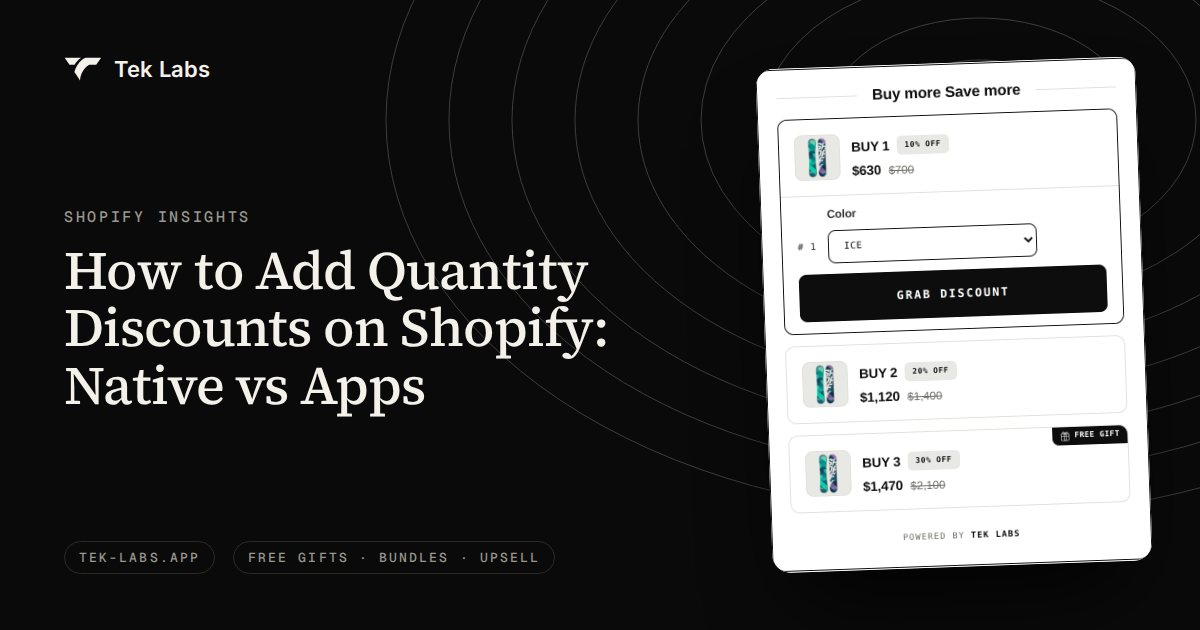
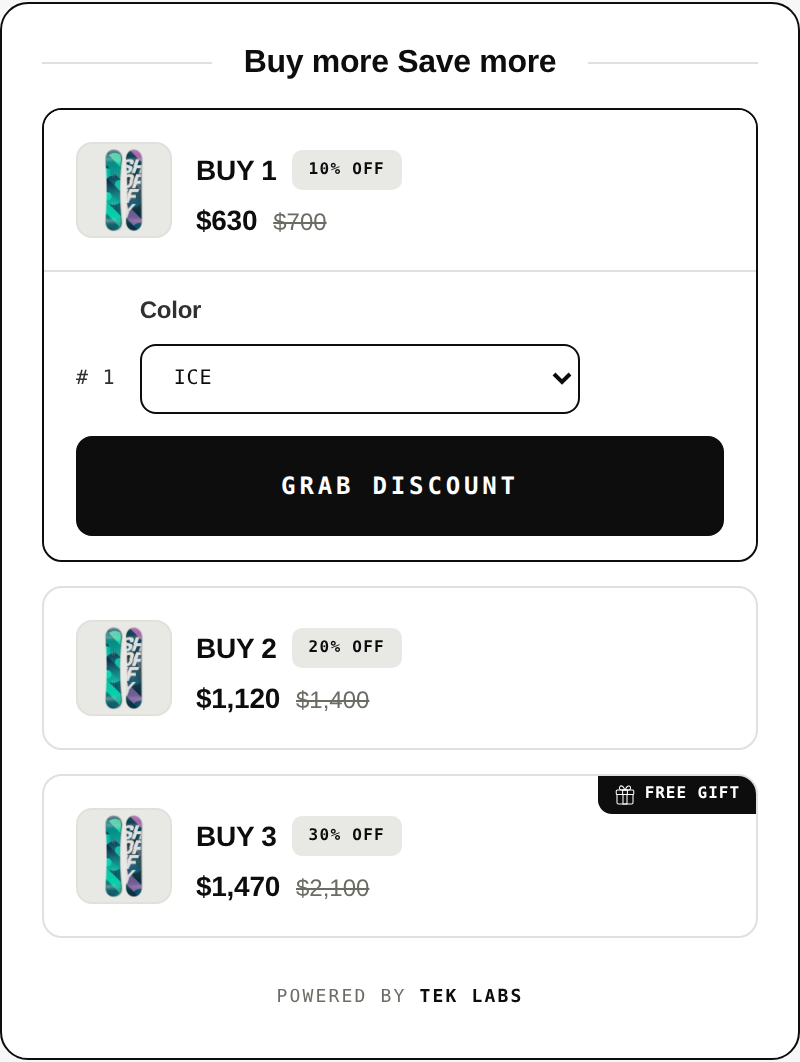
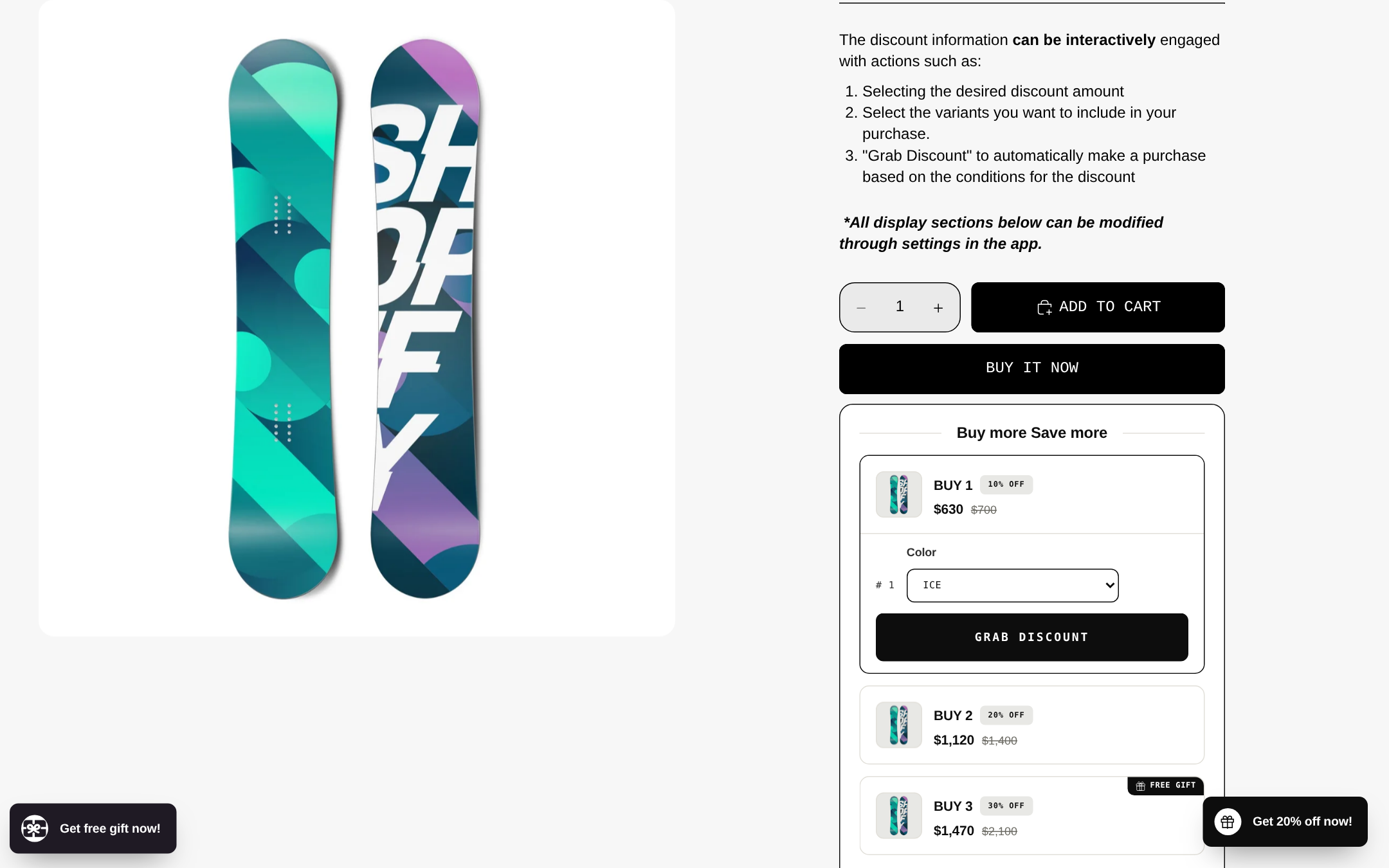
- A “Buy more, save more” block on the product page lists each tier and what it saves. The discount title you set shows in the cart and at checkout.
- Layout is either display only, or interactive with a “Grab Discount” button that adds the product to the cart with the tier’s discount.
- You choose whether the discount applies to all products, specific products or variants, collections, tags, a price range or product names, and you can restrict it by customer tags or logged-in status.
- You can set start and end dates, and choose whether the discount may combine with product, order or shipping discounts.
- “Minimum quantity applied to” can be product level or variant level. Product level counts the total number of variants in the cart for that product, variant level counts each variant separately.
Mix & Match Bundles: quantity breaks as a campaign type
Mix & Match Bundles (4.8 out of 5 from 23 reviews, free to install, per its App Store listing) treats quantity breaks as a campaign type. The quantity break pricing page says the Volume Discount campaign “adds a tier widget to the product page where each tier is a quantity, such as 2 items or 3 items, with its own discount.” From that page:
- Up to 6 tiers per campaign. The editor links to the contact form if you need more.
- Each tier can be percentage off, fixed amount off or a set price.
- You can mark one tier as the default “Best value” tier.
- Each tier can carry its own free shipping and gift reward.
- You can hide the theme’s variant picker, quantity input and add-to-cart button so the tier widget is the only way to buy.
- An “Apply discount to higher quantities” option extends a tier’s savings beyond its minimum quantity.
A related countdown timer feature shows days, hours, minutes and seconds above the tiers. The page states the timer is tracked per visitor and not shared across shoppers, so each customer has an independent countdown stored in the browser. Use it only for an offer that really ends. For fixed-price offers (“any 3 for a set price”), the fixed price bundle discount page also describes a capped mode in which extra items stay at full price and the app discounts the lowest-priced units first, which protects margin on large baskets.
Other apps
Several third-party apps cover the same job. Bundler Product Bundles lists “Quantity Breaks, Classic Bundles, Mix-And-Match Bundles, Tiered Discounts” with percentage, fixed amount and fixed pricing options, with a free plan and paid plans at $9.99 and $19.99 per month (listing, 4.9 out of 5 from 2,708 reviews). FBP Fast Bundle & Upsell lists volume discount upsells, a bundle builder and mix-and-match bundles, with plans from $19 per month tiered by monthly bundle sales (listing, 5.0 out of 5 from 3,501 reviews). We list them as the listings state them, with no quality claim. For more detail, see our best Shopify bundle apps comparison.
Native versus app, side by side
| Question | Native discount | Volume discount or bundle app |
|---|---|---|
| Cost | Free | Free plans exist, paid plans vary by app |
| Tiers per rule | One minimum requirement per discount | Up to 6 in the Tek Labs apps, other limits per listing |
| Tier table on product page | Not described in Shopify’s page | Yes, a widget |
| Tier-specific gift or free shipping | No | Yes in the Tek Labs Mix & Match Bundles tiers, and a free unit in Free Gifts BOGO & Upsell tiers |
| Counts at product or variant level | Not described in Shopify’s page | Selectable in the Free Gifts BOGO & Upsell guide |
| Setup time | Minutes | Plan extra time for a theme check |
| Risk | Discount stacking | Same, plus one more app to maintain |
Tier design with worked margin math
Everything in this section is a hypothetical example. The prices, costs and order mix are invented to show the arithmetic, not benchmarks.
Step 1: write down your unit economics
Say you sell one product at $40.00. Assume:
- Product cost (COGS): $14.00 per unit.
- Fulfillment: $6.00 per order, no matter how many units (pick, pack, packaging and postage you absorb).
- Payment fees: 3% of order revenue.
One unit earns $40.00 – $14.00 – $6.00 – $1.20 (3% of $40) = $18.80 of contribution. Shopify lets you store a cost per item on the product so you can track this (Shopify Help Center, product prices).
Step 2: price the tiers
Suppose the tiers are buy 2 for 10% off, buy 3 for 15% off and buy 4 for 20% off.
| Units in order | Discount | Price per unit | Order revenue | Contribution | Contribution per unit |
|---|---|---|---|---|---|
| 1 | 0% | $40.00 | $40.00 | $18.80 | $18.80 |
| 2 | 10% | $36.00 | $72.00 | $35.84 | $17.92 |
| 3 | 15% | $34.00 | $102.00 | $50.94 | $16.98 |
| 4 | 20% | $32.00 | $128.00 | $62.16 | $15.54 |
For example, the 2-unit row: revenue is 2 x $40 x 0.90 = $72.00. Costs are 2 x $14 = $28.00 of product, $6.00 of fulfillment and 3% x $72 = $2.16 of fees. Contribution is $72.00 – $28.00 – $6.00 – $2.16 = $35.84. Contribution per unit falls as the discount deepens, but each order earns more in total, because the $6.00 fulfillment cost is spread over more units.
Step 3: test it against your current order mix
Take 100 orders. Before the tiers, assume 70 orders buy 1 unit and 30 orders buy 2 units at full price. A full-price 2-unit order earns $80.00 – $28.00 – $6.00 – $2.40 = $43.60.
- Before: 70 x $18.80 + 30 x $43.60 = $1,316.00 + $1,308.00 = $2,624.00 of contribution, revenue of $5,200.00, and an average order value of $52.00.
Now the tiers launch. The 30 shoppers who already bought 2 units now get 10% off, which is a pure cost to you: each of those orders loses $43.60 – $35.84 = $7.76, or $232.80 across 30 orders. To pay that back, other orders must move up. Each order that moves from 1 unit to 2 units adds $35.84 – $18.80 = $17.04.
- Break-even upgrades: $232.80 / $17.04 = 13.7, so about 14 of every 100 orders must move from 1 unit to 2.
- If 13 move, you are slightly behind. If 14 move, you are about even. Everything beyond that is gain.
Here is one plausible after-launch mix, again invented for the example: 50 orders of 1 unit, 32 of 2 units, 12 of 3 units and 6 of 4 units.
| Before tiers | After tiers (hypothetical mix) | |
|---|---|---|
| Orders by units (1, 2, 3, 4) | 70, 30, 0, 0 | 50, 32, 12, 6 |
| Revenue | $5,200.00 | $6,296.00 |
| Average order value | $52.00 | $62.96 |
| Units sold | 130 | 174 |
| Contribution | $2,624.00 | $3,071.12 |
In this made-up case, AOV rises 21% and contribution rises 17% (from $2,624.00 to $3,071.12). The gap between the two percentages is the discount you pay out. If your real order mix barely changes, the same tiers lose money. That is the whole point of doing the arithmetic before launch.
Step 4: sanity-check with the floor and the ceiling
- Floor (do not lose money): at the deepest tier the price per unit must stay well above cost plus fees. At 20% off, the example’s price is $32.00 against $14.00 of product cost, a 56% product margin before fulfillment, versus 65% at full price.
- Ceiling (do not train customers): a deep first-tier discount teaches shoppers to wait for it. Keep the first tier modest and make the last tier attractive but not reckless.
- Check the break-even upgrade rate (discount cost on orders that would have been multi-unit anyway, divided by the contribution gain per upgrade) for each tier you add. If it is higher than you can plausibly reach, shrink the discount.
You can run similar logic for gifts with our free gift calculator, and for fixed-price sets with the worked example in how to price a bundle without wrecking your margin.
Tier design rules that hold up
- Use three or four tiers at most. The Tek Labs apps allow up to 6, but a ladder with more rungs is harder to read and harder to price.
- Anchor the first tier on the quantity people already buy. If most buyers take 1 unit, tier 2 is the upgrade. If most already take 2, start the ladder at 3 so you do not discount existing behavior.
- Pre-select a “best value” tier on stores where the middle tier is the margin sweet spot. Both Tek Labs apps have a default-tier setting (Selected by default in Free Gifts BOGO & Upsell, Best value in Mix & Match Bundles).
- Decide product level or variant level. Product level counts sizes and colors together, so “any 3 sizes” qualifies. Variant level counts each variant on its own. Pick the one that matches your stock and your margin by variant.
- Decide stacking on purpose. Choose whether the volume discount may combine with a code, a sitewide sale or free shipping. A “yes” you forgot to review is a margin leak. Shopify caps a customer at 5 product or order codes and 1 shipping code per order, and the 25-active-automatic-discount cap includes app discounts.
- Keep the top tier tied to inventory. Do not offer buy 4 if you cannot ship four during peak week.
- Consider a gift on the top tier instead of a deeper discount. A free item with a known cost is easier to cap than another 5 points of price. Our free gift with purchase guide covers how to cost one.
Display best practices
The tier table is the offer. If shoppers cannot see it, the discount only works for people who discover it at checkout.
- Put the tiers next to the buy button. Both demo screenshots here place the “Buy more, save more” block directly under the add-to-cart controls.
- Show the per-unit or total saving, not only the percentage. “Buy 3, $1,470 instead of $2,100” is more concrete than “30% off”, as in the demo tier block above.
- Make the choice one tap. The interactive layout in the Tek Labs apps lets a shopper pick a tier, select variants and press “Grab Discount” in one block.
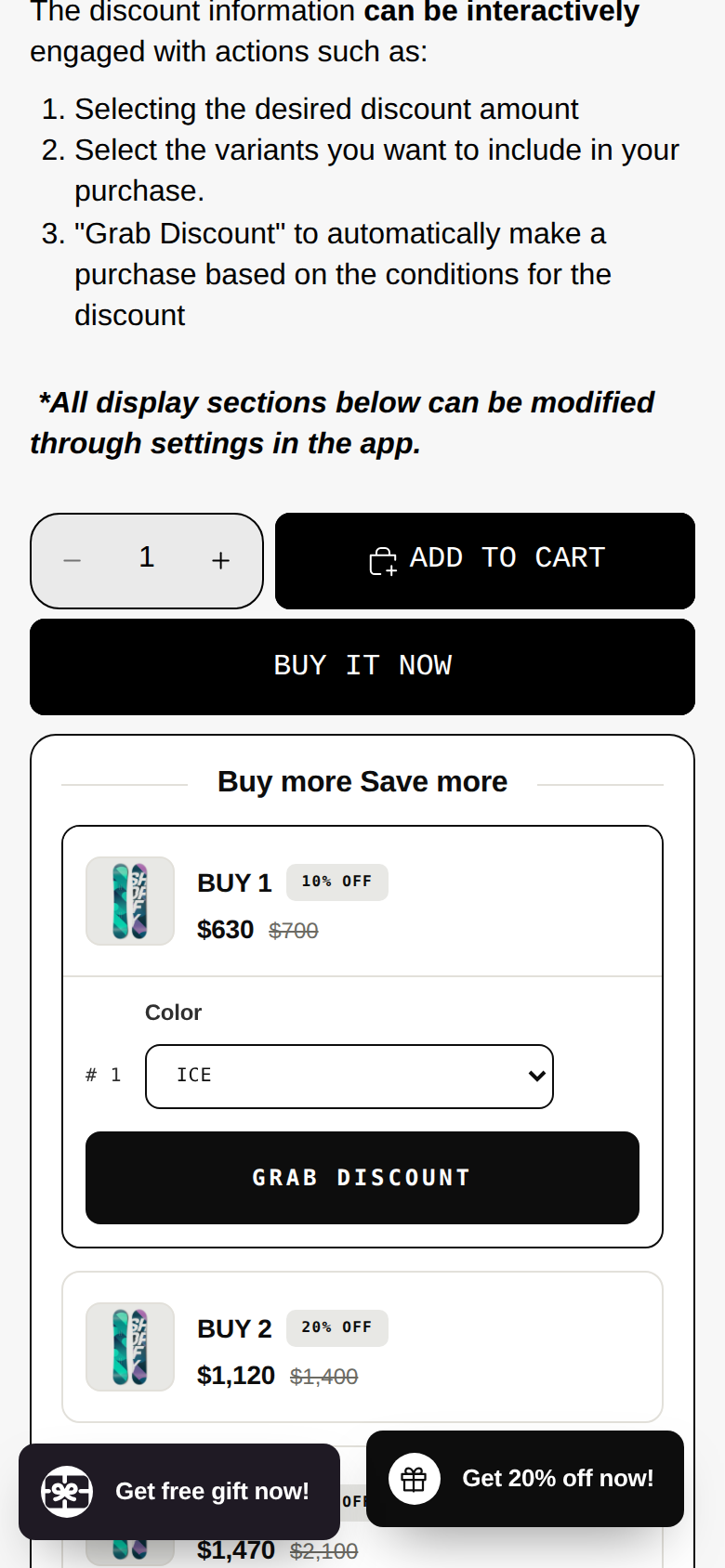
- Check it on a phone. Many shoppers browse on phones, so look at the block at 375 pixels wide, with sticky banners and chat widgets in place, before launch.
- Use real strike-through prices. Comparing a tier price to a struck-through “regular” price is a price comparison. The US Federal Trade Commission’s rule on former price comparisons says the former price must be “the actual, bona fide price at which the article was offered to the public on a regular basis for a reasonably substantial period of time” (16 CFR 233.1). A tier table whose reference price is the normal single-unit price fits that, but if you also run a “was” price, check your local rules. This is not legal advice.
- Use countdowns only for real deadlines. A per-visitor timer that resets is the opposite of a real deadline.
Two live examples
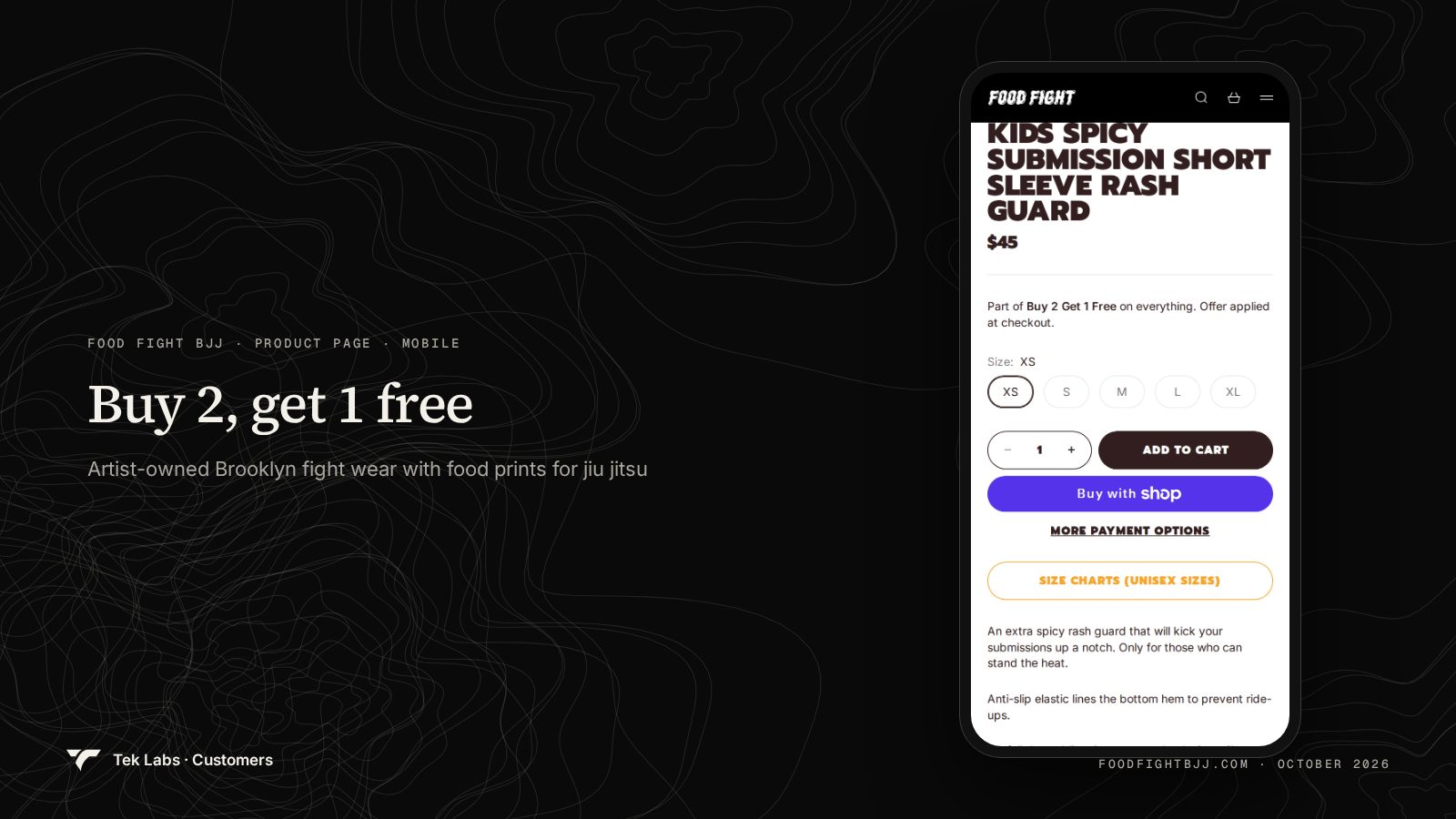
Food Fight BJJ, a Brooklyn BJJ apparel brand, runs “Buy 2, Get 1 free” on rash guards, shorts and streetwear, and its product page carries the line “Part of Buy 2 Get 1 Free on everything. Offer applied at checkout.” (customer page). It is a quantity-triggered offer where the reward is a free unit. That works for a catalog of related prints, because, as the customer page puts it, a shopper who likes one print often likes another.
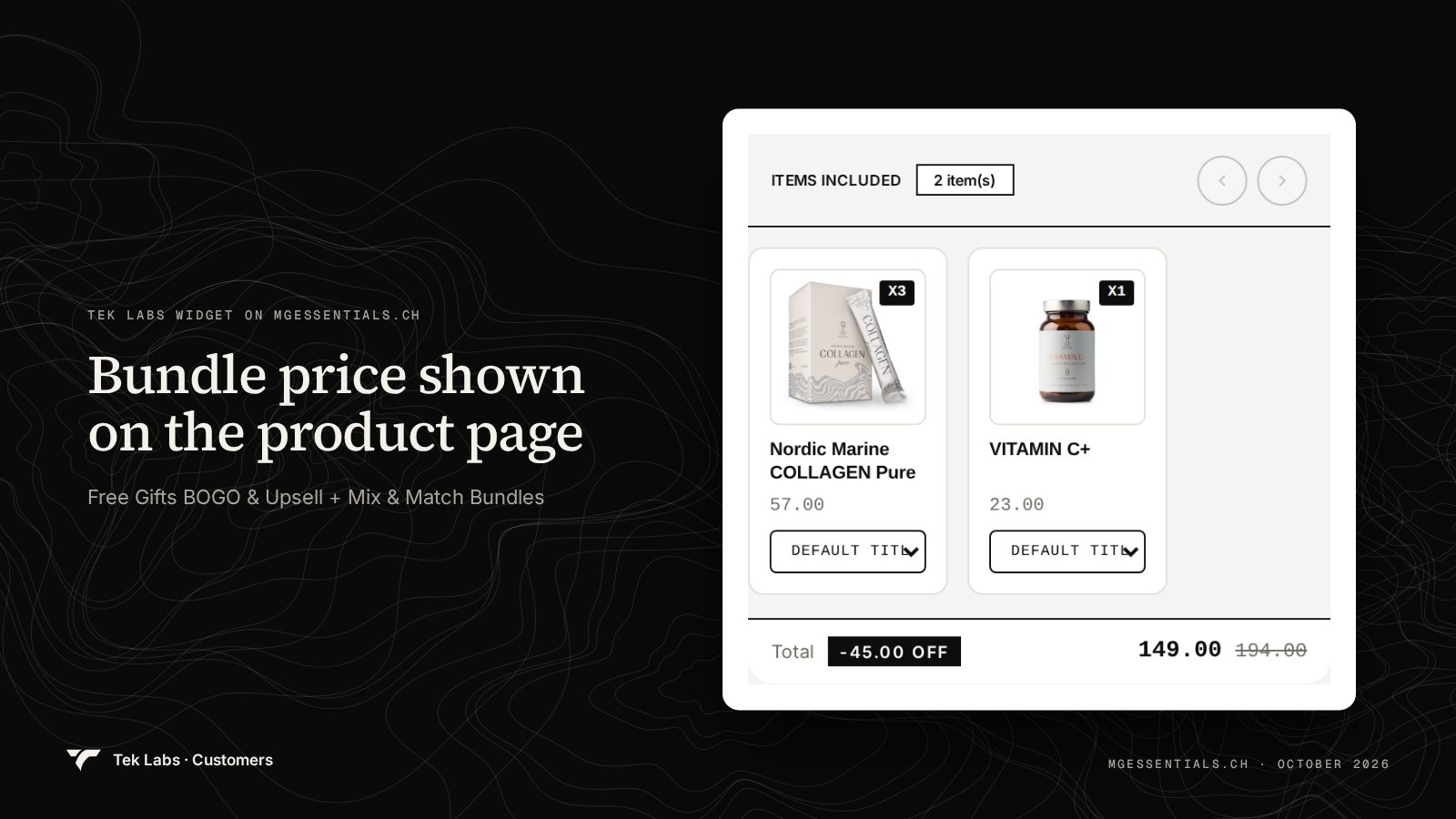
MG Essentials, a Swiss supplement brand, uses a multi-pack on its bundle widget: 3 packs of one product and 1 of another, with a total of 149.00 against 194.00 and 45.00 off (customer page). That is a fixed combination with a clear saving, a cousin of the quantity break.
How to set it up with an app, step by step
These steps follow the Free Gifts BOGO & Upsell user guide for the Volume Discount rule. Mix & Match Bundles uses a similar flow in its Volume Discount campaign.
- Install the app from the App Store and open the Volume Discount rule.
- Name the discount. The title appears in the cart and at checkout, so write it for the customer, for example “Buy more, save more”.
- Choose which items it applies to: all products, specific products or variants, collections, tags, a price range or product names.
- Choose percentage or fixed amount, then add your tiers with a minimum quantity and a discount for each. Mark one as selected by default if you want a pre-selected best value tier.
- Set whether the minimum quantity counts at product level or variant level.
- Choose the combination rules with product, order and shipping discounts.
- Restrict by customer tags or logged-in status if the offer is for a group.
- Set the start and end dates. The end date is optional.
- Pick the layout, display only or interactive, check the preview, then open the product page on desktop and mobile.
- Place three test orders: a 1-unit cart, a cart at each tier, and a cart that also has a code, and compare the totals to your table.
Test with the public demo stores if you want to see a block before you install anything: https://demo-salepify-app.myshopify.com (password: 1) and https://demo-bundle-app-r3ujxc7n.myshopify.com (password: 1).
What to measure
Set a baseline before launch, then compare the same number of days after.
| Metric | Why it matters | Where to find it |
|---|---|---|
| Average order value | Shows whether larger baskets appear | Shopify sales report: gross sales minus discounts, divided by orders |
| Units per order | Shows the quantity effect directly | Orders export |
| Discounts as a share of gross sales | Shows what the tiers cost you | Shopify sales report discounts line |
| Contribution per order | Shows whether you gained or lost money | Your own cost per item data |
| Conversion rate | Shows if the tier table changed buying behavior | Analytics |
| Tier mix (orders at 1, 2, 3, 4 units) | Shows whether shoppers use the ladder | Orders export |
Shopify’s sales report defines gross sales as product price times quantity before discounts, discounts as line item discounts plus the order-level share, and net sales as gross sales minus discounts and sales reversals. Its average order value is gross sales minus discounts, divided by the number of orders (Shopify Help Center, sales report). So AOV in Shopify is already net of discounts, which is what you want here.
Two cautions. First, run the test for full weeks so weekday effects cancel out, and avoid comparing a normal week with Black Friday week (Friday 2026-11-27) or Cyber Monday (2026-11-30). Second, if you cannot split traffic, do not claim the lift came from the tiers alone. Note what else changed.
Common mistakes
- Discounting what people already buy. The $232.80 cost above is the most common hidden loss. Start the ladder above your current typical quantity.
- Too many tiers. Six tiers are possible and rarely useful.
- Forgetting stacking. A tier plus a welcome code plus a sitewide sale can push a price below cost. Test the worst case.
- Hiding the offer. A discount shown only in the cart does not change what people put in the cart.
- Ignoring the variant rule. If sizes have different costs, product-level counting can mix cheap and expensive variants in one tier.
- Judging by AOV alone. The after-launch table showed AOV up 21% but contribution up 17%. A weaker mix could show AOV up and profit down.
- Using a fake timer. A timer that restarts for each visitor, with no real end date, damages trust.
If you want volume tiers, free gifts and bundles in one place, you can start with Free Gifts BOGO & Upsell, which has a free plan, or with Mix & Match Bundles if tiers on bundles and build-a-box offers matter more to you.
Frequently Asked Questions
Can Shopify do quantity discounts without an app?
Yes, for one threshold. An amount off products discount can require a minimum number of items and apply automatically. For several tiers in one rule, or a tier table on the product page, Shopify’s own documentation points to discount apps.
How many tiers should a quantity discount have?
Three or four is usually enough. The Tek Labs apps allow up to 6 tiers, but each added tier needs its own margin check and makes the table harder for shoppers to read.
What is the difference between a quantity discount and a bundle?
A quantity discount lowers the price when a customer buys more units, usually of one product or group. A bundle sells a defined set of products together at a set price or discount. Mix and match bundles with “any 3” rules sit between the two.
Will a volume discount stack with discount codes?
Only if the combination settings allow it. Shopify limits a customer to 5 product or order discount codes and 1 shipping code per order, and the Free Gifts BOGO & Upsell volume rule has its own settings for combining with product, order and shipping discounts. Test each combination with a real cart.
How do I know if my quantity discount is working?
Compare average order value, units per order and contribution per order for the same number of weeks before and after launch. If AOV rises but contribution falls, the discount is too deep or is going mostly to orders that would have been multi-unit anyway.