If a Shopify Buy X Get Y discount is not working, the cause is almost always one of two things: either the discount never applied because a rule on the discount was not met (eligibility, minimum, market, combination, sales channel or usage limit), or the shopper expected the free item to appear in the cart on its own. The second case is not a bug. Shopify states that with Buy X Get Y, customers must add all items to their cart manually, and the “get” item is never automatically added. This guide walks through each symptom, its cause and its fix, so you can find the problem in a few minutes instead of re-creating the discount from scratch.
All Shopify rules below were read on help.shopify.com or shopify.dev on 2026-10-04. Shopify changes its admin and its documentation, so if a screen differs from what you see, trust the current help page linked in each section.
Key takeaways
- Native Buy X Get Y never adds the “get” product for the shopper. If the free item is missing from the cart, nothing is broken: the shopper must add it, or you need an app that adds it.
- If the discount does not apply even when both products are in the cart, check in this order: customer buys rules, minimum purchase, customer eligibility, markets, sales channel, then combinations with other discounts.
- The minimum purchase amount counts product prices only. Shipping and taxes are never included, and items already discounted by a discount that does not combine do not count either.
- Shopify applies the best discount or combination for the customer when discounts cannot combine, so a larger code or automatic discount can silently replace your Buy X Get Y.
- Use the triage table and the numbered checklist below, then test on a fresh cart in an incognito window before you change anything else.
First, work out which problem you have
Merchants and customers describe very different failures with the same words, “Buy X Get Y is not working.” Before you open any settings, ask what the shopper actually sees. The table maps the most common descriptions to the section that covers them.
| What the shopper (or you) sees | Most likely cause | Go to |
|---|---|---|
| Both products are in the cart, but there is no discount line | A rule on the discount is not met (customer buys, minimum, eligibility, market, channel) | Symptoms 2 to 6 |
| Only the “buy” product is in the cart and the free item is absent | Native Buy X Get Y does not add the item | Symptom 1 |
| The discount appears, then disappears when a code is entered | Discount combination rules or a better competing discount | Symptom 5 |
| It works online but not at the register | POS plan and sales channel setting | Symptom 7 |
| It applies to the wrong number of items | Quantity settings and per-order limits | Symptom 8 |
| It stopped after you added another app or discount | Active discount limits or app conflicts | Symptom 9 |
| It does not show on the page right after payment | Admin discounts do not apply to the post-purchase page | Symptom 10 |
Here is a reliable way to triage a report in about five minutes.
- Reproduce it yourself on the storefront in an incognito window, logged out, with an empty cart. If you cannot reproduce it logged out, the cause is probably customer eligibility or a segment.
- Add only the qualifying “buy” items and note whether the discount appears. Then add the “get” item and check again. This one test separates “the item is never added” from “the discount never applies”.
- Open the discount in the admin and read every section top to bottom: Customer buys, Customer gets, Eligibility, Maximum discount uses, Combinations, Sales channels and Active dates. Most cases are found here.
- Disable every other active discount and app offer on a duplicate test cart. If it starts working, the problem is a conflict, not the discount itself.
- Test the same cart in the market, currency and device where the failure was reported.
Symptom 1: the free item is not added to the cart
This is the most common report, and it is also the one that is not a bug. Shopify documents it plainly in the Buy X Get Y help page: customers add the items themselves, and the “get” item is never added automatically. You can create the discount as a code or as an automatic discount. With a code, the customer enters it at checkout after adding the products (Shopify discount codes). With an automatic discount, it is applied once the qualifying items are in the cart. In both cases the shopper still has to put the free product in the cart.
Cause. The discount type is working as designed. A shopper who adds two T-shirts under a “buy 2, get 1 free socks” discount sees no socks, and no discount line, because the socks were never added.
Fix, option A (stay native). Make the offer obvious so shoppers add the item themselves. Put the rule in the product page copy and the cart, link the “get” product directly, and say “add the free item to your cart” in the announcement bar. The price drops to the discounted amount only after both items are present. This costs nothing but depends on the shopper doing a manual step, and every manual step loses some customers.
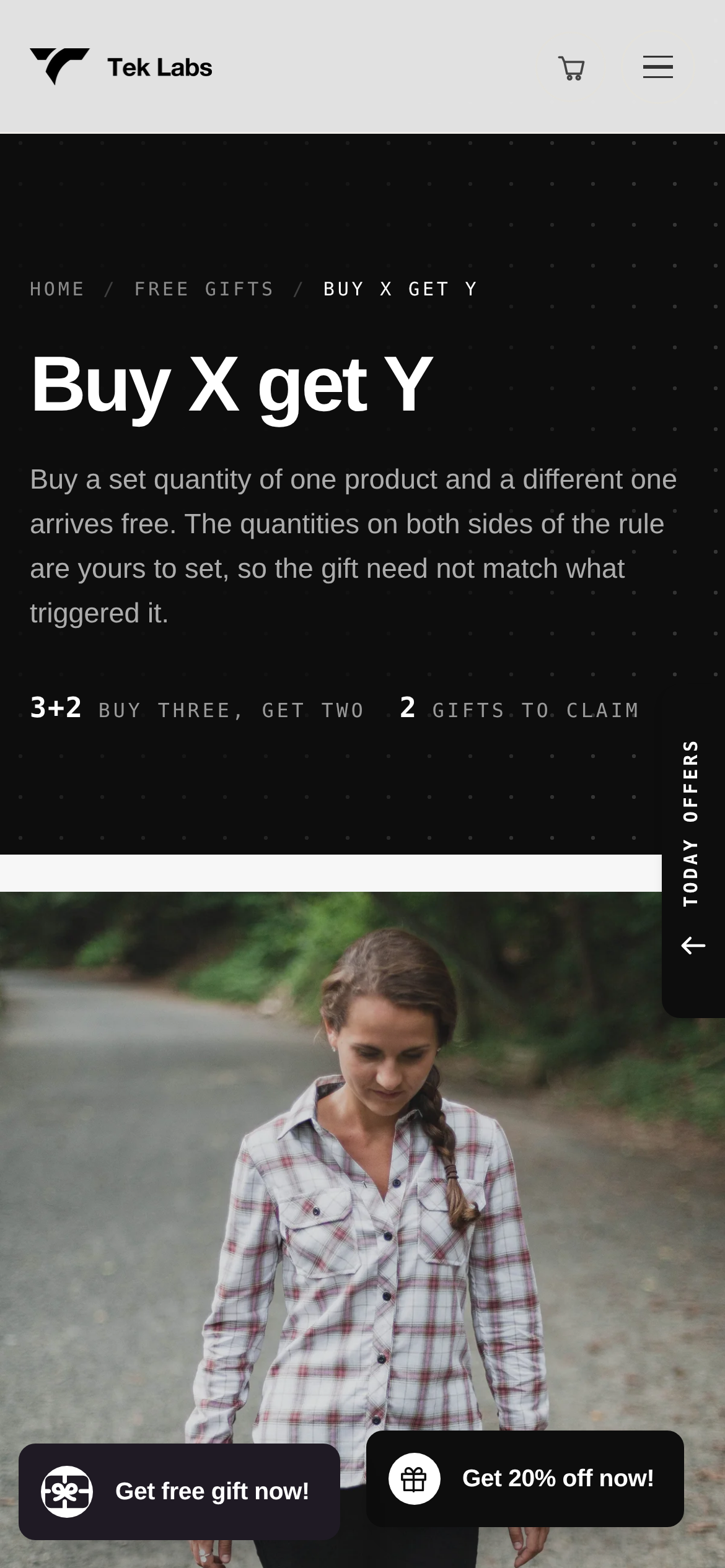
Fix, option B (use an app that adds the item). Apps can add the gift to the cart on their own. Our comparison of Shopify default Buy X Get Y and third-party providers covers when native is enough and when an app earns its place. For a how-to, see how to set up BOGO on Shopify. The mechanics of auto-adding are explained later in this article.
Symptom 2: “Customer buys” rules are not met
If both products are in the cart and nothing happens, read the Customer buys section first. Shopify lets you set either a minimum quantity of items or a minimum purchase amount, then choose the specific products or collections that count. Three details cause most failures here.
- Wrong products or collections. Only items from the “Customer buys” selection count. A product that is in the cart but not in that list (or not in the selected collection) does not move the shopper toward the threshold. Collections are the usual trap: if a product was recently added to the store but not yet to the collection, or a collection is a smart collection with a condition the product does not meet, the product silently does not qualify.
- Variants. If you selected specific variants rather than products, a different variant of the same product will not count.
- Purchase type. The discount can be restricted to one-time purchases only, subscriptions only, or both. A subscriber who picks a selling plan on an item may fall outside a one-time-only rule.
Fix. In the admin, open the discount and re-select the products or collection, then check each qualifying product’s collection membership. Add a test cart with exactly the qualifying quantity, no more and no fewer, and confirm the discount line appears.
Symptom 3: the customer is not eligible
Under Eligibility, a Buy X Get Y discount can be offered to all customers, to specific customers, to customer segments, or to specific markets. If you picked anything other than all customers, a shopper outside that group will never see the discount, even with a perfect cart.
- Specific customers and segments depend on identity. A discount limited to named customers or a segment can only help a shopper the store can identify as a member. If one is used, run your test as an actual member of it, logged in where your setup requires it. This is our inference rather than a Shopify statement, but testing logged out is a likely reason a “VIP” discount looks dead.
- Segment limits. Shopify’s managing discounts page states that an automatic discount can have up to 5 customer segments, while a discount code can have up to 100. If you pasted in more audiences than the discount allows, split them across discounts.
- Segments are defined by customer characteristics. Shopify describes a segment as a group of customers with similar characteristics (customer segments). Because membership follows those characteristics, it can change as customers change, so if someone says the offer “disappeared,” check whether they are still in the segment.
Fix. For a first test, set eligibility to all customers. If it works, narrow it step by step. If you must keep a segment, test with a customer account that is in the segment and confirm the membership in the customer profile.
Symptom 4: the minimum purchase requirement is not reached
When the buy side uses a minimum purchase amount instead of a quantity, there are specific counting rules. According to the Buy X Get Y help page, the minimum counts product prices only, shipping and taxes are never included, and only products from the Customer buys selection count toward it. Products count at their full price before other discounts, and items already discounted by a discount that cannot combine do not count toward the minimum.
Here is a hypothetical example, with the arithmetic shown. The discount: spend at least $100 on products in the “Totes” collection, get a travel pouch free.
| Cart line | Price | Counts toward the $100 minimum? |
|---|---|---|
| Canvas tote (Totes collection) | $48.00 | Yes, $48.00 |
| Camp mug (not in Totes) | $24.00 | No, wrong collection |
| Second canvas tote, but already reduced by a non-combinable code to $40.00 | $48.00 list | No, excluded because of the other discount |
| Shipping | $7.00 | No, shipping is never included |
| Tax | $4.50 | No, taxes are never included |
The shopper’s cart total looks like $123.50 (48 + 24 + 40 + 7 + 4.50), which feels like it clears $100, yet only $48.00 counts. The shopper sees no pouch and the merchant sees a “broken” discount. The fix is either to lower the threshold, widen the collection, or make the offer combine with the other discount (see Symptom 5).
Fix. Recompute the qualifying subtotal by hand using only eligible items at full price. If the sums disagree with what the customer expects, say so in the offer copy, for example “Spend $100 on totes, shipping and tax excluded.”
Symptom 5: another discount is competing with it
Discount combinations are the second biggest cause of “it was working yesterday.” Shopify groups discounts into three classes: product, order and shipping. The discount combinations page lists what can combine: order plus free shipping, product plus free shipping, product plus product on separate items, and, for eligible merchants, product plus order and order plus order. Product plus product on the same item is limited to Shopify Plus.
A Buy X Get Y discount is a product discount. So a few typical collisions follow.
- Two product discounts on the same item. A sitewide 20% off a product and a Buy X Get Y on that same product cannot both apply unless the store is on Shopify Plus and is configured for it. Shopify applies “the best discount or combination of discounts for the customer,” so the smaller offer is dropped, and the shopper sees only the other one.
- A code that overrides an automatic discount. The customer enters a code, and the automatic Buy X Get Y vanishes. That means the two cannot combine under their Combinations settings, and the code was better for the shopper.
- Code limits. A customer can apply at most 5 product or order discount codes plus 1 shipping discount code per order. The 5-code limit also counts discounts that came from shareable links (managing discounts).
- Channels. Per the same page, discounts combine only through the Online Store, the Storefront API and Shopify POS. A custom checkout flow outside those may not combine at all.
Fix. Open each active discount and look at its Combinations section. Tick the classes you want it to combine with, on both discounts, since combinations are set on each discount. Then test with the exact code the customer used. If you run many promotions at once, a written test plan saves hours; ours is in how to test your Shopify discount combinations. The glossary entries for discount combinations and automatic discounts define the terms.
Symptom 6: markets and currency
If a store sells in several countries, the discount can behave differently by market. Two documented facts matter.
First, a Buy X Get Y discount can be limited to specific markets under Eligibility. A shopper browsing from a market that is not on the list will not receive it, which looks like a bug to a customer abroad. Second, Shopify’s discounts and currencies page explains that a fixed-amount discount converts at the exchange rate, so “the amount of the discount can fluctuate.” Its example is a $2 USD discount that converted to 1.74 EUR one day and 1.76 EUR the next. The same page says you cannot use discount codes to offer currency-based discounts, for instance a code that only works for orders in one currency.
Hypothetical impact. Suppose your “get” item is discounted by a fixed $10 off rather than set to free. A shopper in another currency sees a rounded, converted figure that may differ slightly from your internal expectation. If that shopper also compares prices across a theme’s cart and the checkout, minor differences can read as “wrong discount.” Setting the “get” item to Free or to a percentage removes the exchange rate variable from the offer.
Fix. Check the Eligibility list for the market, test the cart with the market switched in an incognito window, and prefer Free or a percentage for the “get” item in multi-currency stores.
Symptom 7: it works online but not at POS
The Buy X Get Y help page ties POS availability to your POS subscription. In its words, for stores on POS Lite, Buy X get Y discounts can be used only in the online store checkout, while retail locations on POS Pro get them in both the online store and POS checkouts. To offer it in store, you select Point of Sale in the Sales channels section. The page also states that automatic discounts apply only to retail locations with a POS Pro subscription.
Fix. Confirm which POS plan each location is on. If a location is on POS Lite, the discount cannot run at that register no matter how the discount is configured. If it is on POS Pro, check that Point of Sale is selected in the Sales channels section.
We did not find a Shopify page that spells out every POS edge case for app-based offers, so if you use an app on POS, confirm it against that app’s own documentation before a promotion launches.
Symptom 8: it applies too many times, or not enough
Buy X Get Y offers repeat unless you limit them. The “Customer gets” section sets the quantity of discounted items, and the Maximum discount uses options set how often it can apply. According to the help page you can set the maximum number of uses per order, limit the total number of times the discount can be used, and limit it to one per customer (tracked by email or phone number).
Hypothetical example. Offer: buy 2 T-shirts at $30, get 1 pair of socks at $10 free.
- Cart with 2 T-shirts and 1 sock: discount is $10, total $60.
- Cart with 4 T-shirts and 2 socks: if the offer repeats, the discount is $20 and the total is $120. If you set the maximum uses per order to 1, the discount stays at $10 and the total is $130.
- Cart with 2 T-shirts and 2 socks, repeats on: 1 sock is free, the second sock is full price, so the total is 60 + 10 = $70.
When a merchant says it “did not apply to the second pair,” the usual cause is a maximum uses per order of 1. When a merchant says it “gave away too many socks,” the usual cause is no limit at all. The one-per-customer and total limits also explain why a promotion “ran out” with no warning: once a total usage limit is hit, the discount stops for everyone.
Fix. Decide the intended repeat behavior in writing, then set the per-order, total and per-customer limits to match, and test one cart for each case.
Symptom 9: an app discount or a second app is in the way
Apps add their own discounts and their own cart logic, and either can interfere with a native Buy X Get Y. Documented limits and behaviors:
- Active automatic discount cap. A store can have at most 25 active automatic discounts, and that total includes app-based discounts (automatic discounts). A store with many seasonal offers can reach the cap, after which new ones will not activate.
- Execution order. Apps that build discounts with Shopify Functions run in a defined sequence in checkout, where “each function depends on data from earlier steps” (Shopify Functions). Two apps changing prices on the same line can produce a result neither merchant expected.
- Cart transforms. Bundle and cart apps may use a cart transform function, and Shopify allows one cart transform function per app on each store (cart transform API). Updating a line’s price through a cart transform is limited to development stores and Shopify Plus stores. These details explain why a store can behave differently depending on its plan.
- Scripts. On stores still using Shopify Scripts, “automatic discounts run after scripts and use the updated line item prices” from the scripts, so the discount math starts from script-adjusted prices.
- Theme cart drawers. Many themes and cart apps render the cart in their own drawer. If a drawer caches a stale cart, a discount can look absent until the page reloads. Open the full cart page or checkout to see the authoritative result.
Fix. Disable other discount and cart apps one at a time on a duplicate theme, checking the discount after each. When one of them restores it, check that app’s combination settings, or move the logic into a single tool.
Symptom 10: it does not appear on the post-purchase page
Shopify states that Buy X get Y discounts created in the Shopify admin do not apply to the post-purchase page at checkout, and automatic discounts created in the admin do not either. If you expect a native discount to show on the offer page shown right after payment, it will not. That page needs an app built for it, such as a post-purchase upsell tool (see our Post Purchase Upsell page).
Quick reference: symptom, cause, fix
| Symptom | Cause | Fix |
|---|---|---|
| Free item never appears in cart | Native Buy X Get Y never auto-adds the “get” item | Tell shoppers to add it, or use an app that adds the gift |
| No discount with both items in cart | Customer buys rules not met (product, collection, variant, purchase type) | Re-select qualifying items, check collection membership |
| Works for you, not the customer | Eligibility is set to a segment, customer list or market | Test as a member, or widen eligibility |
| Cart total clears the threshold but no discount | Minimum counts eligible product prices only, at full price | Recount; excluded items, shipping and tax do not count |
| Discount vanishes when a code is entered | Combination rules, or a better competing discount | Align Combinations on both discounts |
| Different result in another country | Market eligibility or currency conversion | Use Free or percentage; test the market |
| Fine online, absent in store | POS Lite does not carry the discount | Use POS Pro and select Point of Sale |
| Wrong number of free items | Per-order or total usage limit | Set limits deliberately |
| New offer will not turn on | 25 automatic discount cap, including apps | Retire old discounts |
| Not shown on post-purchase page | Admin discounts do not apply there | Use a post-purchase app |
How an app adds the free item automatically
Because native Buy X Get Y never adds the “get” item, an app has to do the one thing the discount cannot: change the cart. The general idea is simple. The app watches the cart, checks the offer’s conditions, and when they are met it adds the gift product with a price of zero, or at a reduced price, and removes it again if the conditions stop being true. The pricing still needs to be a real discount at checkout, so apps typically create or hook into a Shopify discount for it (Shopify’s discount APIs allow apps to define custom discount types with Functions).
Here is how this works in Free Gifts BOGO & Upsell, based on its user guide read on 2026-10-04. The Buy X Get Y and BOGO feature page shows the shopper side.
- You create a rule and set the condition: cart value, or cart quantity (the guide’s example is “Buy 1 book, get 1 free bookmark”), applied to specific products, collections, variants or tags.
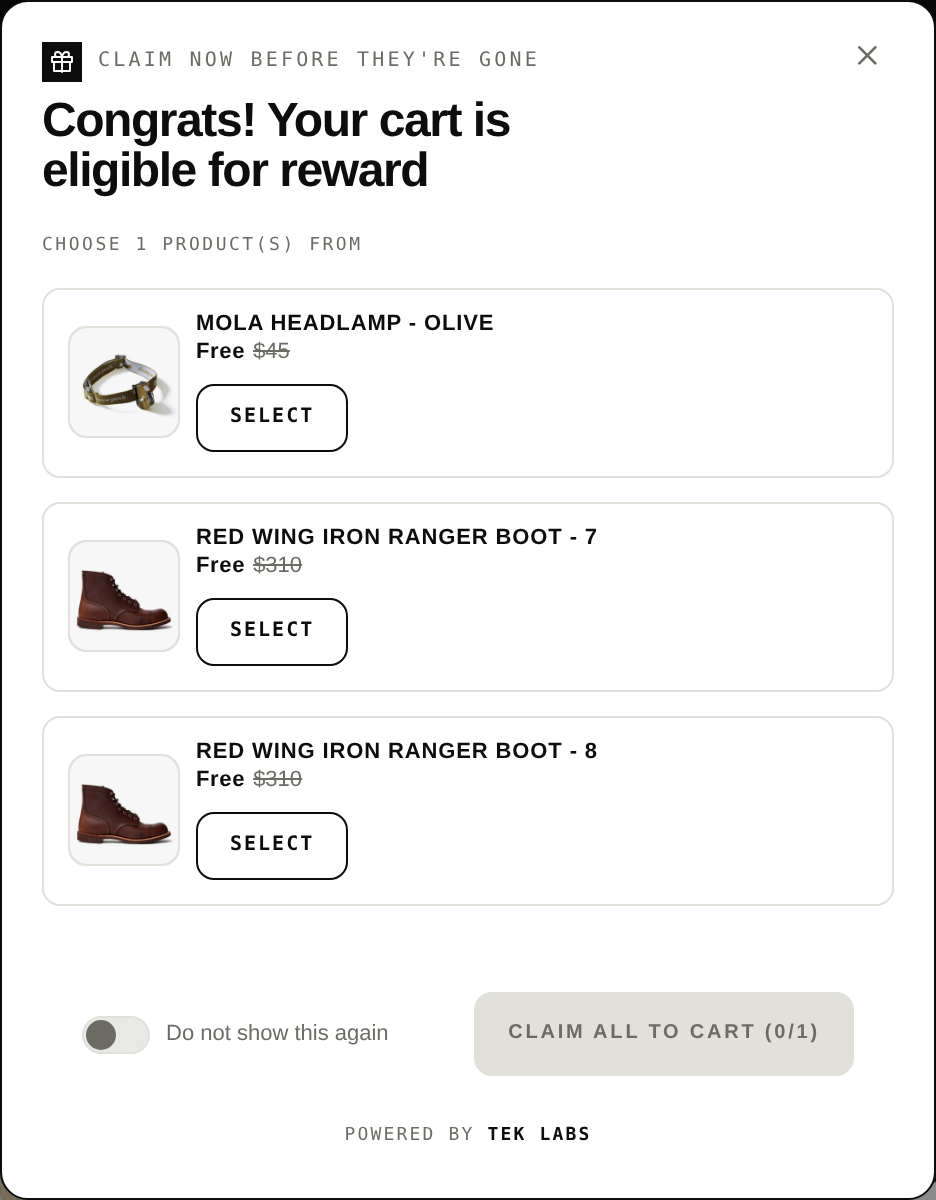
- You choose the reward: automatically add gifts, or let customers choose manually. For automatic gifts there are modes to add all products on the list, add the first available gift (falling back to the next if the first is out of stock), or discount the cheapest product.
- You set the discount on the gift: free, percentage off, fixed amount off, or amount off each.
- You protect the offer with optional settings: prevent customers from changing the gift quantity or removing it, auto-remove the gift if conditions are no longer met, hide out-of-stock gifts, and limit uses per order or in total. The guide notes the offer repeats per order by default, and recommends a limit of 1 if you do not want it to repeat.
- You choose how it combines: a Discount Combinations setting covers product, order and shipping discounts. The guide recommends ticking it on if you use other apps or Shopify discounts.
- You choose where it shows: a notification, a popup, and an embedded widget on the product page or cart.
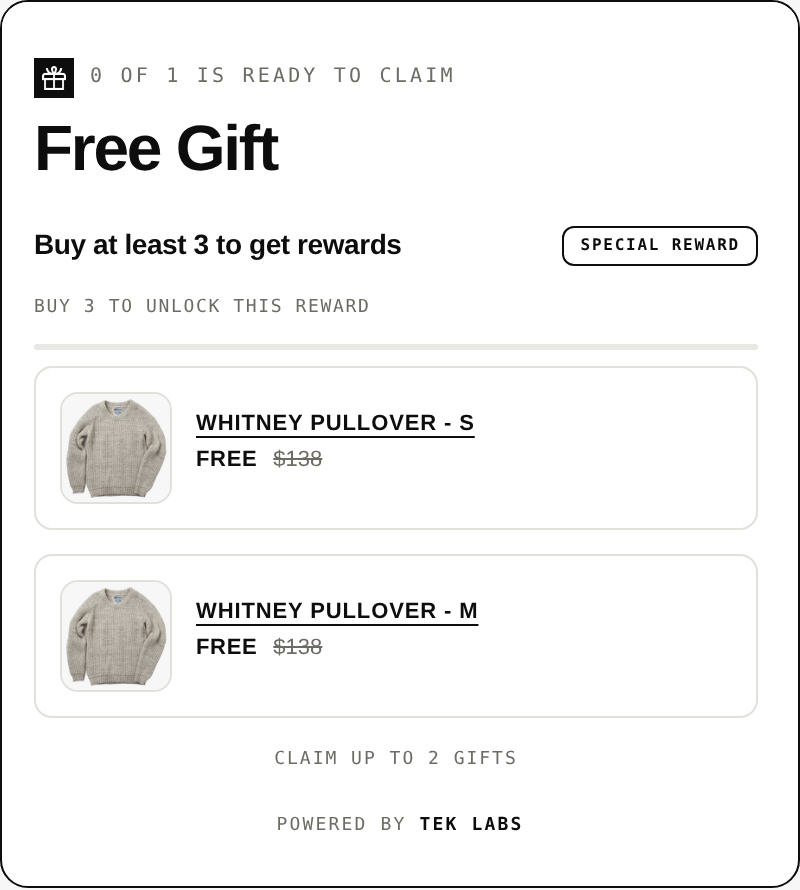
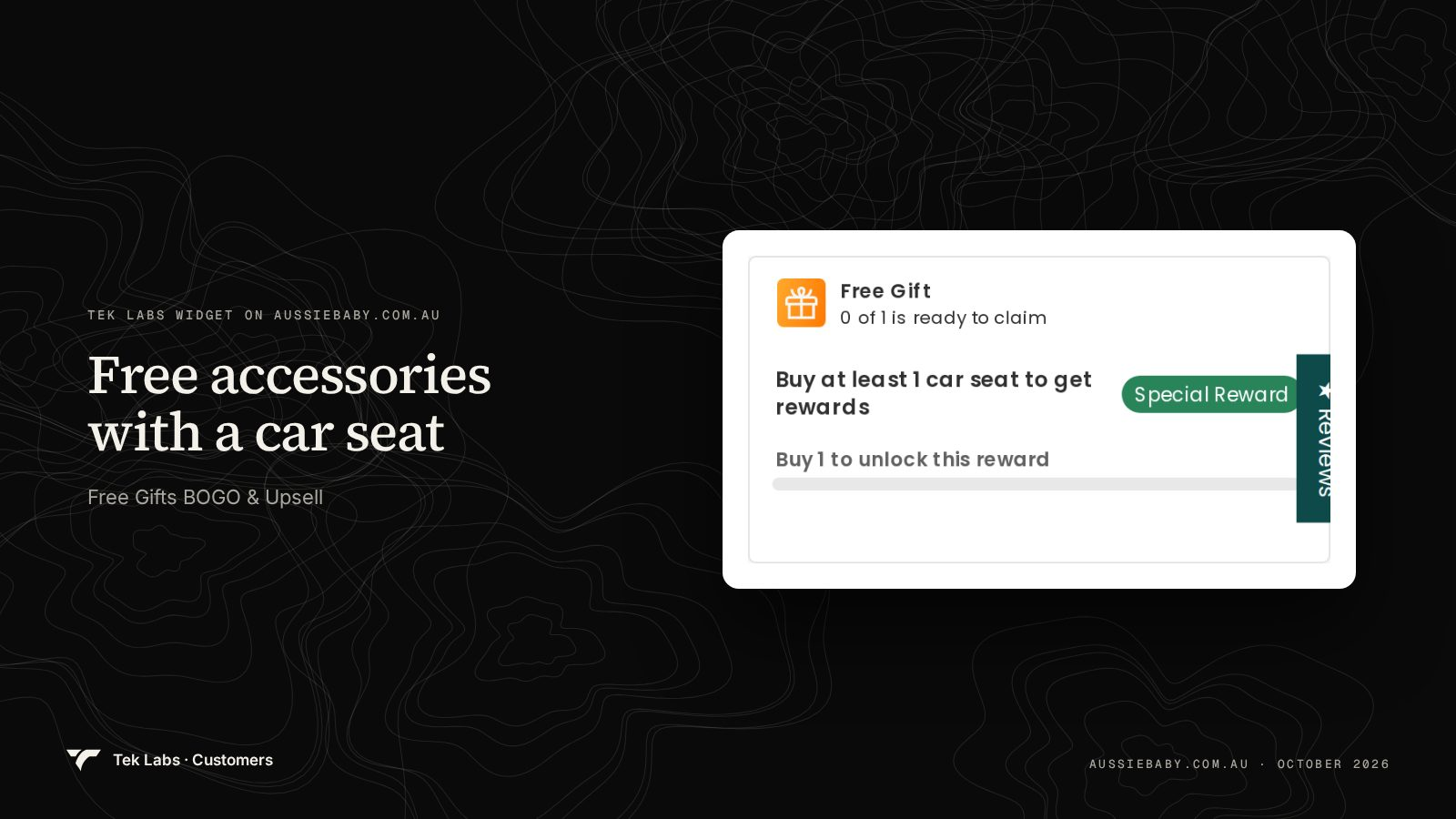
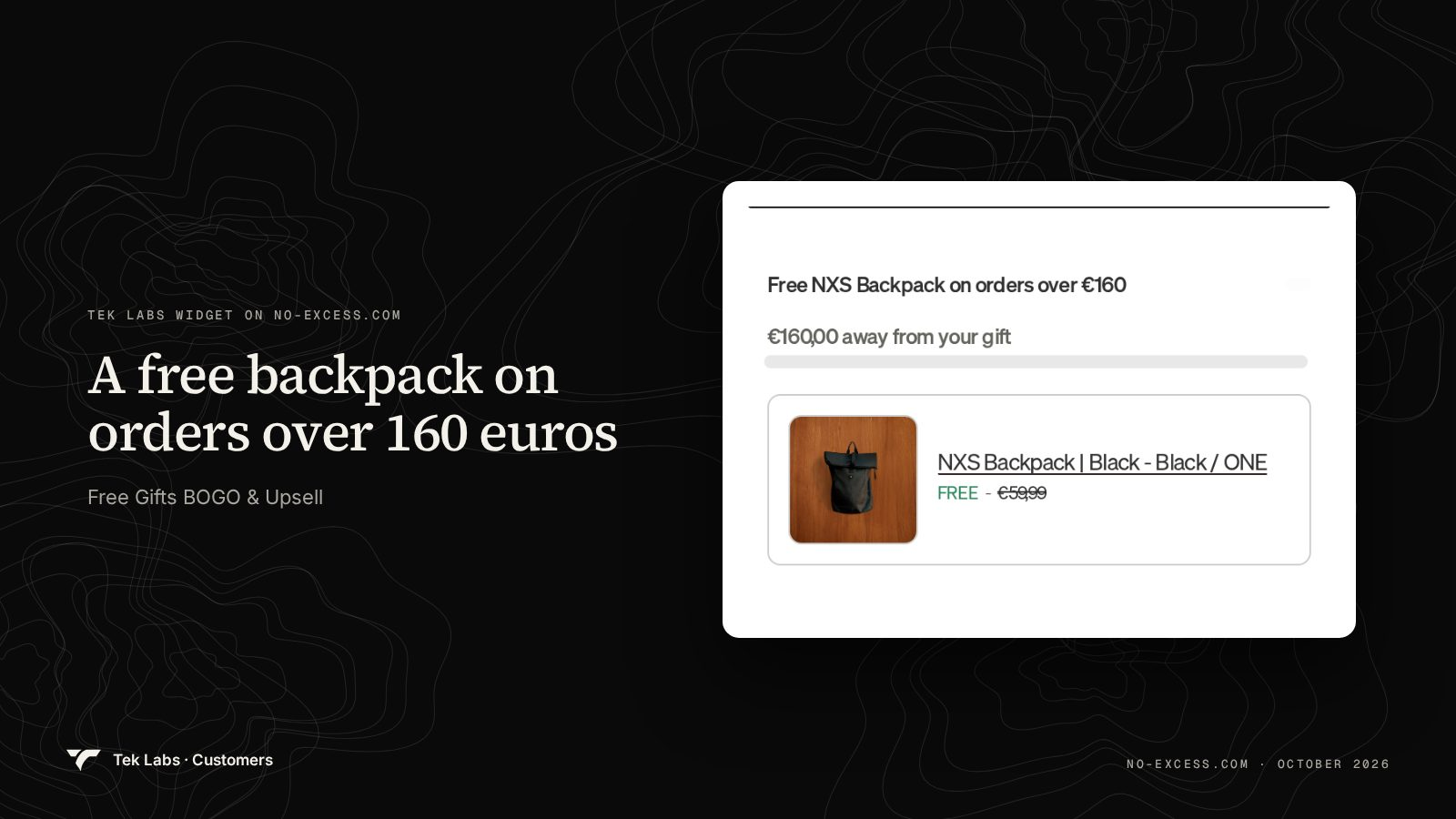
For a store that does not want a choice, the automatic mode adds the gift as soon as the condition is met. Two real storefronts show how the offer reads before it unlocks. On Aussie Baby, the widget says “Buy at least 1 car seat to get rewards” with the line “Buy 1 to unlock this reward.” On No Excess, it reads “Free NXS Backpack on orders over 160 euros” and shows how far the cart is from the gift.
An app is a second moving part, so it adds its own failure modes: a theme block that is not enabled, a gift product that is a draft or out of stock, or a popup not set to display. Free Gifts BOGO & Upsell has a Validate offer button that checks for these without activating the offer, covering the widget block in your theme, auto-add readiness, offer visibility and popup position. See the Offer setup check feature. Whatever tool you use, run an equivalent check before launch.
Related controls worth knowing
Three other features help with the situations in this guide. Cheapest item free covers “buy 3, cheapest is free” mechanics without picking a specific gift. Offer usage limits is the app-side version of the per-order and total limits in Symptom 8. Offer priority and stacking is for stores where several offers may qualify at once.
When native is enough, and when it is not
Shopify itself says that if a store needs “tiered discounts, multi-logic step discounts, or custom eligibility requirements,” it will need third-party apps or Shopify Plus features (discount types overview). In practice, that gives a simple rule of thumb.
| Situation | Native Buy X Get Y | App |
|---|---|---|
| Customer is happy to add the “get” item themselves | Fine | Not needed |
| Free item must appear in the cart without action | Cannot do | Needed |
| Customer should choose from several gifts | Cannot do | Needed |
| Several tiers of rewards in one cart | Awkward | Needed |
| One simple code for a small promotion | Fine | Not needed |
| Offer must show before checkout (product page, cart) | Limited to your own copy | Needed |
A pre-launch test plan you can reuse
Run this before any promotion, and again after any change to discounts, apps or the theme.
- Test on a fresh cart in an incognito window, logged out, on desktop and on a phone.
- Add exactly the qualifying quantity and confirm the discount line appears. Remove one item and confirm it disappears.
- Add the double quantity and confirm the repeat behavior you chose.
- Add your most common code and confirm the combined result.
- Switch market and currency, and repeat.
- Test a logged-in member of each eligibility segment.
- If you use POS, run one in-store test cart on each location.
- Complete a test order and check the order’s discount line in the admin.
Common mistakes
- Rebuilding the discount instead of reading it. Most failures are one wrong setting. Reading each section once takes less time than recreating the discount.
- Testing only as the admin. Admins often have a different cart, cached sessions and customer tags.
- Forgetting the other side of a combination. Combinations are chosen on each discount. Ticking the box on one is not enough.
- Using a fixed amount in a multi-currency store. Free or a percentage is more predictable.
- Hitting the 25 automatic discount cap. Archive expired offers before launching new ones.
- Promising an auto-added gift in copy while using native Buy X Get Y. The copy should match what the cart does.
- Launching without a limit decision. Decide per-order and total usage limits on purpose.
If you want gifts added for the shopper, with a choice, tiers and a pre-launch check, Free Gifts BOGO & Upsell does that and has a free plan on its Shopify App Store listing.
Frequently Asked Questions
Why is my Shopify Buy X Get Y discount not applying?
Usually a rule on the discount is not met. Check Customer buys (products, collections, variants), the minimum, eligibility, markets, the sales channel and the Combinations section, and test on a fresh logged-out cart. If both products are in the cart and nothing applies, a competing discount or a code may be winning because Shopify applies the best discount for the customer.
Can Shopify Buy X Get Y add the free item to the cart automatically?
No. Shopify states that customers must add all items manually and that the “get” item is never automatically added. An app is needed if the free item should appear on its own.
Why does Buy X Get Y work online but not in my store?
Shopify’s Buy X Get Y page says POS Lite locations can use the discount only in the online store checkout, while POS Pro locations can use it in both. On POS Pro, select Point of Sale under Sales channels, and note that automatic discounts apply only to POS Pro retail locations.
Why did my Buy X Get Y disappear when the customer entered a code?
The two discounts probably cannot combine. When discounts cannot combine, Shopify applies the best one for the customer, so a larger code can replace the Buy X Get Y. Set Combinations on both discounts, and remember the limit of 5 product or order codes plus 1 shipping code per order.
Does the minimum purchase amount include shipping and tax?
No. Shopify says the minimum purchase amount counts product prices only, and shipping and taxes are never included. Only products from the Customer buys selection count, and items already discounted by a discount that does not combine are left out.