To set up BOGO on Shopify, go to Discounts, create a Buy X get Y discount, choose what the customer buys and what they get for free, and save it as a code or an automatic discount. Shopify’s native version never adds the free item to the cart by itself, so if you want the item added for the shopper, or the cheapest item in the cart made free, you need either theme work or an app such as Free Gifts BOGO & Upsell.
Key takeaways
- The native route is Discounts, then Create discount, then Buy X get Y. You set the “customer buys” items, the “customer gets” items, the discount (free, percentage or amount off each), and a maximum number of uses per order.
- Shopify states that the free or discounted “get” item is never automatically added to the cart, so shoppers must add it themselves. The offer text and cart messages have to say so.
- There are three common BOGO shapes: the same item, a different item, and the cheapest item free. Their margin cost is very different. Buy one get one free on the same item equals 50 percent off every unit.
- Check the margin on a worked example before you launch. On a hypothetical $40 item with $14 cost, same-item BOGO earns $12 per order instead of $26 for a single full-price unit.
- On most Shopify plans, a product that is part of a Buy X get Y discount cannot take further product discounts. Test your stacking before you announce the deal.
What BOGO means on Shopify
BOGO stands for buy one, get one. On a store it covers a family of deals: buy one and get one free, buy two get one free, buy one get one half off, buy three and get the cheapest free. Shopify does not use the word BOGO in its admin. It calls the discount type Buy X get Y, where X is what the customer has to buy and Y is what they receive at a reduced price or free. BOGO is the case where X is one and Y is one.
Shoppers like the format. In the research summarized in Shopify’s BFCM promotion guide, 38 percent of online shoppers preferred percentage discounts on a single item and 38 percent preferred buy-one-get-one or similar offers. Two academic studies give a reason for the appeal. Palmeira and Srivastava found that willingness to pay for a product after a promotion ends is higher when the product was offered for free than when it was offered at a low discounted price. Chen, Marmorstein, Tsiros and Rao documented a substantial advantage in sales volume for a bonus pack over an economically equivalent price discount in a field experiment. Neither study says BOGO is always more profitable, which is why the margin check later in this guide matters.
Before you start: three decisions
- Pick the shape of the deal: same item, different item, or cheapest item free. The next sections explain each one.
- Pick how the shopper gets the deal: an automatic discount that applies when requirements are met, or a code they enter at checkout. Shopify’s discount types page says Buy X get Y can be used either way.
- Decide the limits: how many times it can repeat in one order, which products qualify, which markets see it, and the start and end dates.
Write the offer in one sentence, for example “Buy any two tees, get a third tee free, up to one free tee per order, ends November 30.” If the sentence is not clear to you, it will not be clear to shoppers either.
Method 1: the native Shopify Buy X get Y discount
This is Shopify’s Buy X get Y discount. It works without installing anything, which makes it the right place to start for a simple offer.
- In your Shopify admin, open Discounts and select Create discount, then choose Buy X get Y.
- Choose the method: a discount code, or an automatic discount. An automatic discount applies once the cart meets the requirements. A code needs the shopper to enter it.
- Under “Customer buys”, set either a minimum quantity of items or a minimum purchase amount, and choose the items from specific products or specific collections. Shopify notes that shipping and taxes are never included in the purchase amount.
- Under “Customer gets”, set the quantity of items the customer receives a discount on, choose the products or collections they can get, and choose the discount: Percentage, Amount off each, or Free.
- Tick the option to set a maximum number of uses per order, and enter the number. Without a limit, the offer can repeat as the cart quantity grows.
- Under eligibility, decide whether the discount is for all customers, specific customers, customer segments or specific markets.
- In Combinations, check which classes of discounts this discount can combine with.
- Set the start and end dates. They follow the time zone selected in your Shopify admin.
- Save, then test in a preview theme with a real cart and a test order.
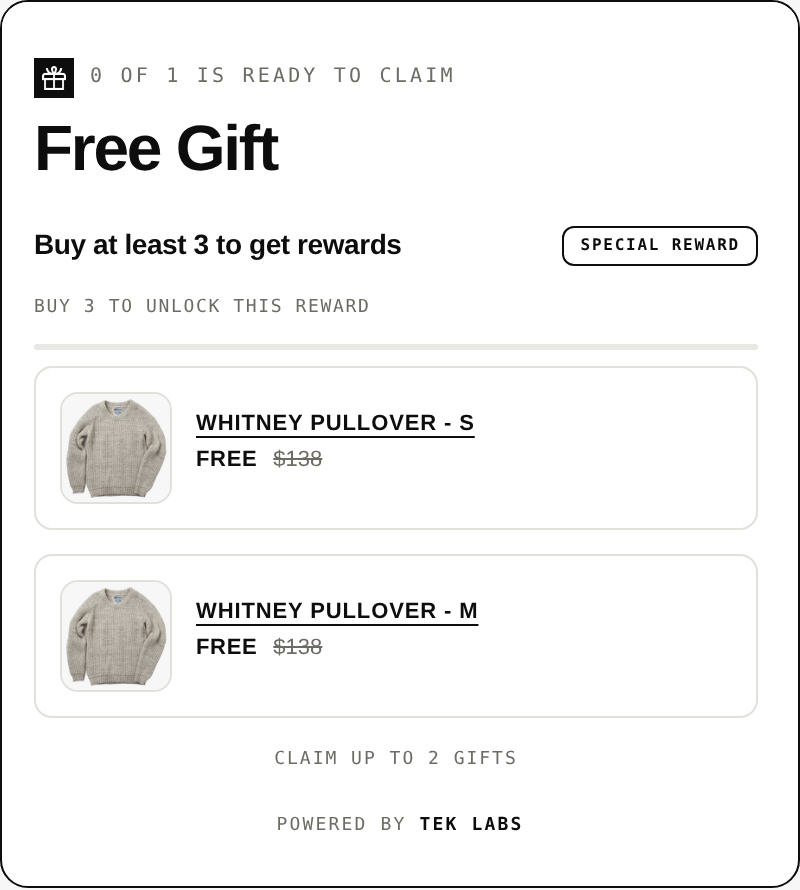
What the native version does not do
The most important limit is quoted directly on Shopify’s help page: “Customers must add all items to their cart manually. The free or discounted ‘get’ item is never automatically added to the cart.” So a shopper who adds one shirt will not see the second shirt appear. They have to find it, add it, and trust that the price will drop. For a deal such as buy two get one free of the same product, that works well: the shopper adds three of the same item and the discount applies. For a deal where the free item is a different product, you need a visible message on the product page and the cart saying which item to add.
Other limits to know:
- Buy X get Y discounts created in the Shopify admin do not apply to the post-purchase page at checkout.
- On all plans except Shopify Plus, all products that are part of a Buy X get Y discount are ineligible for further product discounts. If you plan a sitewide sale at the same time, those items will not take it.
- There is a maximum of 25 active automatic discounts per store, and customers can use at most 5 product or order discount codes and 1 shipping discount code on one order.
- POS Lite plans apply the discount online only; POS Pro can apply it in both places.
The three BOGO shapes and their margin cost
The shape you choose decides how much margin you give away. Run the numbers for each before you pick. The examples below are hypothetical and use round figures, so replace them with your own prices and costs.
Shape 1: the same item (buy one, get one free)
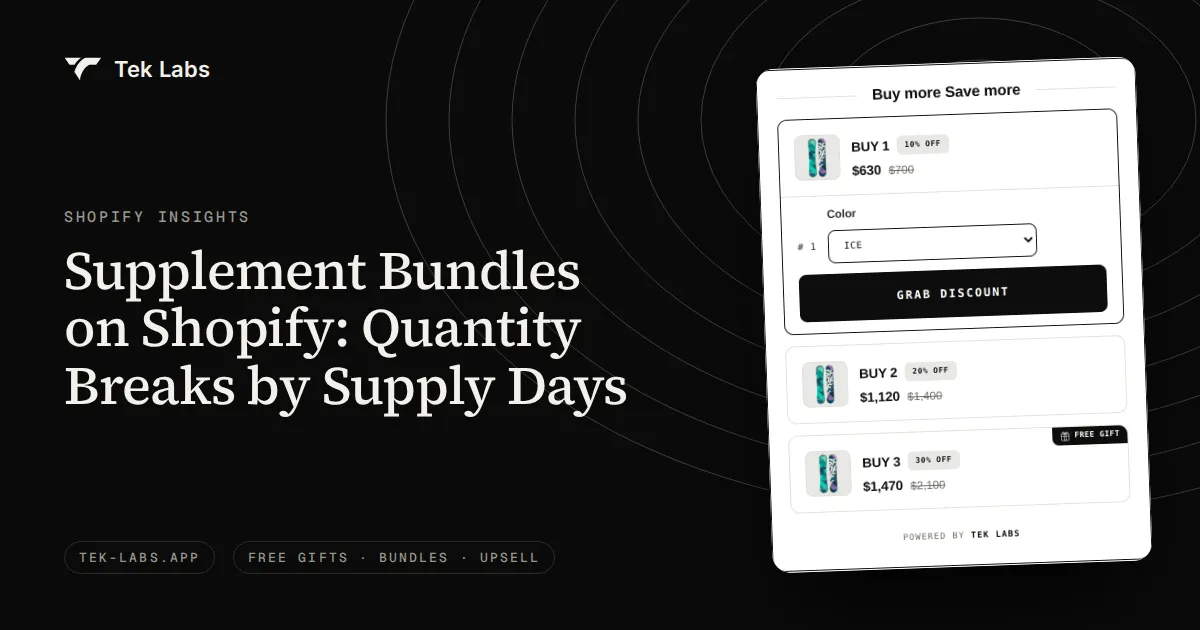
The shopper buys a product and gets another unit of the same product. This is the easiest deal to explain, and the most expensive: buy one get one free equals 50 percent off each unit. In the native discount, set “customer buys” and “customer gets” to the same product, set the buy quantity and get quantity, and choose Free.
Hypothetical example: a $40 item with a $14 cost. A single full-price sale earns $40 – $14 = $26. A BOGO order sells two units for $40 and costs $28 to supply, so it earns $40 – $28 = $12. To match the $26 you would earn from one full-price unit, you need 26 / 12 = 2.17 BOGO orders for every one regular order you give up. The deal is only profitable at all if the unit cost is below half the price ($20 here), which means a gross margin above 50 percent.
Shape 2: a different item (buy a hero, get a small item)
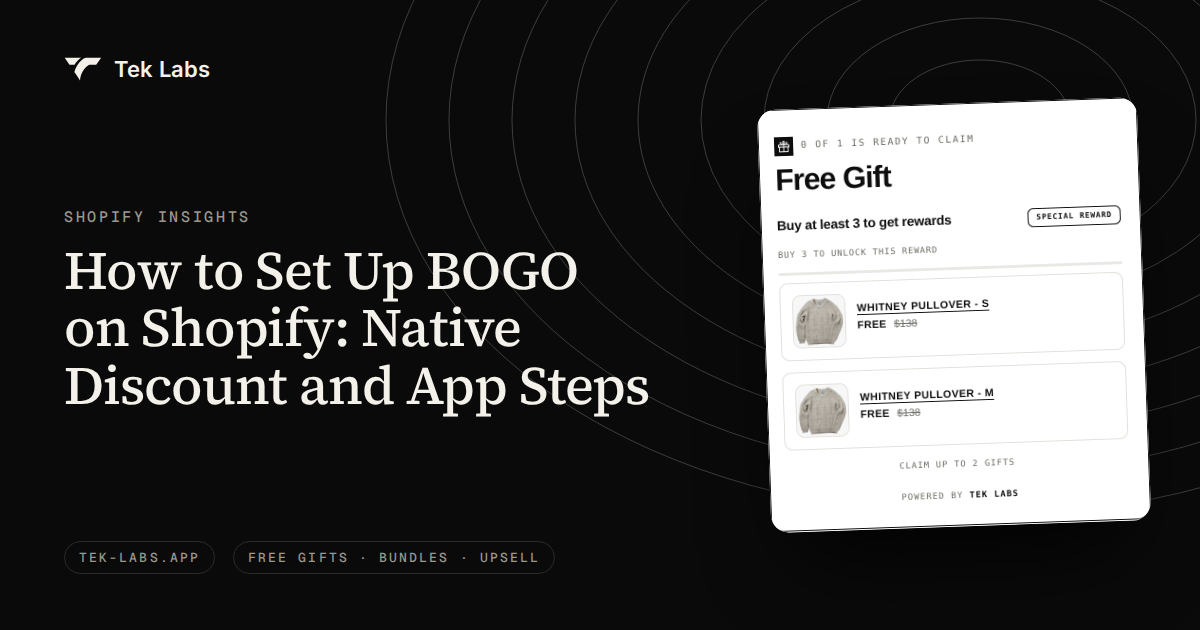
The shopper buys one product and gets a different, usually lower-priced one. In the native discount, set the “customer buys” items to the hero product or collection, and the “customer gets” items to the add-on product or collection, with the discount set to Free. This shape keeps the perceived value while limiting the cost, which is the main idea behind a free gift. The shopper still has to add the get item manually in native Shopify.
Hypothetical example: a $60 hero product with a $24 cost, and a $12 accessory with a $3 cost. A hero-only order earns $36. A BOGO order with a free accessory earns $60 – $24 – $3 = $33. The giveaway costs $3, so you need only 36 / 33 = 1.09 times the number of hero orders to break even. This is why the different-item shape is often safer than the same-item one. It is also the shape that turns into a free gift with purchase, where a threshold replaces the “buy one” condition.
Shape 3: the cheapest item free (buy three, get the cheapest free)
The shopper fills the cart with qualifying items, and the lowest-priced one becomes free. It works well for multi-buy deals in categories where items have similar prices, such as basics or accessories. The native help page lists specific products or collections for the get items, and I found no documented “cheapest item” rule on that page, so test how a native discount handles mixed-price carts before you rely on it.
Hypothetical example: three items at $30, $40 and $50, each with a cost at 40 percent of price ($12, $16 and $20). Full price: $120 revenue, $48 cost, $72 profit. With the cheapest free: $90 revenue, $48 cost, $42 profit. The discount is $30, or 25 percent of the cart, and you need 72 / 42 = 1.71 times as many orders to match the profit of selling the same basket at full price. The deeper the price gap between the three items, the more the deal costs.
| Shape | Effective discount | Hypothetical profit per order | Orders needed to match full-price profit |
|---|---|---|---|
| Same item, buy 1 get 1 free ($40 item, $14 cost) | 50% per unit | $12 vs $26 | 2.17x |
| Different item, free $12 accessory with $60 hero | $12 retail value ($3 cost) | $33 vs $36 | 1.09x |
| Cheapest free on three items ($30, $40, $50) | 25% of the cart | $42 vs $72 | 1.71x |
Margin check: five minutes before you save the discount
- Write down the full price and unit cost for each item the deal can touch.
- Calculate profit with the deal and without it, as in the three examples above. Use the same basket for both.
- Divide full-price profit by deal profit to get the order multiple needed to break even. If you do not believe the deal will lift orders by that multiple, lower the discount.
- Add shipping, payment fees and returns. A free item that ships in the same box adds little; one that needs a second parcel can erase the profit.
- Cap the offer. Use a maximum number of uses per order, and decide whether to limit total uses.
Competitive context also matters. Adobe’s data shows that on Cyber Monday 2025 electronics peaked at 31 percent off the listed price, toys at 28 percent, and apparel at 25 percent. A BOGO on the same item sits at 50 percent per unit, which is deeper than those averages, so reserve it for items with high margin or stock you want to clear. Our post on liquidating excess inventory covers the clearance case.
One legal note, which is not legal advice. The US Federal Trade Commission’s guide says terms for a “Free” offer should be set forth clearly and conspicuously at the outset, and it defines the regular price as the price at which the product has been openly and actively sold over a reasonably substantial period, that is, a 30-day period. Do not raise a price just before a BOGO, and show the terms in the widget.
Method 2: set up BOGO with an app
An app is the right choice when the native limits get in the way: you want the free item added to the cart for the shopper, you want the cheapest item made free, you want a widget on the product page, or you want to run several tiers at once. Shopify itself points to discount apps in the App Store for needs beyond the built-in tools. Our earlier comparison of Shopify’s default Buy X Get Y and third-party providers goes through the differences in more detail.
The example below uses Free Gifts BOGO & Upsell, the app we build. Its App Store listing describes BOGO, Buy X Get Y, free gift with purchase, volume discounts and bundles, and says gifts can be added automatically or chosen by the customer. There is a free plan. Menu names can change between versions, so follow the labels in your own admin and the user guide.
Auto-add BOGO: buy X, get Y added to the cart
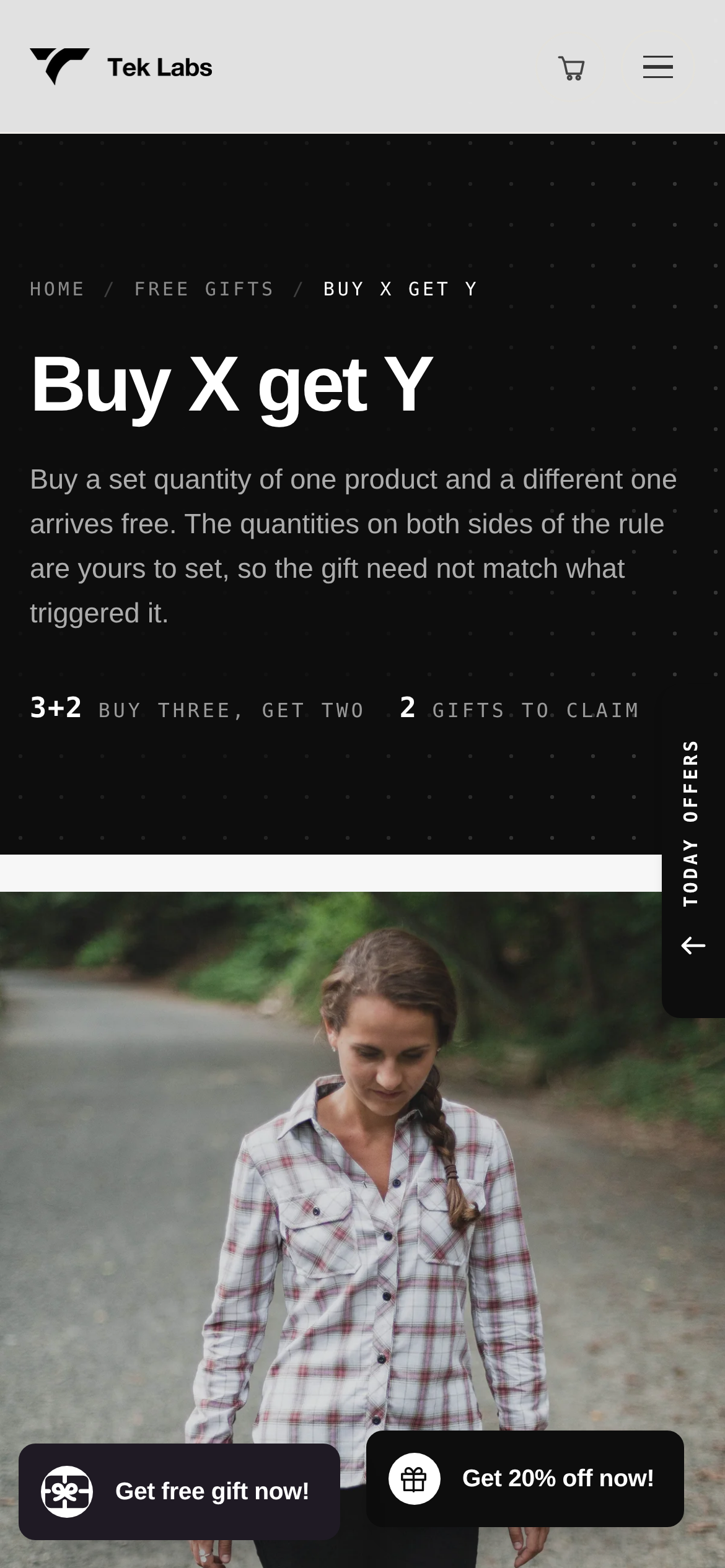
- Install the app from the Shopify App Store and enable its app embed in your theme editor. Shopify describes app embeds as elements that float or display as an overlay in your theme, or add code without being visible to customers.
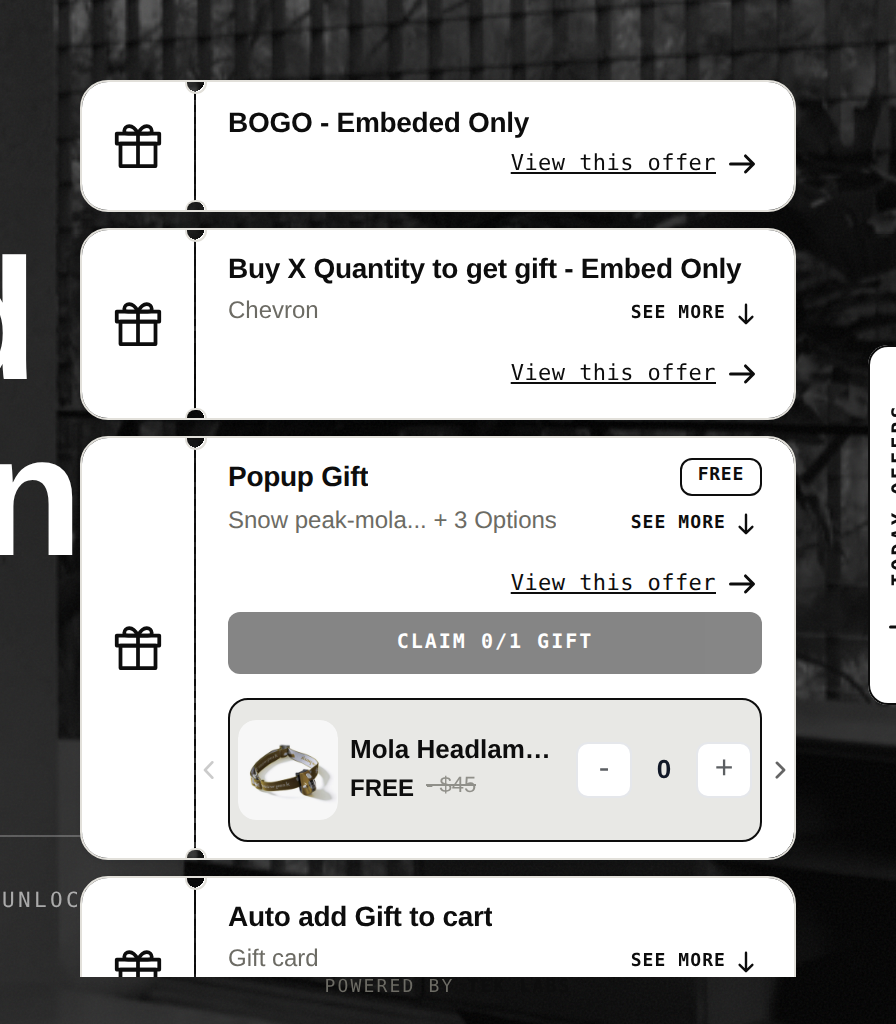
- Create a Free Gift offer, name it and set it to active. The Buy X Get Y and BOGO feature uses the same condition and reward settings as the free gift offers.
- Set the Buy X condition by cart quantity (the user guide’s example is buy 1 book, get 1 free bookmark) and apply it to specific products, collections, variants or tags.
- On the reward step, select the gift products, then choose whether the gift is added automatically or picked by the customer.
- Set the discount for the reward: free, a percentage, or a fixed amount.
- Limit how often it applies: a maximum number of uses per order, once per customer, or a total cap. The usage limits feature lists the three options.
- Style the BOGO popup and the product page widget, preview on desktop and phone, and save.
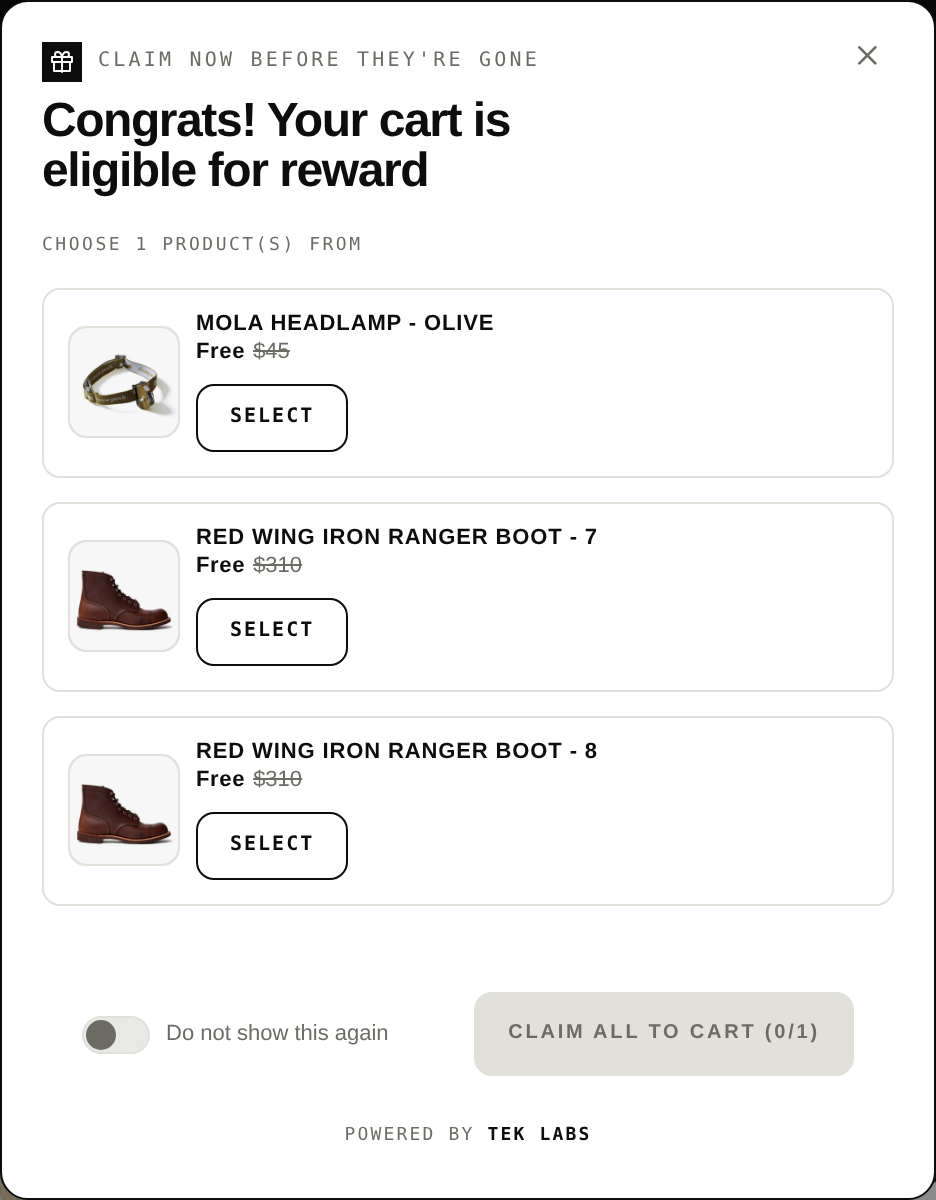
The difference for the shopper is the missing step. Instead of finding the second item and adding it, the item appears in the cart, or the shopper chooses from a short list in a popup and clicks to claim it. The app also supports a decline button in the popup, which keeps the cart from feeling forced.
Cheapest item free
For the “buy three, get the cheapest free” shape, the app has a reward option that discounts the lowest-priced qualifying item in the customer’s own cart instead of adding a separate gift. According to the cheapest item free feature page, you create a Free Gift offer, set the condition to cart quantity, choose the option “Discount the cheapest product from customer’s purchase” on the reward step, then set the discount to Free, Percentage, Amount off each, or Fixed price per product. Because no gift is added, you do not need to hold separate gift stock. The page notes the option cannot be used together with the product combo condition.
Keep it from stacking by accident
Whether you use native discounts or an app, Shopify’s combination rules are the foundation: product, order and shipping discounts are separate classes, and each discount says which classes it may combine with. In the app, you set priority and combination settings per offer, so a smaller gift offer does not stack on top of a larger BOGO unless you want it to.
Test before you announce it
Use a preview theme and test orders. Shopify’s test order guide says you can simulate a transaction through the Test payment gateway or use Shopify Payments’ test mode. Cover these cases:
- Add exactly the qualifying quantity and check that the price drops to the amount you calculated.
- Add one fewer than the quantity and check that nothing changes.
- Double the quantity and check that the deal repeats only as often as your maximum uses allow.
- Add a discount code on top, and check the result against Shopify’s combination rules.
- Remove the qualifying item and check that the free item goes away or is charged at full price, as you intended.
- Switch markets and currencies. Shopify converts fixed-amount discounts from your store currency, while percentage discounts have no currency attached.
- Try it on a phone. Adobe reported that 57.5 percent of Cyber Monday 2025 online sales came through a mobile device.
- If the free item is a different product, check that it is in stock. Shopify’s continue selling setting lets items sell at zero or below when inventory tracking is on, which you may not want for a gift.
The app has an offer setup check that flags a theme block that is not enabled, auto-add gifts that are out of stock or drafts, and products that stop an offer from appearing. It reports problems and does not change the offer. If you plan to run BOGO around Black Friday, our BFCM offer checklist puts these tests in a timeline, and the post on Black Friday free gift ideas has offer ideas beyond BOGO.
Which method should you pick
| Situation | Better fit |
|---|---|
| Buy two of the same product, get one free, shopper adds all three | Native Buy X get Y |
| One-off code deal for an email list | Native Buy X get Y as a discount code |
| Free item should appear in the cart without the shopper doing anything | App with auto-add |
| Cheapest item in the cart free | App with cheapest item option, or test native behavior first |
| Several tiers and progress messages in the cart | App with multi-tier rewards |
| Offer after payment on the thank you page | Post-purchase upsell tool; native Buy X get Y does not apply there |
If you only need a basic offer for a short time, use the native discount and put the instructions in plain words on the product page. If shoppers keep missing the free item, or you want to run several offers together, an app saves work. Our free gift threshold example shows how to set the spend level when the deal is a gift rather than BOGO.
Common mistakes
- Setting “customer buys” and “customer gets” to the same collection without testing what the discount does on mixed-price carts.
- Leaving out a maximum uses per order, so a cart of ten items gives five free ones.
- Expecting the free item to appear on its own in native Shopify. It will not.
- Running BOGO at 50 percent per unit on an item with a margin below 50 percent.
- Expecting a post-purchase offer to use the same discount. Buy X get Y discounts made in the admin do not apply on the post-purchase page.
- Not telling shoppers the end date and the terms in the widget and the ad.
- Forgetting that products in the discount may not take other product discounts, so a sitewide sale leaves them out.
Next step
Start with one deal and one product group. Build the native discount first if the free item is the same product. If you need auto-add, the cheapest-item reward or a product page widget, Free Gifts BOGO & Upsell has a free plan you can use to build and test the offer before you publish it.
Frequently Asked Questions
How do I set up a BOGO deal on Shopify?
Go to Discounts, select Create discount, choose Buy X get Y, set what the customer buys and what they get, choose Free as the discount, set a maximum number of uses per order, and save it as a code or an automatic discount. Then test it with a test order.
Does Shopify add the free BOGO item to the cart automatically?
No. Shopify’s help center says customers must add all items to their cart manually and that the free or discounted get item is never automatically added. An app can add the item for the shopper.
Can I make the cheapest item free on Shopify?
The native Buy X get Y page documents choosing specific products or collections for the get items but does not describe a cheapest-item rule, so test it before relying on it. An app such as Free Gifts BOGO & Upsell has a reward option that discounts the cheapest product in the cart.
Does a BOGO discount work with other discounts on Shopify?
On all plans except Shopify Plus, products in a Buy X get Y discount are not eligible for further product discounts. Order and shipping discounts follow the combination settings you choose, and the code and automatic discount limits still apply.
Is BOGO profitable?
It depends on margin. Buy one get one free on the same item equals 50 percent off each unit, so it only earns money if your unit cost is under half the price. A BOGO that gives away a low-cost add-on or a cheapest-item discount can cost much less.